
.png?fit=max&auto=format&n=fTXEPIUfjW4rC1Pi&q=85&s=85d7b852879d29ad2bde9b743307ab0e)
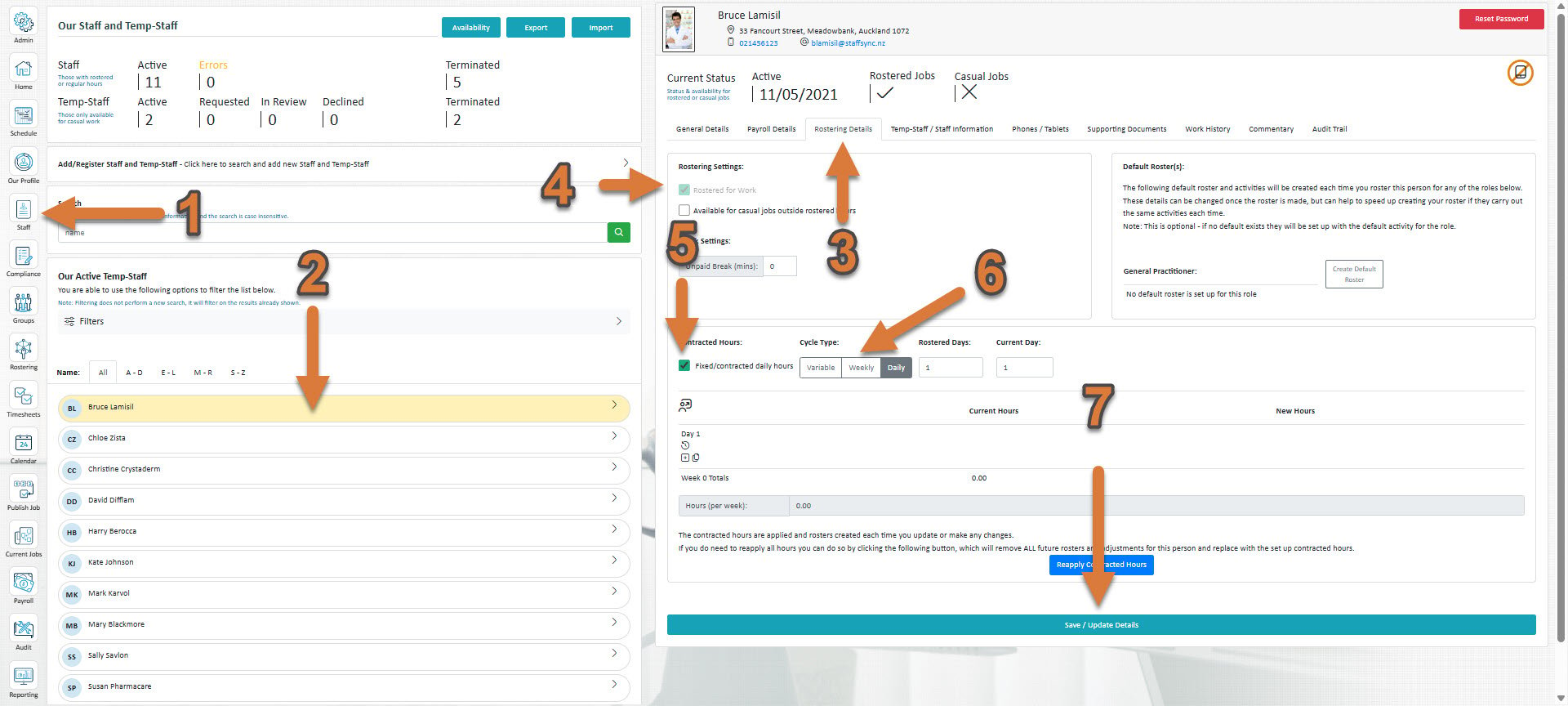
- Click Staff (If you cannot see the ‘Staff’ button, then you will need to ask your store administrator to grant you access)
- Select the staff member you’d like to set up new contracted hours for
- Select Rostering Details
- If if hasn’t already been ticked, tick Rostered for work
- Tick Fixed/contracted daily hours
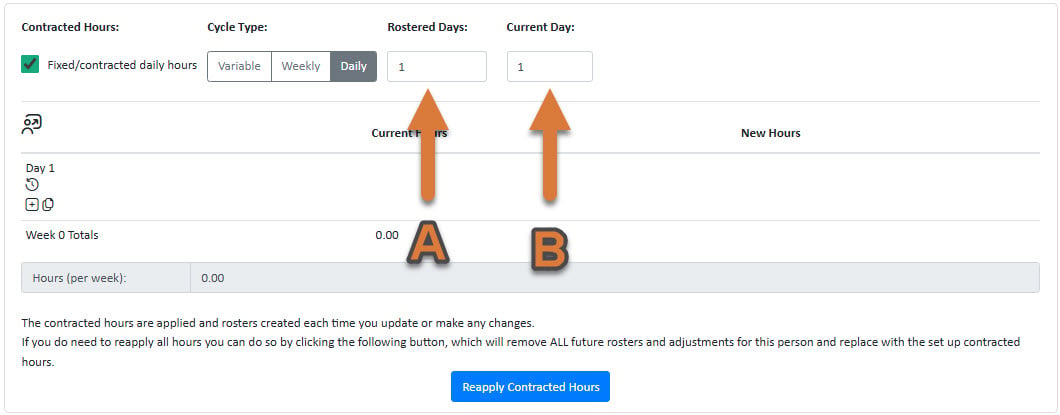
- Click Daily.
- Press Save / Update Details
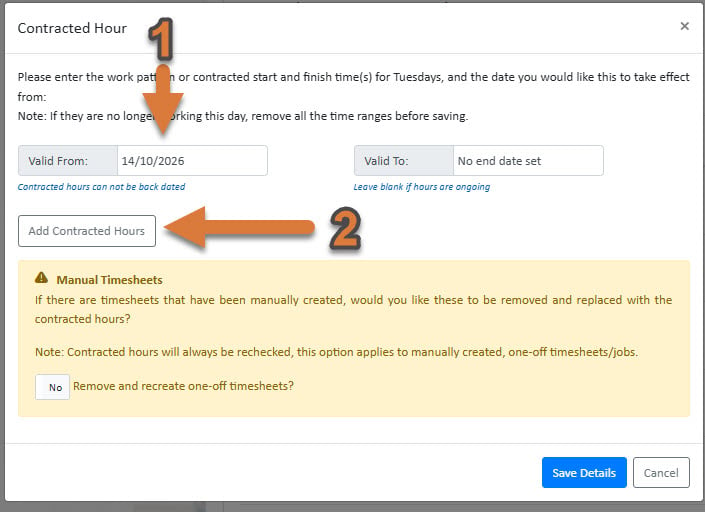
- Select a date that you’d like the contracted hours to start from
- Press Add Contracted Hours to add contracted hours
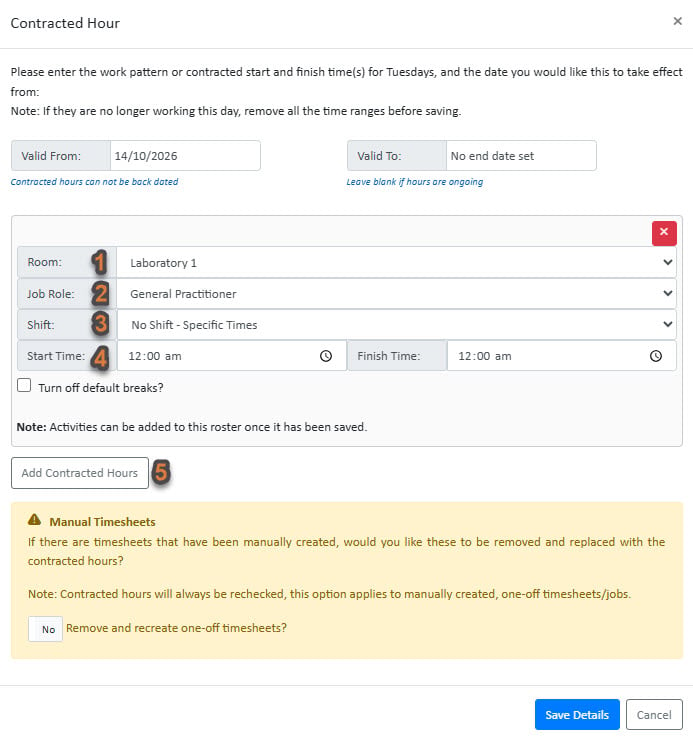
- Select the Department
- Select the Job Role
- Select the Shift
- Select the Start Times
- If you wish to set up multiple shifts, you can add one here
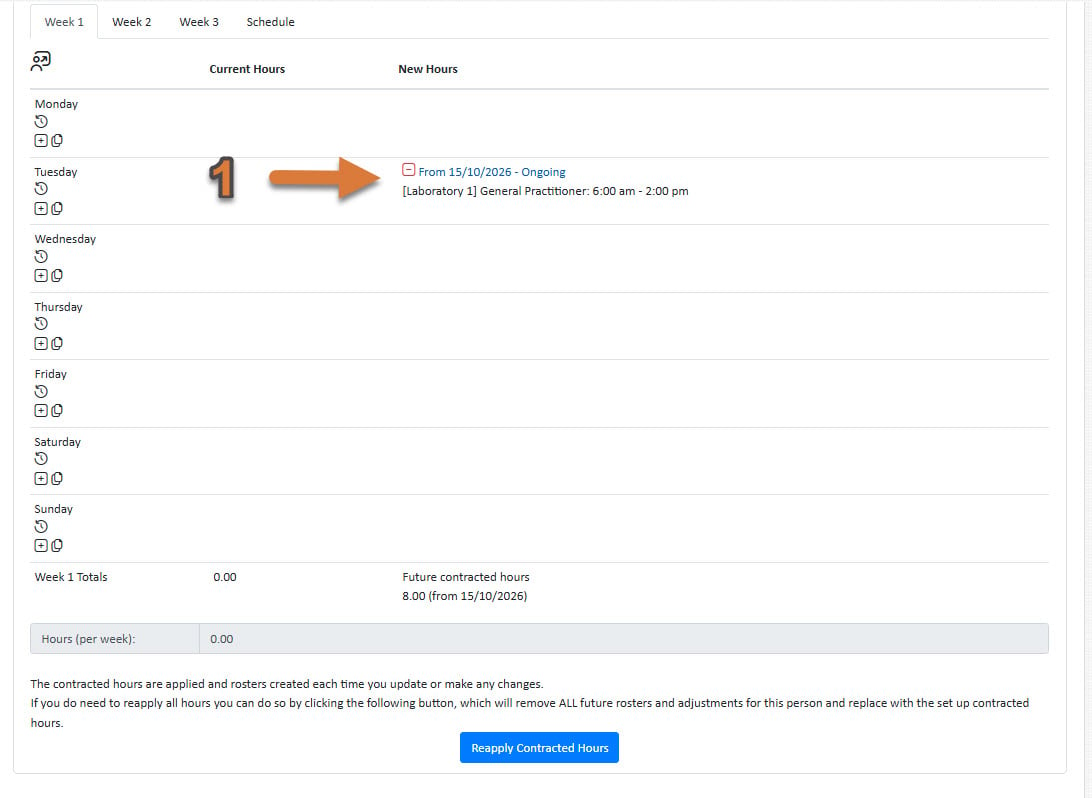
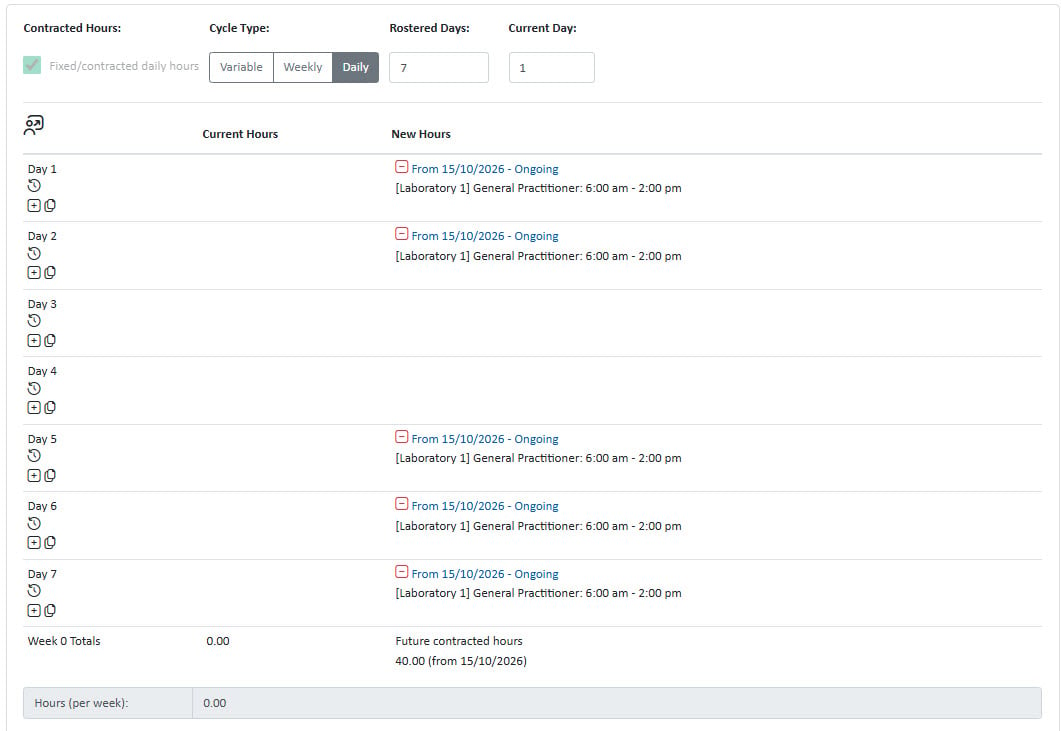
- You will now see the contracted hours saved to your week 1 template. Whereever you place the week 1 template in the schedule, these hours will be used