
.png?fit=max&auto=format&n=fTXEPIUfjW4rC1Pi&q=85&s=85d7b852879d29ad2bde9b743307ab0e)
This guide helps you set up a new employee that has come through to Simplifi via a Sync
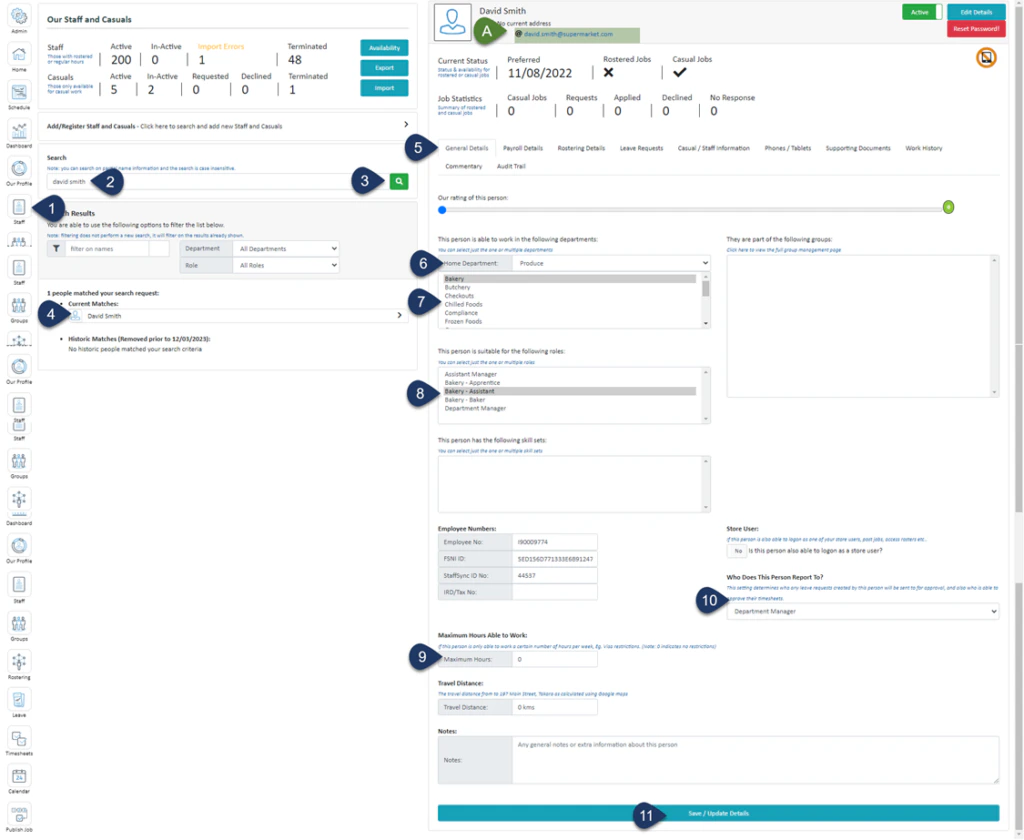
- Click Staff (If you can not see this ‘Staff’ button, then you will need to ask your store administrator to grant you access)
- Type in the name or partial name of the employee
- Click Search
- Select the Employee
- Select General Details
- Select the Home Department – (Your organisation may not be using this field – if missing, please ignore this step)
- Select All the Departments this employee can work in
- Select All the Roles this employee can undertake
- If there is a Maximum Hours limit for this employee enter it here
- Select the role this person reports to
- Click Save/Update Details
Simplifi will be updated with the new information in the next sync.
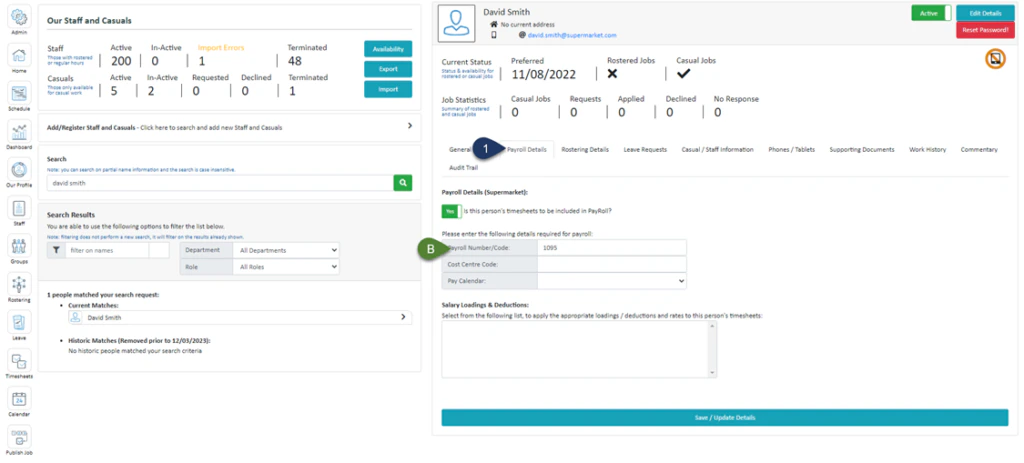
- Select Payroll Details
StaffSync will be updated with the new information in the next sync.
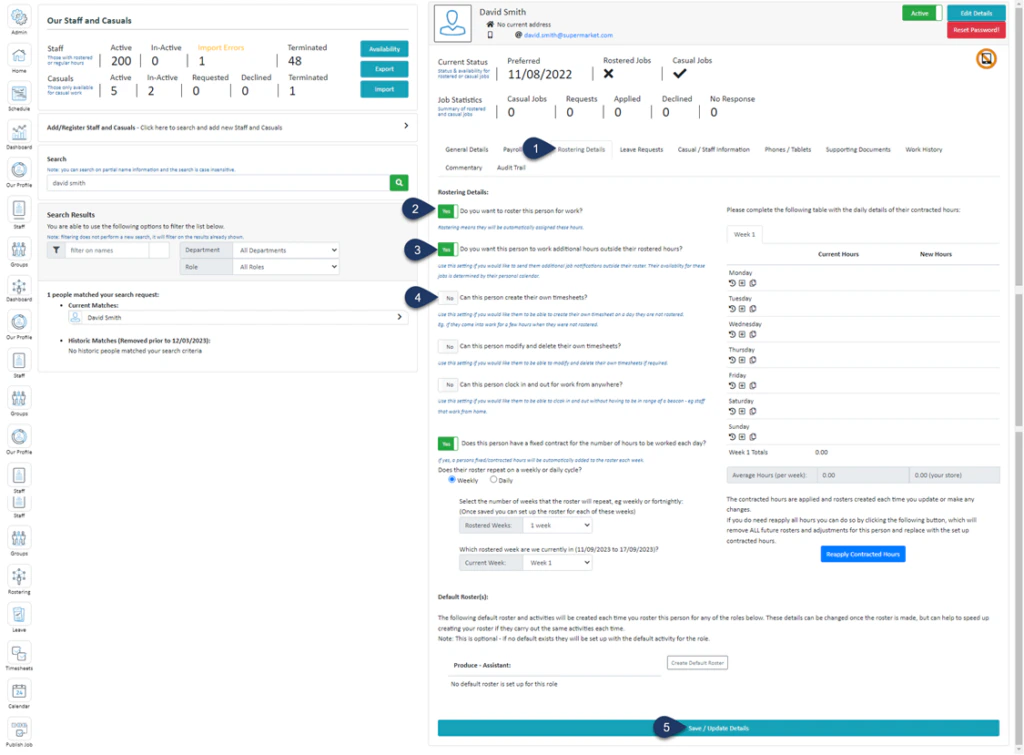
- Select Rostering Detail
- Do you want to roster this person for work?
If YES – this employee is identified in StaffSync as ‘Staff’ and you will be able to roster them
If NO – this employee is identified in StaffSync as ‘Casual’ and you will not be able to roster them, you will have to publish a job notification to them - Do you want this person to work additional hours outside their rostered hours?
If ‘YES‘ – this person will receive job notifications for additional shifts - Can this person create their own timesheet?
Normally this is set as ‘YES‘ for department managers, this allows this staff member to create a shift for themselves to work - Select Save/Update Details