
.png?fit=max&auto=format&n=fTXEPIUfjW4rC1Pi&q=85&s=85d7b852879d29ad2bde9b743307ab0e)
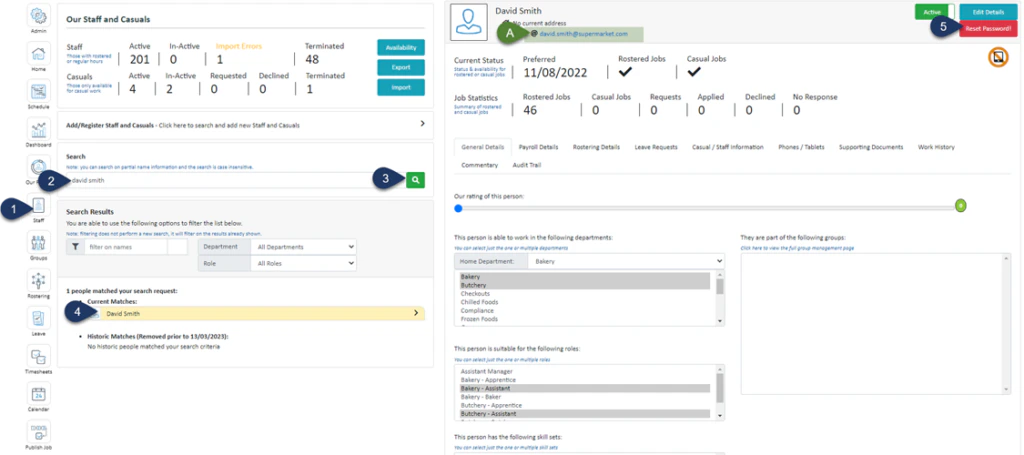
- Click Staff (If you can not see this ‘Staff’ button, you will need to ask your store administrator to grant you access)
- Type in the name or partial name of the employee
- Click the Search Icon
- Select the Employee
- Select Reset Password
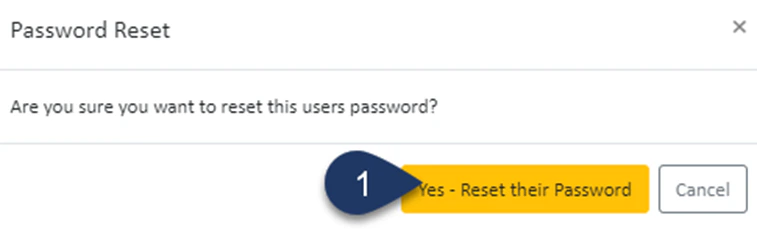
- Select – Yes - Reset their Password
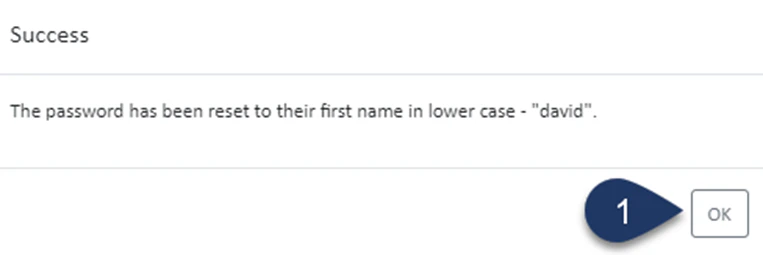
- Select OK