.png?fit=max&auto=format&n=fTXEPIUfjW4rC1Pi&q=85&s=85d7b852879d29ad2bde9b743307ab0e)
This will vary from company to company so please use this guide with discretion
1. Open a Payrun with your payroll provider
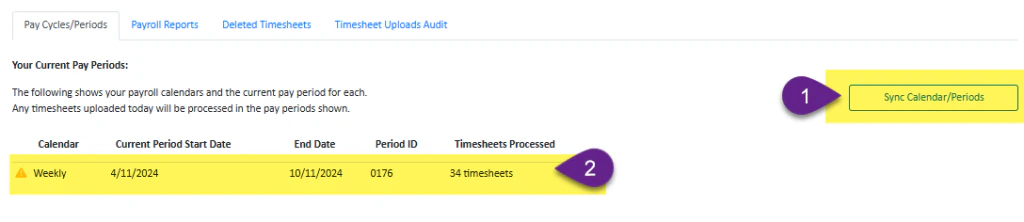
2. Sync Pay Period from Payroll Provider to Simplifi
Open the Payroll Module- Click Sync Calendar/Period
- Ensure the period displayed matches your currently open pay period.
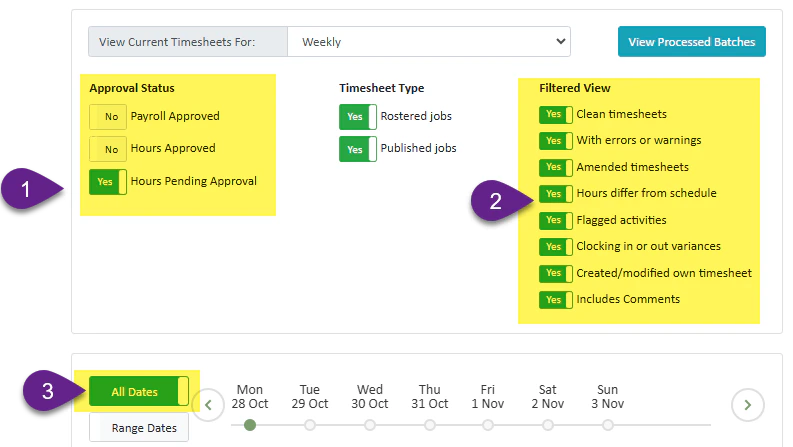
3. Check Timesheets without ‘Manager Approval’
- Select Hours Pending Approval Only
- Make sure all filters here have been switched to YES
- Select All Dates
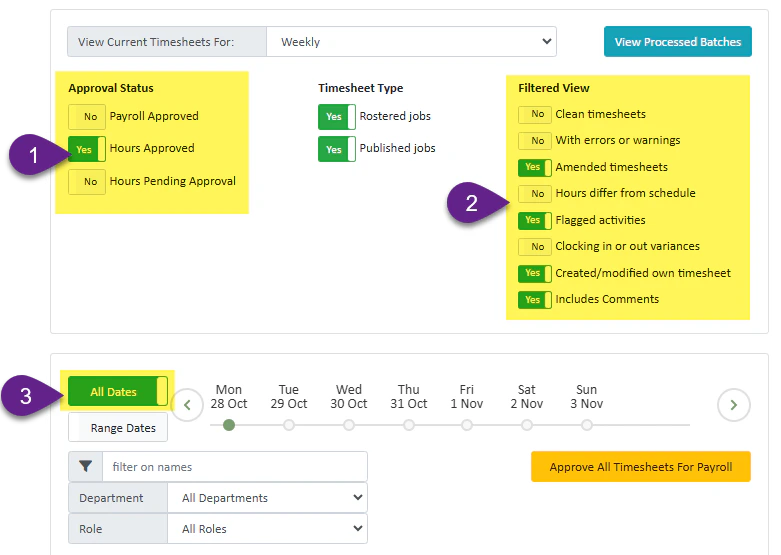
4. Check and Approve Timesheets that need attention
- Check for Approved Hours ONLY
- Look for amended timesheets, flagged activities, entries created by the employee, and timesheets with comments. (Some payroll administrators may also check for hours that differ from the schedule.)
- Select All Dates
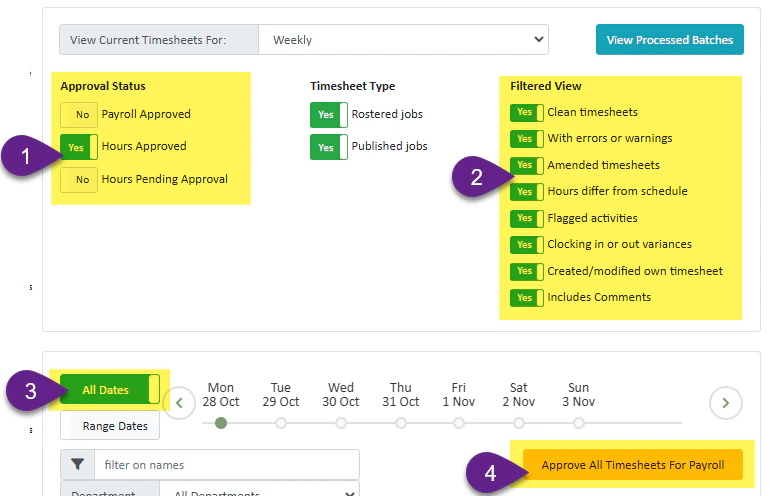
5. Approve All ‘Manager Approved’ Timesheets
- Select Hours Approved only
- Keep all filters to a Yes
- Select All Dates
- Click Approve All Timesheet for Payroll
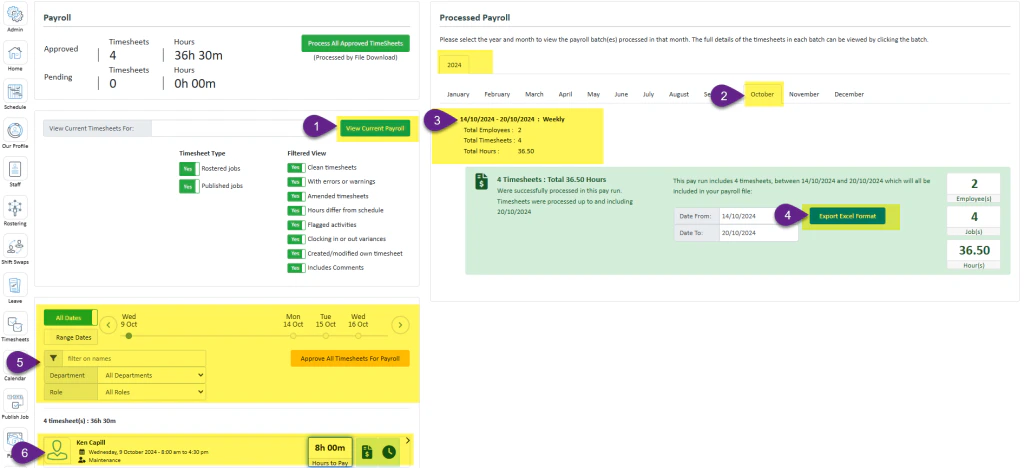
6. Process Timesheet to Payroll
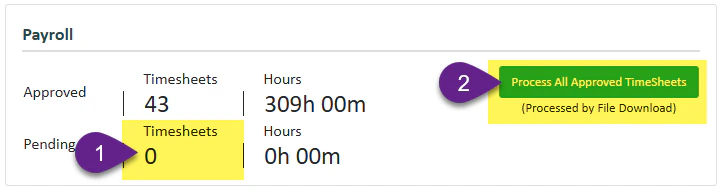
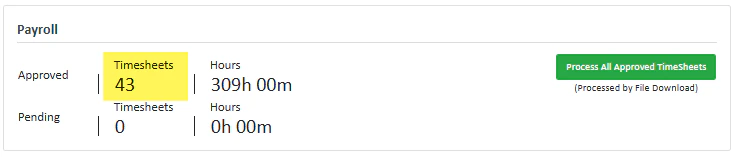
- Please note that if any timesheets are pending they will not be sent to payroll
- Select Process All Approved Timesheets

7. View Processed Batches
- Select View Current Payroll
- Choose the year and month
- Select the Pay period
- Click here to download the Excel file of the processed payroll
- You can use these filters to find the timesheets in the process payroll batch
- Click on the timesheet to view the details