
.png?fit=max&auto=format&n=fTXEPIUfjW4rC1Pi&q=85&s=85d7b852879d29ad2bde9b743307ab0e)
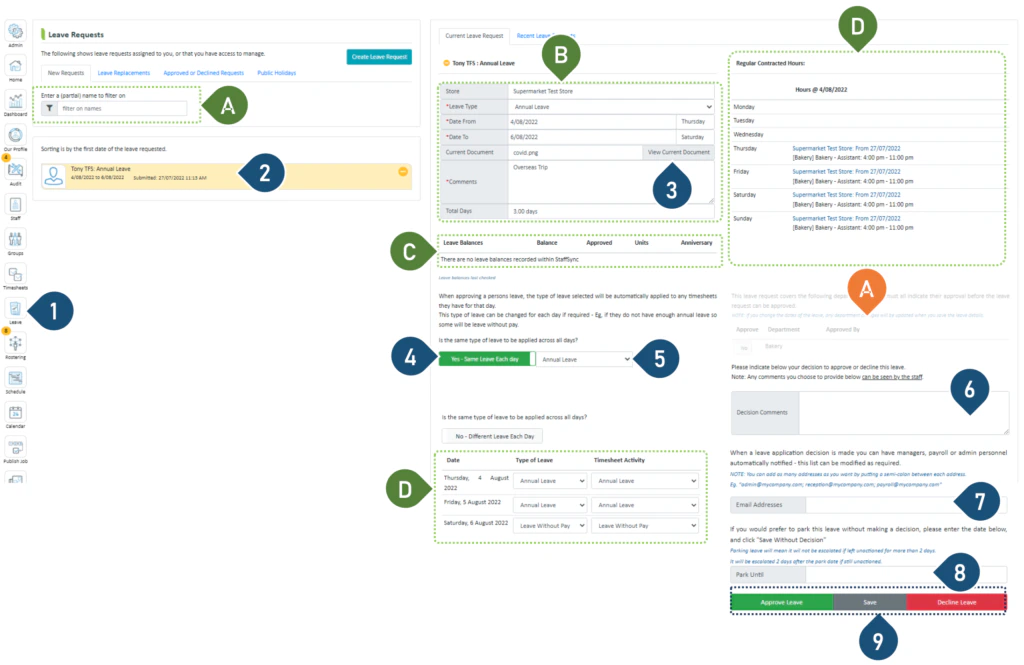
- Select the Leave button.
- Select the leave request to be viewed.
- Click here to view any documents attached.
- Leave this toggle as Yes – Same Leave Each Day if you wish to approve the same type of leave across all the days requested.
- If you wish to change the leave type, you can do so here.
- You may enter a decision comment here – this will be visible to the staff member.
- If you wish to notify someone of this leave decision, enter their email address here.
- If you wish to make a decision on a future date, then select the date you wish to park the decision until.
- Select your Approve or Decline Leave or select save to capture the changes you have made.
Note: If you have amended this rostered shift manually i.e. Ben is contracted to work for 6 hours on this day, however you have amended this shift for him to work 8 hours - then when you approve this leave, Ben will be approved for all the amended rostered hours as sick leave i.e. 8 hours of sick leave. Therefore, please make sure you check the hours rostered and the leave balance before approving leave.