
.png?fit=max&auto=format&n=fTXEPIUfjW4rC1Pi&q=85&s=85d7b852879d29ad2bde9b743307ab0e)
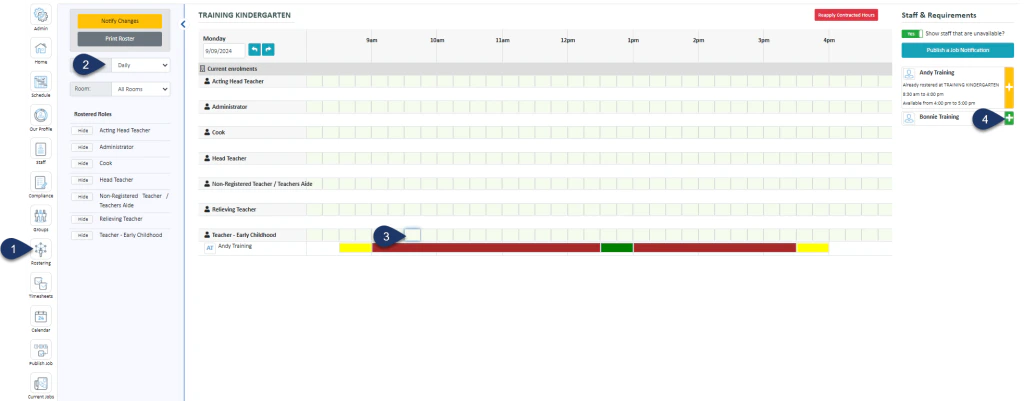
- Select Rostering
- Select the Daily View
- Choose the Start timeslot next to the role you wish to add
- Select the green plus next to the person you wish to add
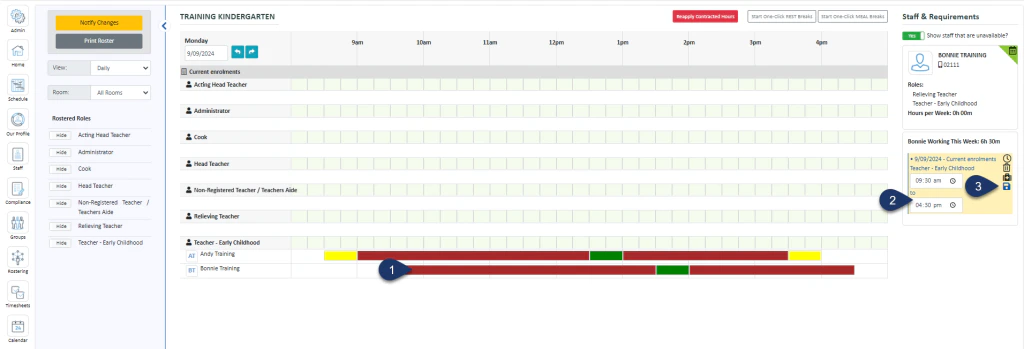
- Select the shift
- Enter the end time here
- Select Save
.png?fit=max&auto=format&n=4GvtktmXsfwAQJ1g&q=85&s=a7d032e5ef03142ffa7638f44a70dc81)
- Select the shift bar
- Select the clock icon to bring up the timesheet
.png?fit=max&auto=format&n=4GvtktmXsfwAQJ1g&q=85&s=a6625870d0b231a49a162cd55b5a6d9c)
- Click this + button to add an activity to the top of the list
- Select one of these + buttons to add an activity directly below
- Choose from the list of activities
- Enter the finish time of this activity
- If you wish to notify the staff member of the change, switch this toggle to a yes
- Select Save Details.