
.png?fit=max&auto=format&n=fTXEPIUfjW4rC1Pi&q=85&s=85d7b852879d29ad2bde9b743307ab0e)
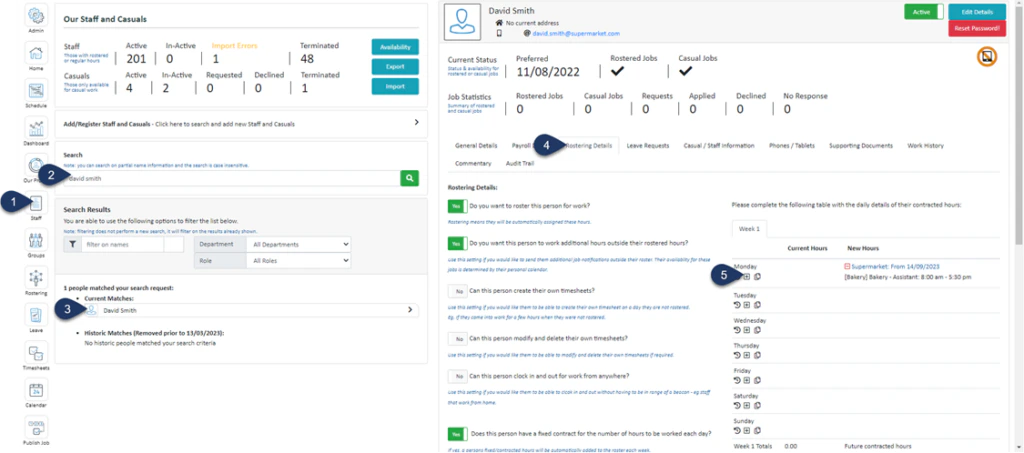
- Select Staff
- Search for the employee name
- Select the Employee
- Select Rostering Details
- Click on the + Button – Make sure the contracted hours have already been added to this day first. You can only add Payroll Activities after the contracted hours have been added.
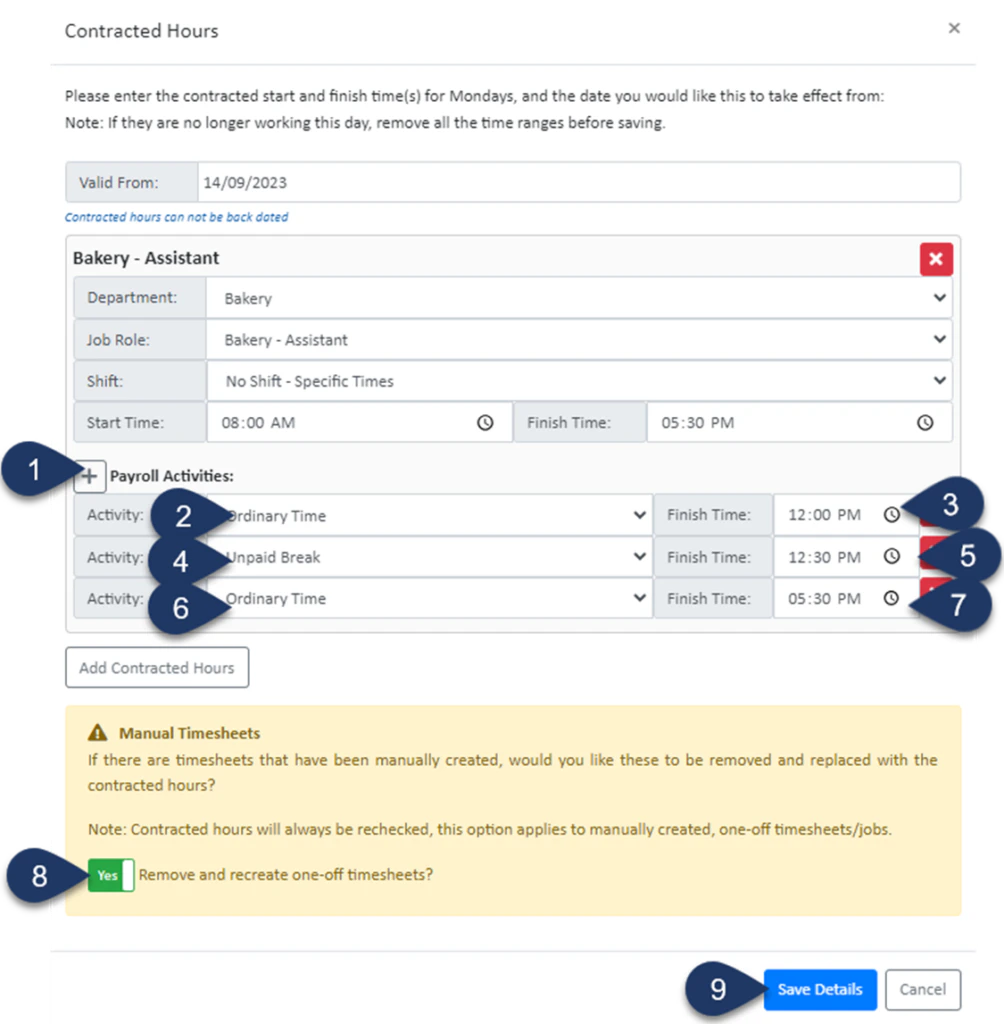
- Click the + button in front of Payroll Activities Three Times – (In this example the button was clicked 3 times to add three activities)
Please note this button won’t appear if the contracted hours weren’t already set and saved - Set the Activity to Ordinary Time
- Enter the End time of this Activity i.e. Start of Unpaid Break
- Set the next Activity to Unpaid Break
- Enter the End time of this Activity i.e. End of Unpaid Break
- Set the next Activity to Ordinary Time
- Enter the End time of this Activity i.e. Finish time of the shift
- Switch the toggle to ‘YES‘ to remove any previously created timesheets for this staff member and update any generated rosters
- Select Save Details
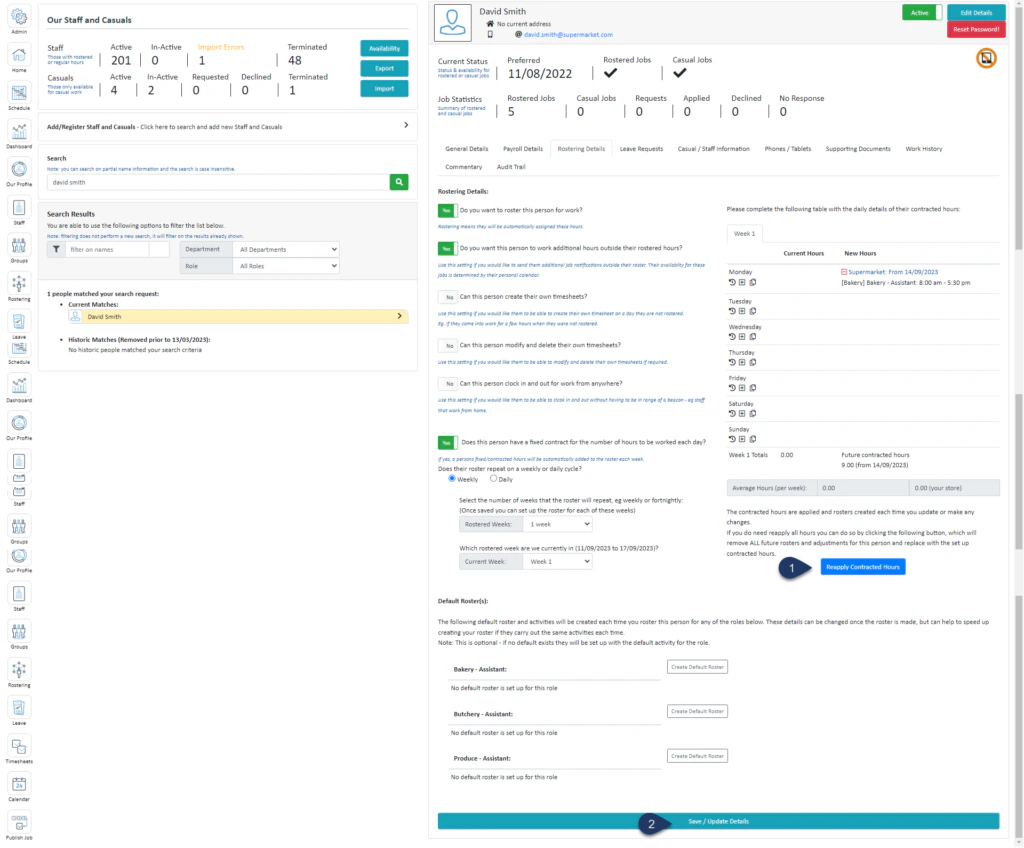
- Click Reapply Contracted Hours
- Select Save/Update Details