
.png?fit=max&auto=format&n=fTXEPIUfjW4rC1Pi&q=85&s=85d7b852879d29ad2bde9b743307ab0e)
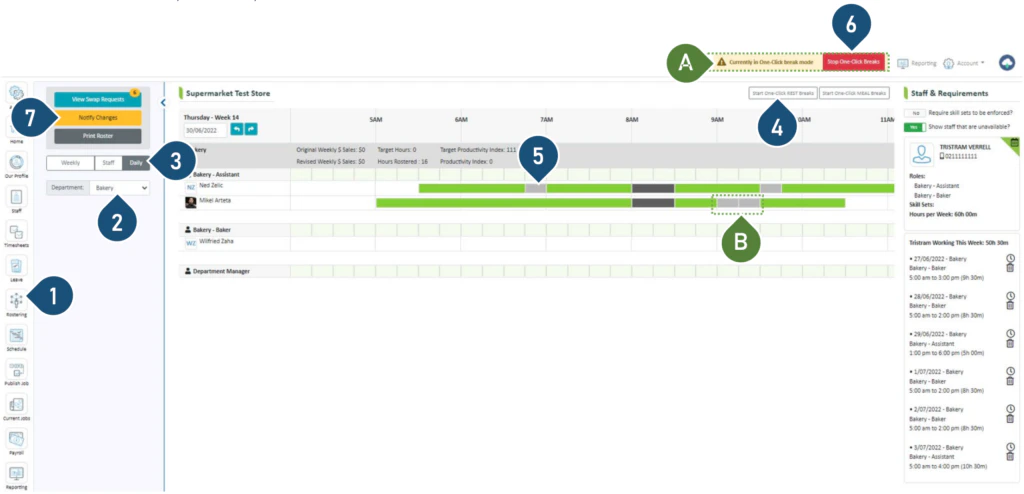
- Select the Rostering button.
- Select the Department.
- Select the Daily view.
- Select Start One-Click Rest Breaks.
- To add or move a rest break, click on the shift bar where you wish to insert the break or move it to.
- To remove a rest break, click on the break on the shift bar.
- Once the break has been inserted or removed, click on Stop One-Click Breaks.
- Click Notify Changes to send a notification to the staff member with roster changes.
Note: When extending the rest break, the shift finish time will also be extended