.png?fit=max&auto=format&n=fTXEPIUfjW4rC1Pi&q=85&s=85d7b852879d29ad2bde9b743307ab0e)
Building a cost centre code “formula”
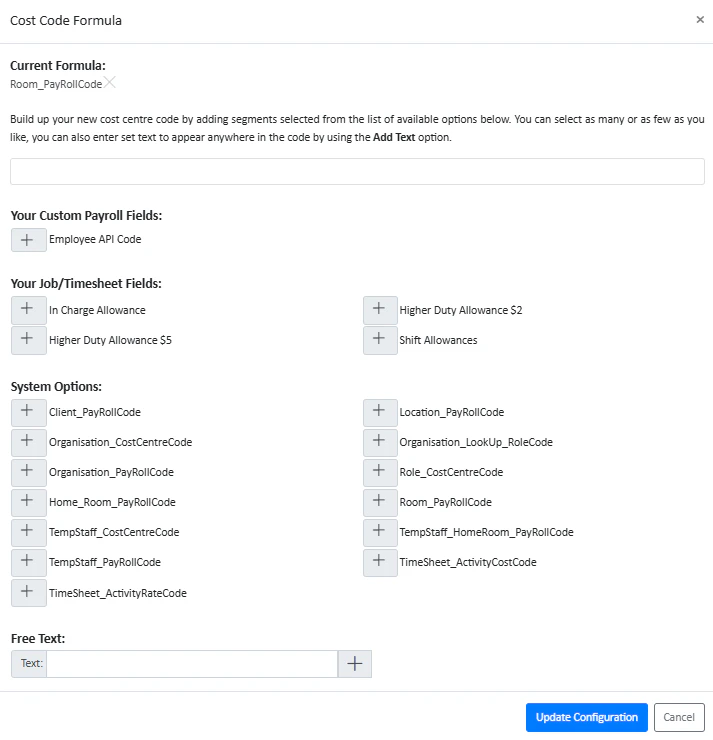
Cost centre codes are not invented in this system—they must match what exists in payroll, so you configure a formula that constructs the code from known attributes.- Use a Room/Department payroll code (where the person is working).
- Or use Home room payroll code (their “main” location, even if they sometimes work elsewhere).
- Optionally append a Role code (e.g., “MAT” + “10” where MAT = maternity ward and 10 = nurse role code).
- You can insert fixed text separators (e.g., “MAT/10”).
Step by step:
- Press New Cost Centre Code and type in a name. You can press the In Use toggle to archive the cost centre code if you’d like it to not be available for use. Press Save Code

- Construct your formula using the system options. If you’d like to add free text then enter the text in the box before pressing the plus on the right.