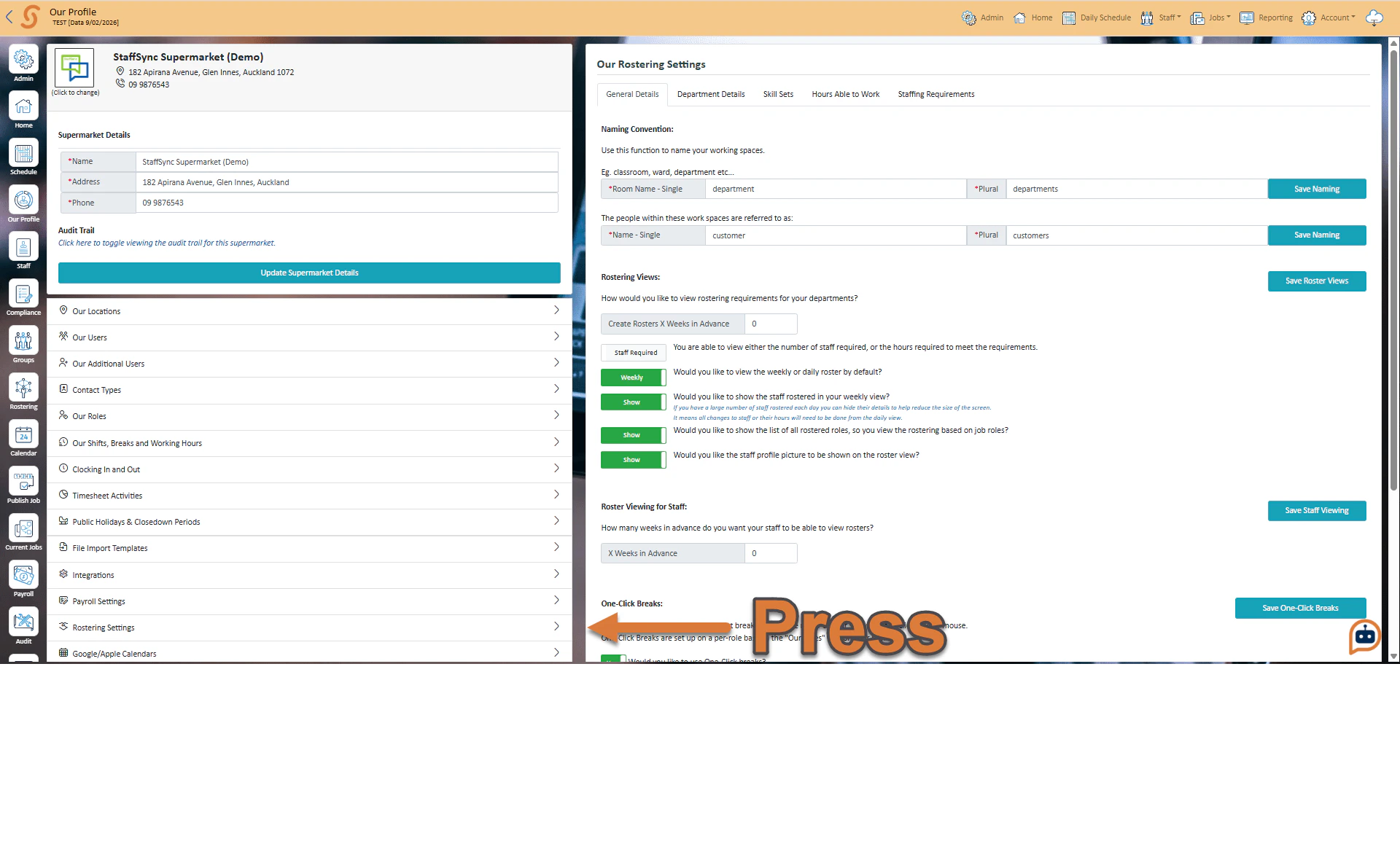
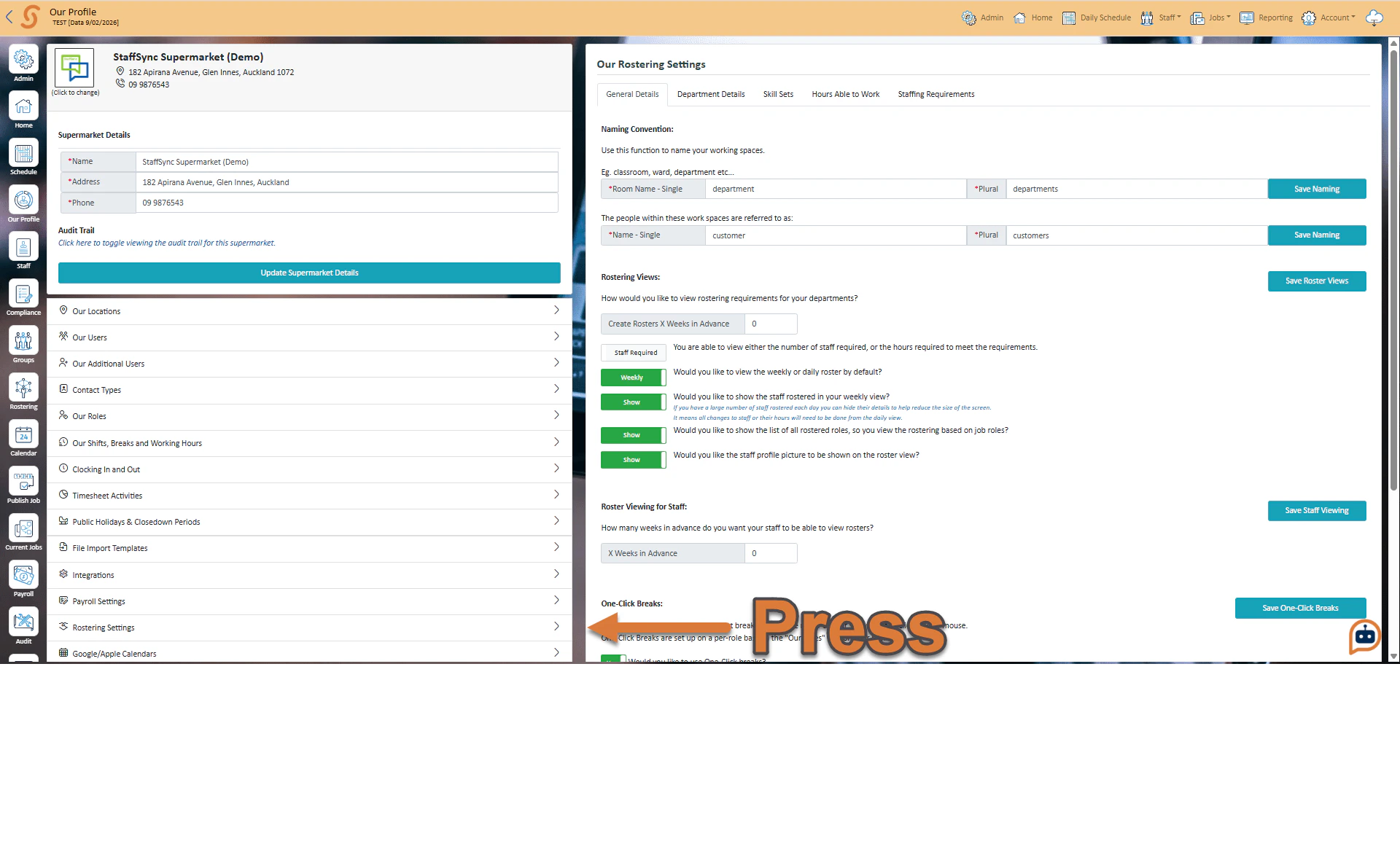
To get to the admin rostering settings, press the rostering settings on the home screen while logged in as an admin.Below is an explanation of each setting in the rostering settings:
Naming ConventionStaffSync will refer to different parts of the organisation using these settings. For example, in the screenshot above you can see that a room name - single is referred to as a department, and the plural is set as departments.This will cause StaffSync to refer to your organisation’s ‘rooms’ as departments anywhere the word pops up, whether that’s doing rosters or in notifications to your staff.Rostering ViewsThese settings are mostly visual configurations, letting you change how you view the rostering.One-Click BreaksTurning on one-click breaks allows you to add breaks to all your staff on the roster without having to manually enter them.
In here you can set up new departments and configure existing ones.
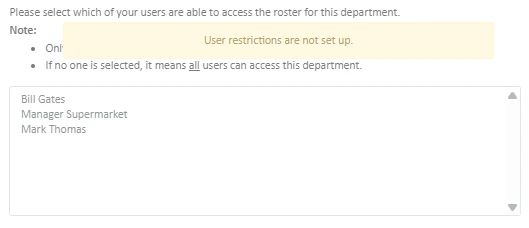
When trying to set up which users are able to access the roster for the selected department, you may not be able to if user restrictions have not been set up yet
Clock in & Out TimesThese settings for clocking in and out mean that the timesheets can show the starting times and ending times as the time that the team member clocked in and out, instead of what the manager had them rostered for.Eg. Mandy rosters Bill on for 9-5pm but Bill clocks in at 8:50am and clocks out at 5:01pm. If Mandy had these unchecked then Bill’s shift would show as 9-5pm but if she had these settings checked, then the timesheet can be shown as 8:50am-5:01pm.
Skill sets are skills that can be assigned to employees to better keep track of what each employee can do. Departments can also be set up in the department details to allow only employees with that specific skill set to work there.
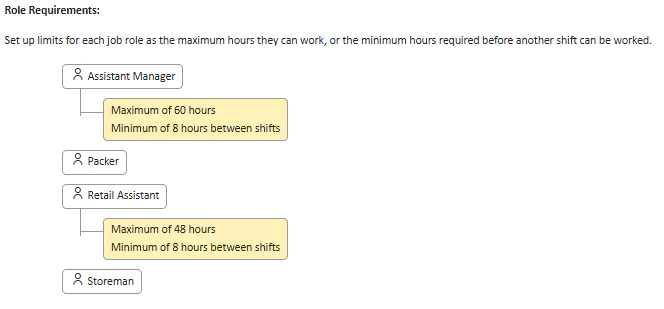
Hours able to work/role-requirements are limits you can set to stop employees in specific job roles from working more hours than allowed. To set these up, press a job role and enter the restrictions you want to set.
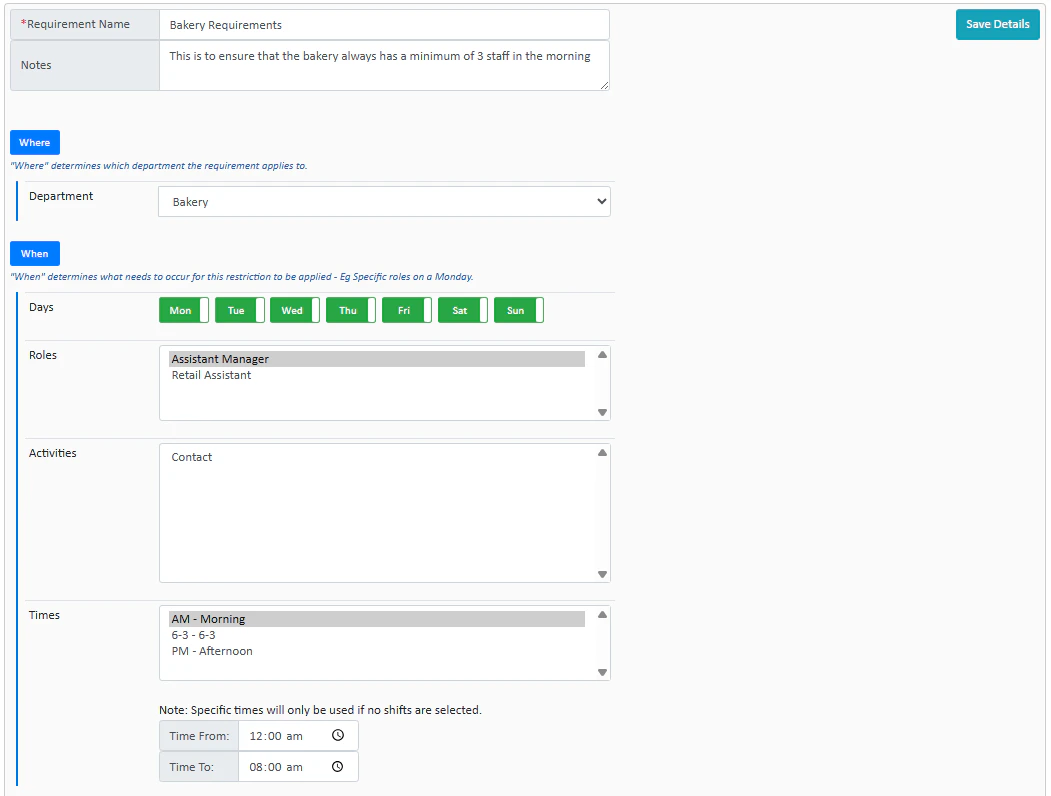
Staffing Requirements allow you to set up a number of staff requirement rules that will be applied to your rostering. These are mostly intended to allow rest homes to force a patient to nurse ratio. However, this can be applied to any business.For example, if we wanted to ensure the bakery always has a minimum of 3 staff in the morning, we enter the department in Where, the days and timing in When.
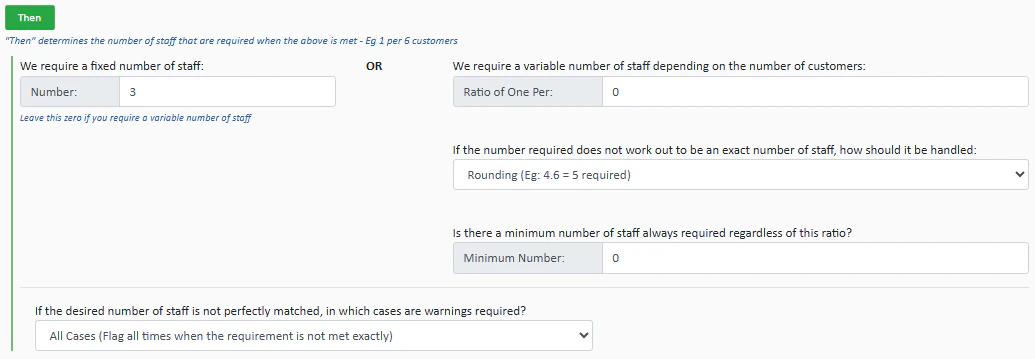
Next, fill in the Then section. This determines the number of staff that are required when the above is met, and you can choose to either enforce a fixed number of staff, or a ratio of one staff member per x amount of customers/patients/residents.
You can also choose what occurs if this rule is violated. The violation can be flagged when there are too many staff, too few, or both.
Was this page helpful?
Assistant
Responses are generated using AI and may contain mistakes.

.png?fit=max&auto=format&n=fTXEPIUfjW4rC1Pi&q=85&s=85d7b852879d29ad2bde9b743307ab0e)