
.png?fit=max&auto=format&n=fTXEPIUfjW4rC1Pi&q=85&s=85d7b852879d29ad2bde9b743307ab0e)
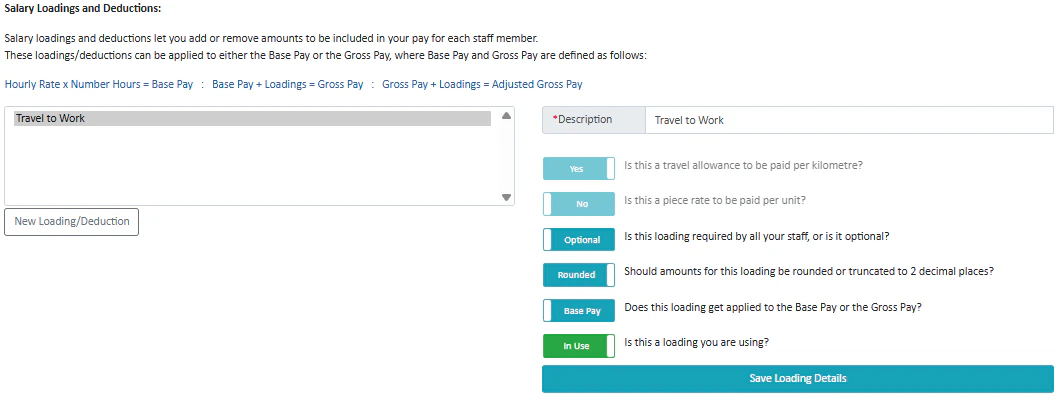
Creating a Travel Rate (Example)
The following details an example of a travel to work salary loading. This rate will let staff members who live 20 kilometres away from this workplace be compensated.- Enter a Description for the Salary Loading. This is equivalent to the name of the salary loading.
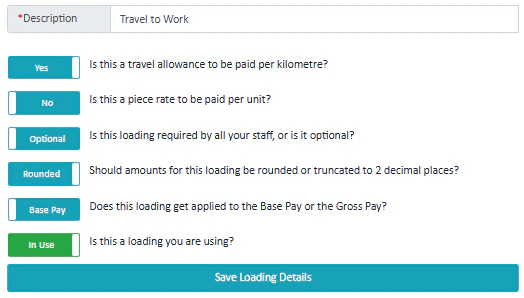
- We are making a travel allowance, so tick yes on the top box. I want this loading to be optional, so I’m going to tick optional.
- I want the travel rate to be rounded, so I am going to choose rounded. This loading is going to get applied to the base pay so I will select base pay. I want this loading to be in use right away instead of being archived, so I will mark it as in use.
- Press Save Loading Details
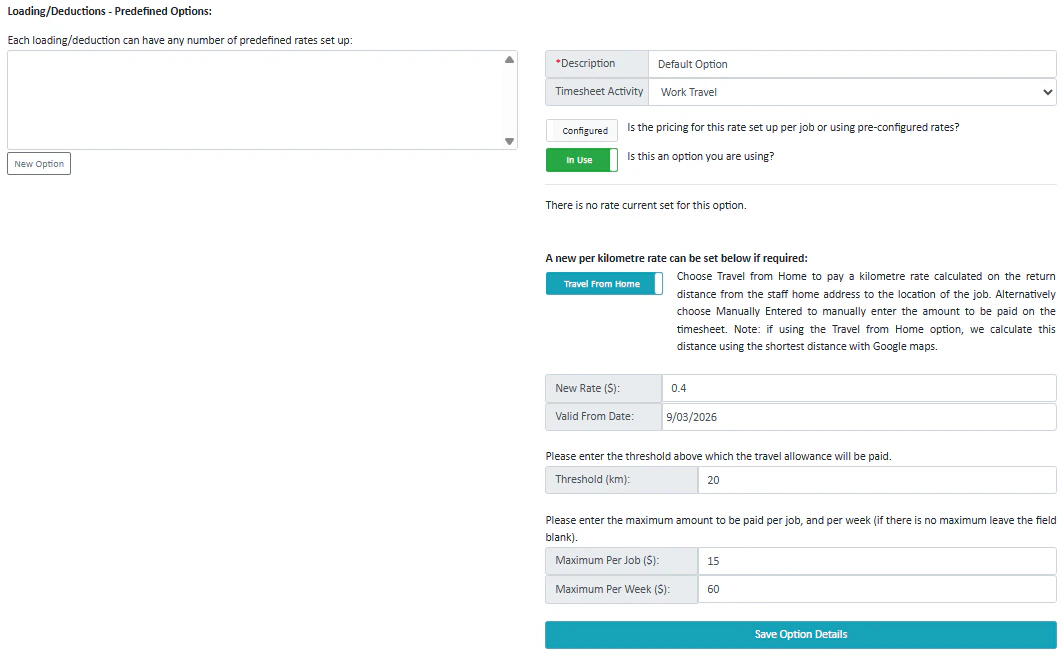
- Now I can scroll down and define what the loading option actually does.
- I will enter another description. You can have multiple options for a loading/deduction.
- I will select what activity this will be marked as on the timesheet. You may want to set up a custom activity for this like we have with a custom activity called “Work Travel”.
- Pricing can be set up per job or with a pre-configured rate; we are going to set it up using pre-configured rates.
- I want the distance to be calculated off of the staff’s home address to the location of the job. If I wanted to manually enter the amount to be paid to the staff member, I would select the other option.
- I want the rate to be $0.40 per kilometre, so I will enter that in as well as the date I want this rate to be valid from, the threshold above which the travel allowance will be paid and the maximum amount per job and maximum amount per week.
- After pressing Save Option Details, I have successfully saved and created a new loading rate.