
.png?fit=max&auto=format&n=fTXEPIUfjW4rC1Pi&q=85&s=85d7b852879d29ad2bde9b743307ab0e)
Payroll Provider Settings
Payroll provider dropdown
Use the dropdown at the top of the page to select which payroll provider you are configuring. Settings in this section are provider-specific: Depending on your provider, you may have custom fields you need to configure.Payroll calendars
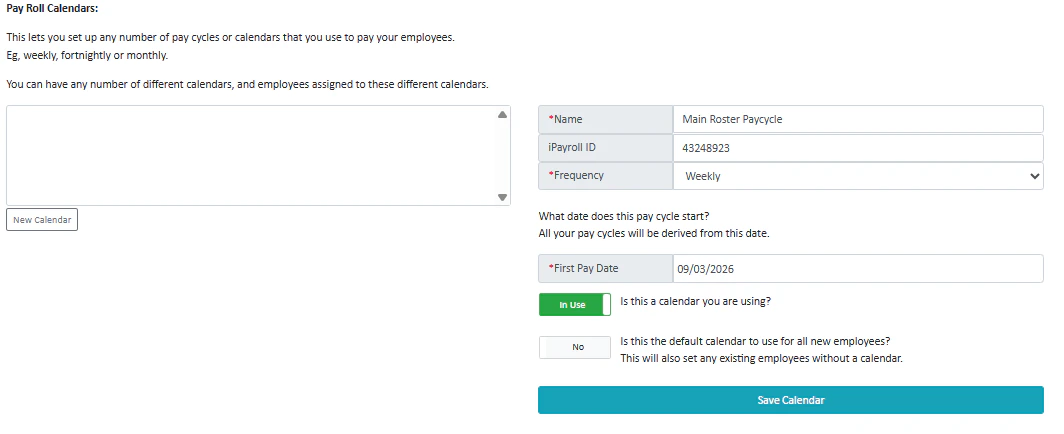
- When API syncing is enabled: pay calendars are typically synced automatically from the payroll system.
- When API syncing is not enabled (manual setup): you will need to create calendars manually, including pay frequency and first pay date.
Cost centre codes
Cost centre codes are used to allocate labour cost to the right place in payroll reporting (e.g., department/ward/room, role type). These codes are used as defaults when exporting or mapping timesheet/rostering data into payroll. Cost centre code rules are configured once (in the Cost Centre Codes area) and can then be selected/used by each payroll provider. This is intentional because organisations usually try to keep codes consistent across payroll systems—especially during migrations. Find out how to build a cost centre code hereProvider selection of cost centre rules
For each payroll provider, you select which of your defined cost centre formulas it should use. Different providers can use different formulas, but they are commonly kept the same.Default cost codes for different work types
Within provider settings, there are defaults for different sources of time:- Rostered timesheets (contracted hours / recurring roster patterns)
- Casual/published jobs (work that comes from filling published jobs)
Custom fields (provider mapping)
Some payroll providers support extra fields (e.g., for department/division style segmentation). Where API syncing is not enabled, mapping can be used to tell the system what internal field should populate a payroll field during file-based imports/exports. For example, DataPay:- DataPay includes fields like Department and Division.
- You map those payroll fields to fields available in your system (often aligning to existing “payroll code” style fields).
Hourly rates
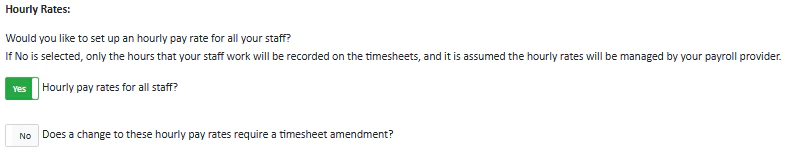
- If Hourly rates for all staff is enabled and the API is enabled, hourly rates can be synced down from payroll.
- If API syncing is not enabled, hourly rates can be maintained manually per staff member.
- The system can support future-dated pay changes (e.g., enter a pay increase effective in October ahead of time).
Timesheet approvals
Timesheets containing only “not sent to payroll” activities


Timesheet payroll hours tolerance (clock-in/out “clean timesheet” rules)
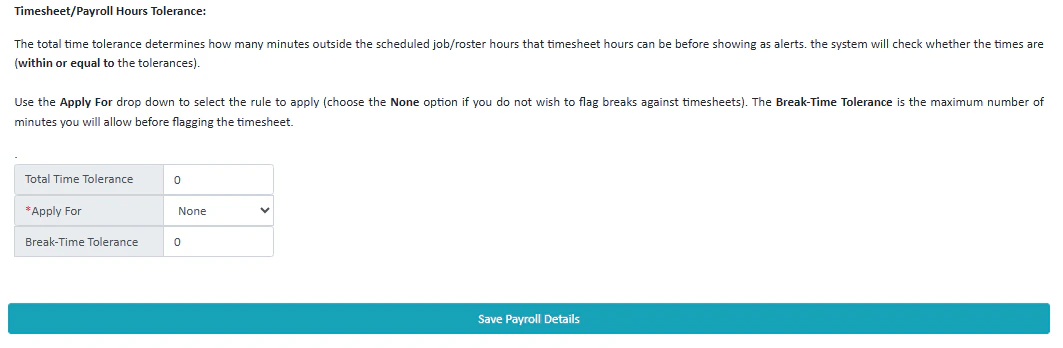
- A “clean” timesheet is one where clock-ins/clock-outs are close enough to scheduled times that it’s not worth reviewing.
- The tolerance defines how many minutes outside the scheduled time are allowed before the system highlights it as something to check (e.g., 2 minutes late might be ignored; 20 minutes early/late should be reviewed).
- E.g. Stephen clocks out at 4:57 when his shift ends at 5. He still has a clean timesheet as the time tolerance is 6 minutes, therefore his 3 minute early clock out comes under the tolerance time.
Break tolerance
Break tolerance applies the same logic as above, but specifically to clocking in/out for breaks (how strict/lenient you want to be about break timing).Rate codes
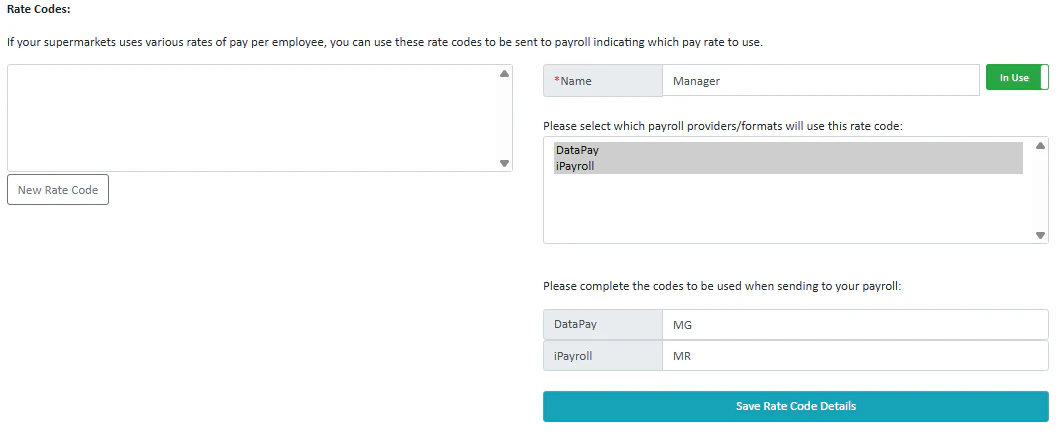
- Rate 1 = normal pay
- Rate 2 = overtime pay
Custom fields (additional staff/profile fields)
This area allows creating additional fields that can be attached to a person’s profile for payroll-related use.Salary loadings and deductions
Salary loadings/deductions allow adding extra amounts on top of base pay for costing/budgeting calculations (and where enabled, can also flow through timesheet/payroll processes depending on configuration). Examples could include:- Social club contribution
- KiwiSaver contribution (e.g., adding an employer contribution percentage)
- Travel allowances