
.png?fit=max&auto=format&n=fTXEPIUfjW4rC1Pi&q=85&s=85d7b852879d29ad2bde9b743307ab0e)
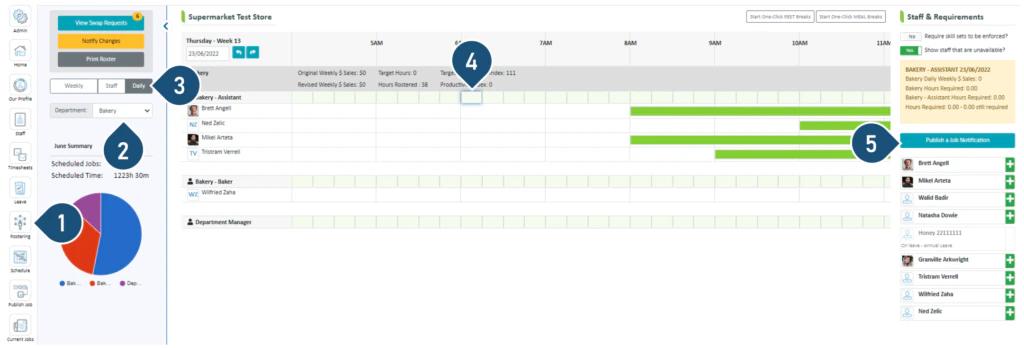
- Select the Rostering button.
- Select the Department.
- Select the Daily view.
- Click on the timeslot you wish this shift to start from e.g. 6:30 am – which is selected as the start time in the above example.
- Click Publish a Job Notification. Simplifi Casual Job Publishing Wizard will now open.
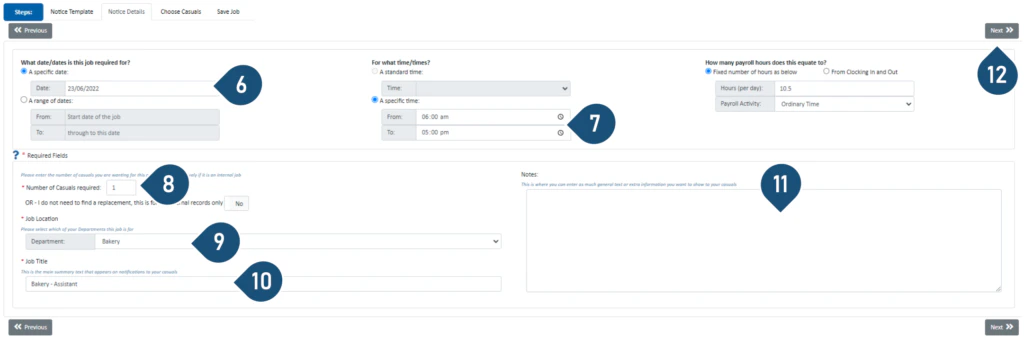
Note: Most of these fields will be pre-filled, only make changes if required
- Click on the date field if you wish to change the date of the job.
- Enter the shift start and finish times.
- Enter the number of workers you require.
- Choose the Department.
- Overwrite if you wish to change the job title. Note: if you have changed the date of the job, make sure you change the date here as well.
- Enter any notes you wish to publish for this job.
- Select Next to proceed to the next step.
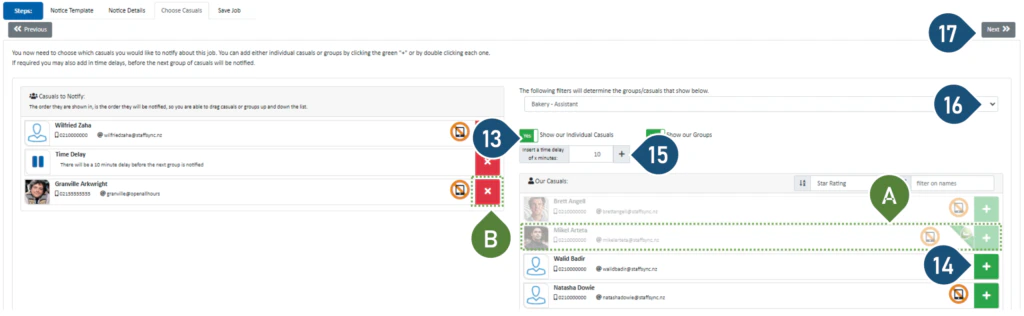
- Switch the toggle to Yes to show individual workers to be selected.
- To select workers to publish to, click on the green + icon.
- To send the job notification to additional workers at a later time, click on the grey + to add a time delay and then continue selecting the green + next to the workers you wish to notify.
- Use the dropdown menu if you wish to publish the job to staff with other roles.
- Click Next to proceed to the next step.
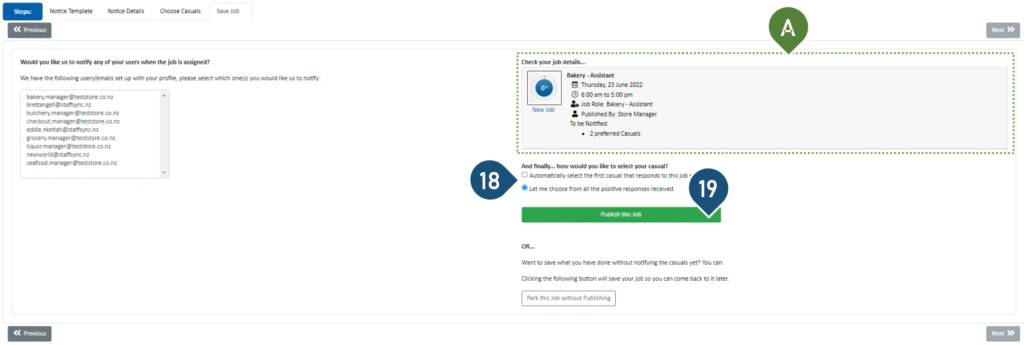
- You have two options to choose how the successful worker will be selected. The default option is that you can choose from any of the positive responses you receive. The second option is that the system will allocate the job to the first worker that applies for the job.
- Select Publish this job.