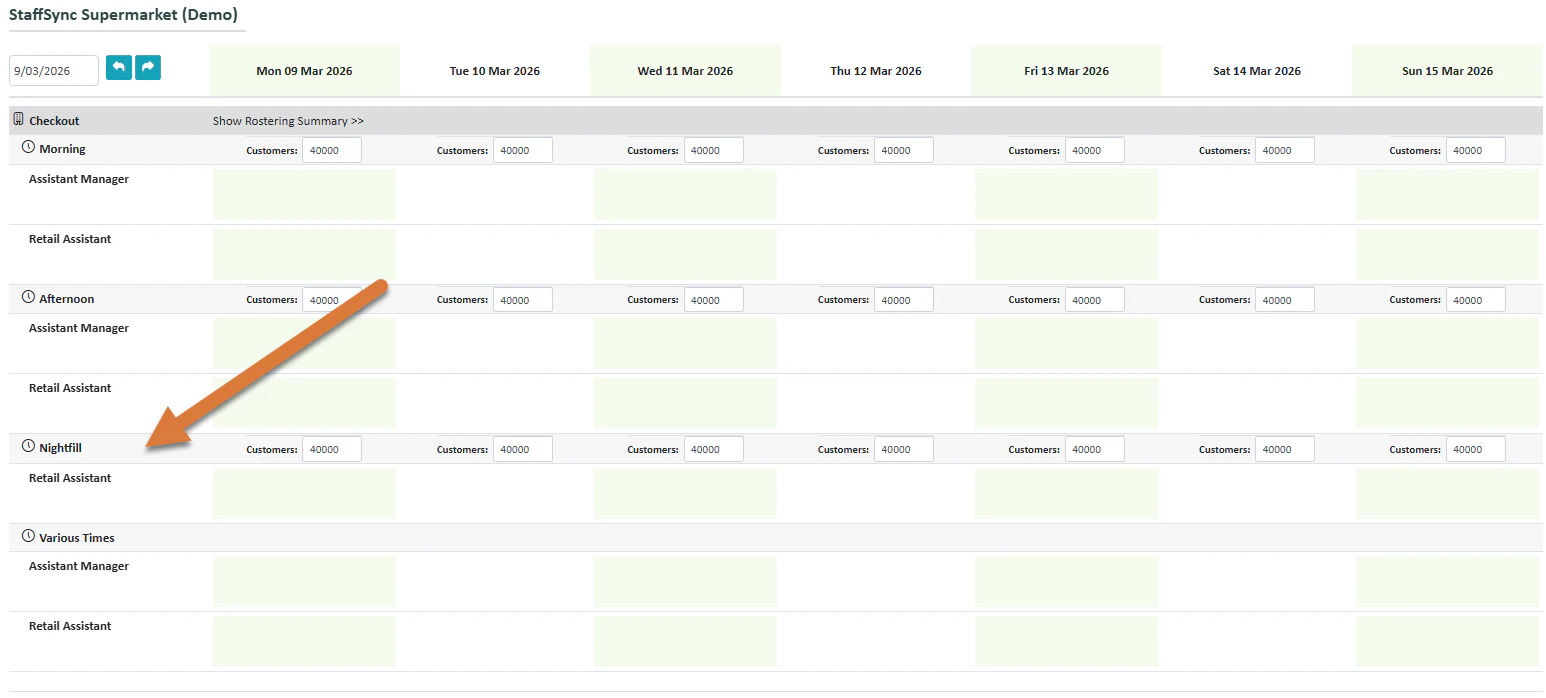
.png?fit=max&auto=format&n=fTXEPIUfjW4rC1Pi&q=85&s=85d7b852879d29ad2bde9b743307ab0e)
Creating a New Nightfill Shift (Example)
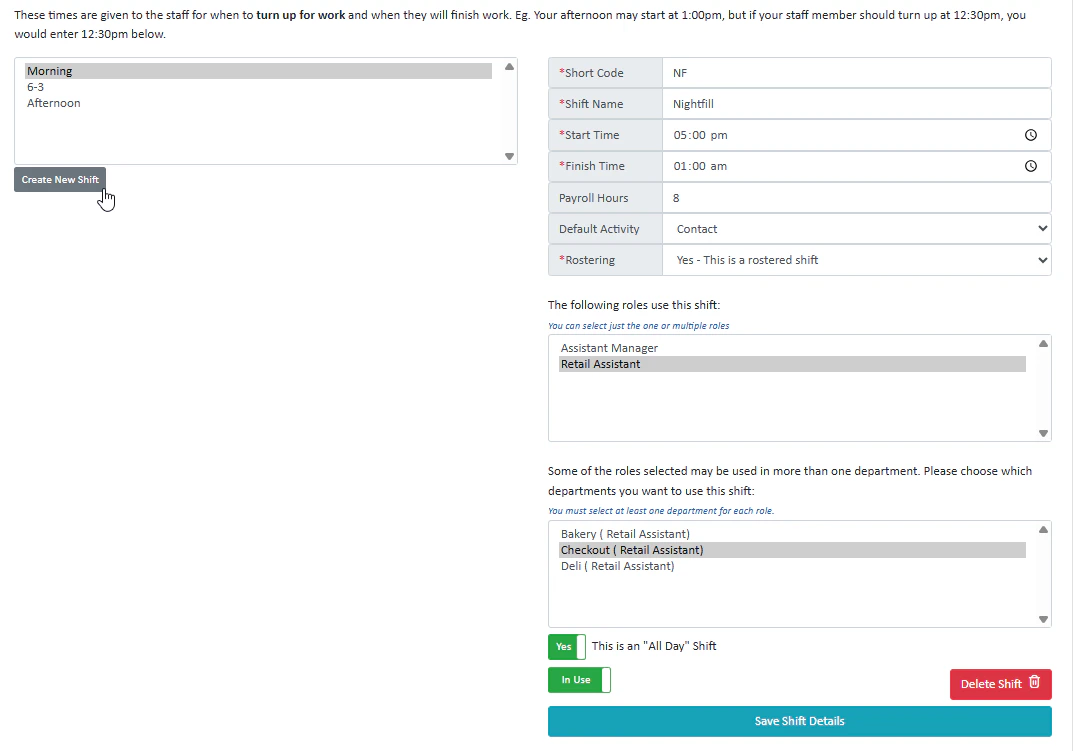
- I will press Create New Shift to create a new shift.
- Next I’m going to enter the details. The team will always know NF refers to nightfill, so I’m going to enter that as my short code.
- I’m going to enter my start time and finish time, as well as the number of payroll hours, default activity and the rostering. It’s a shift I want to be regularly rostered so I’m going to select Yes
- I would like the retail assistant role to use this shift, so I will select that role and for the department; I would like it to be Checkouts, as I have not set up the nightfill department yet.
- This is an All Day shift, so I will select that toggle. An all day shift will be automatically generated by the system from the earliest starting shift time to the latest finishing shift time if you do not create one.