

To turn on unfilled job reminders:
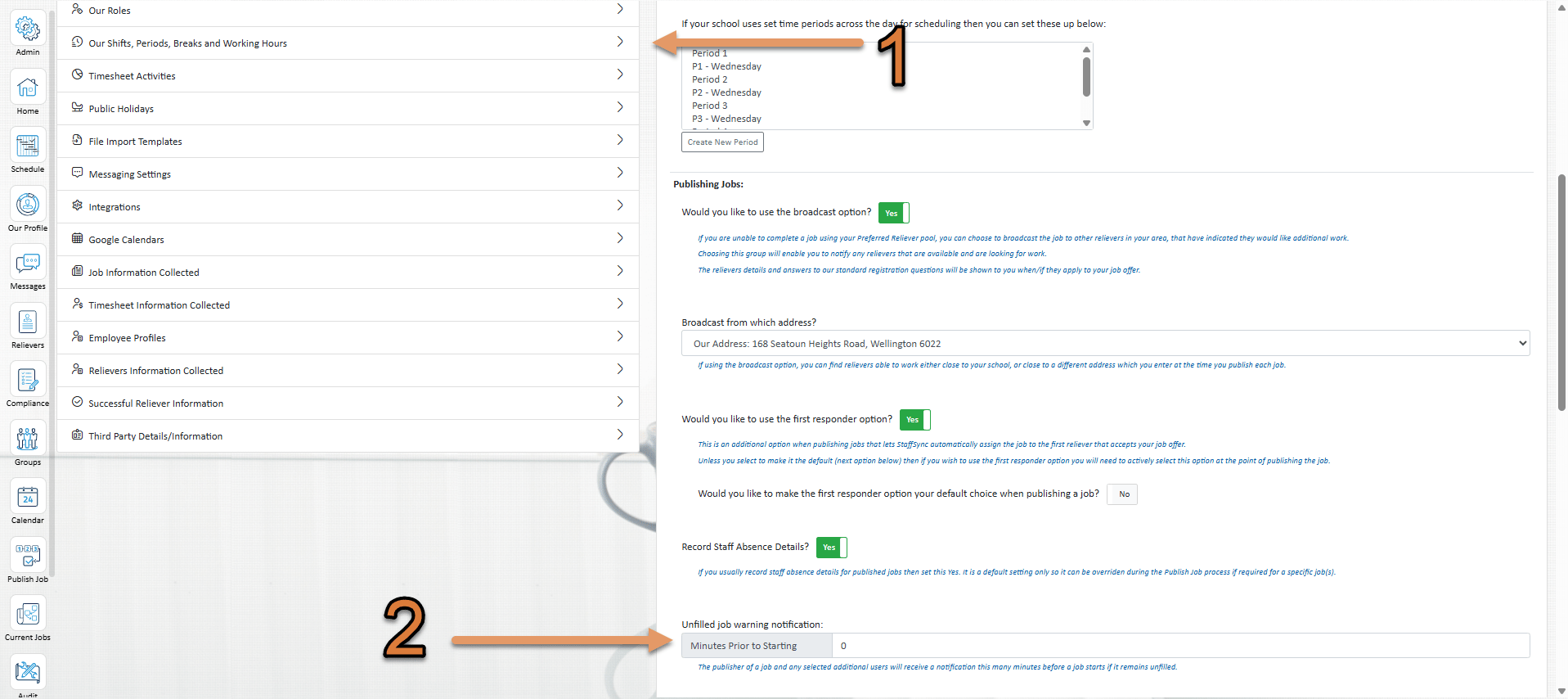
- Select Our Shifts, Breaks and Working Hours from the menu.
- Scroll down to the Unfilled Job Warning Minutes setting.
- Enter the number of minutes before a job starts that you would like the reminder to be sent. For example, enter 30 to be reminded 30 minutes before the job starts.
- Press Save Details at the bottom of the page.
Reminders are switched off while this setting is 0. Enter any value above 0 to turn them on.
Who receives the reminder?
When a reminder is due, it is sent to:- The person who published the job
- Anyone ticked on your Additional Users list
- Any user who has All Unassigned Job Alerts turned on
Reminders are not sent for internal jobs.
To send reminders to additional users:
Unfilled job reminders use the same email list as Our Additional Users. Anyone ticked on that list will receive an email when a job is unfilled and close to starting.- Select Our Additional Users from the menu.
- Make sure the email addresses you would like to be reminded are on the list and ticked.
- Press Update Specialist Users to save your changes.
To make a user always receive unassigned job alerts:
Some users, such as a principal or office manager, may want to be told about every unfilled job, not only the ones they published. You can turn this on for each user.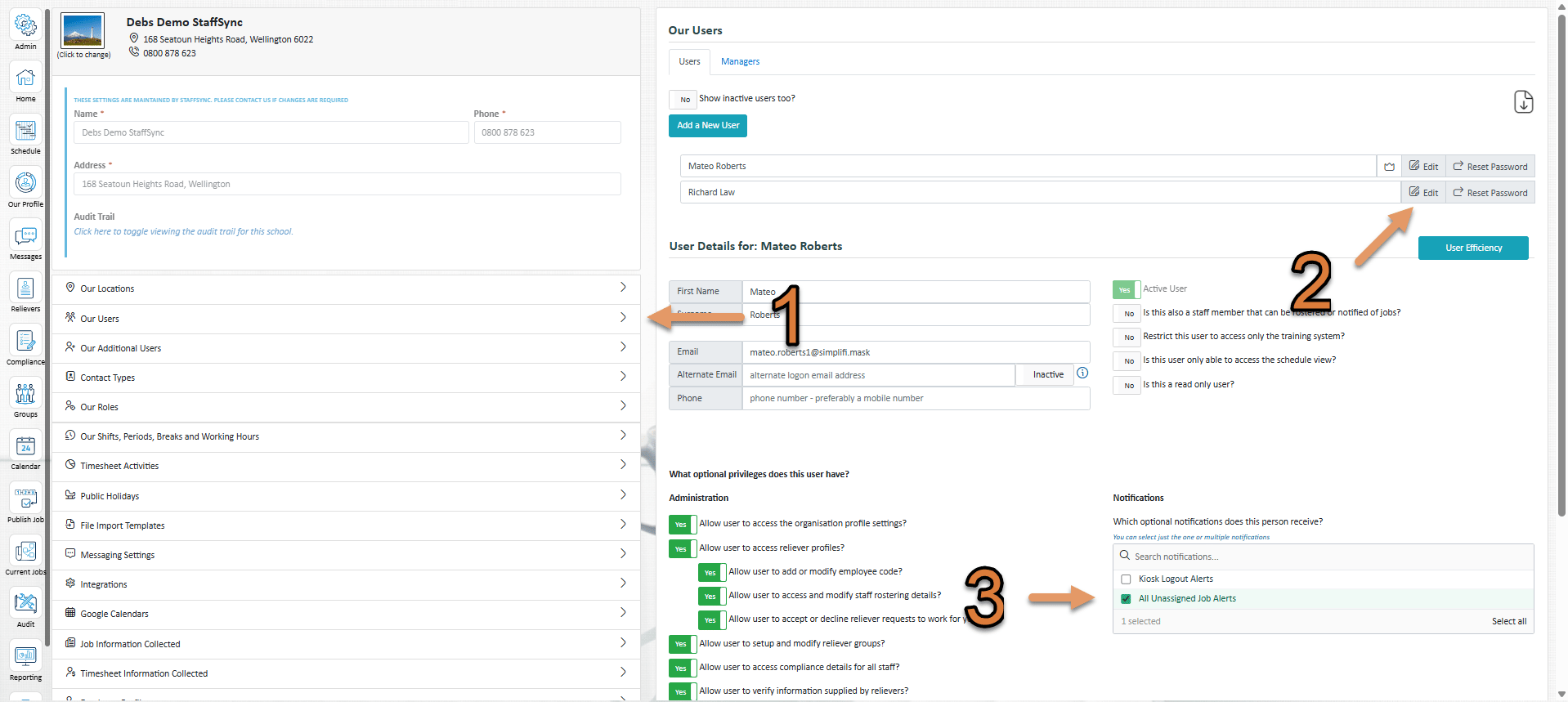
- Select Our Users from the menu.
- Select the user you would like to change.
- Find the Notification Options section.
- Turn on All Unassigned Job Alerts.
- Press Save Users Details at the bottom.
To turn off unfilled job reminders:
- Go back to the Unfilled Job Warning Minutes setting.
- Enter 0.
- Press Save Details.