

Simplifi turns Facial Recognition on for each of your sites. If you don’t see a Facial Recognition tab on your staff profiles, contact Simplifi support or your implementation contact.
Before You Start
You’ll need:- Clocking in and out already set up for each site that will use Facial Recognition. See Clocking In & Out.
- A kiosk device with a front camera: an Android tablet with the Simplifi KIOSK app, or an iPad using Safari.
- A good spot for the kiosk: at face height, with even lighting, not facing a bright window, and with reliable internet.
- A device for creating profiles: a laptop with a webcam, or a phone.
Start the Kiosk
- Open the kiosk:
- Android: open the Simplifi KIOSK app.
- iPad: go to apps.simplifi.work/?kiosk in Safari and add it to your Home Screen. See Using the Simplifi KIOSK on Apple Devices.
- Log on as the kiosk user. If you’re asked which site the kiosk is for, choose the site where the device is.
- Allow the kiosk to use the camera when asked.
Enrolling Staff
Each staff member needs a facial profile before the kiosk can recognise them. It takes about a minute per person.Creating a Profile for a Staff Member
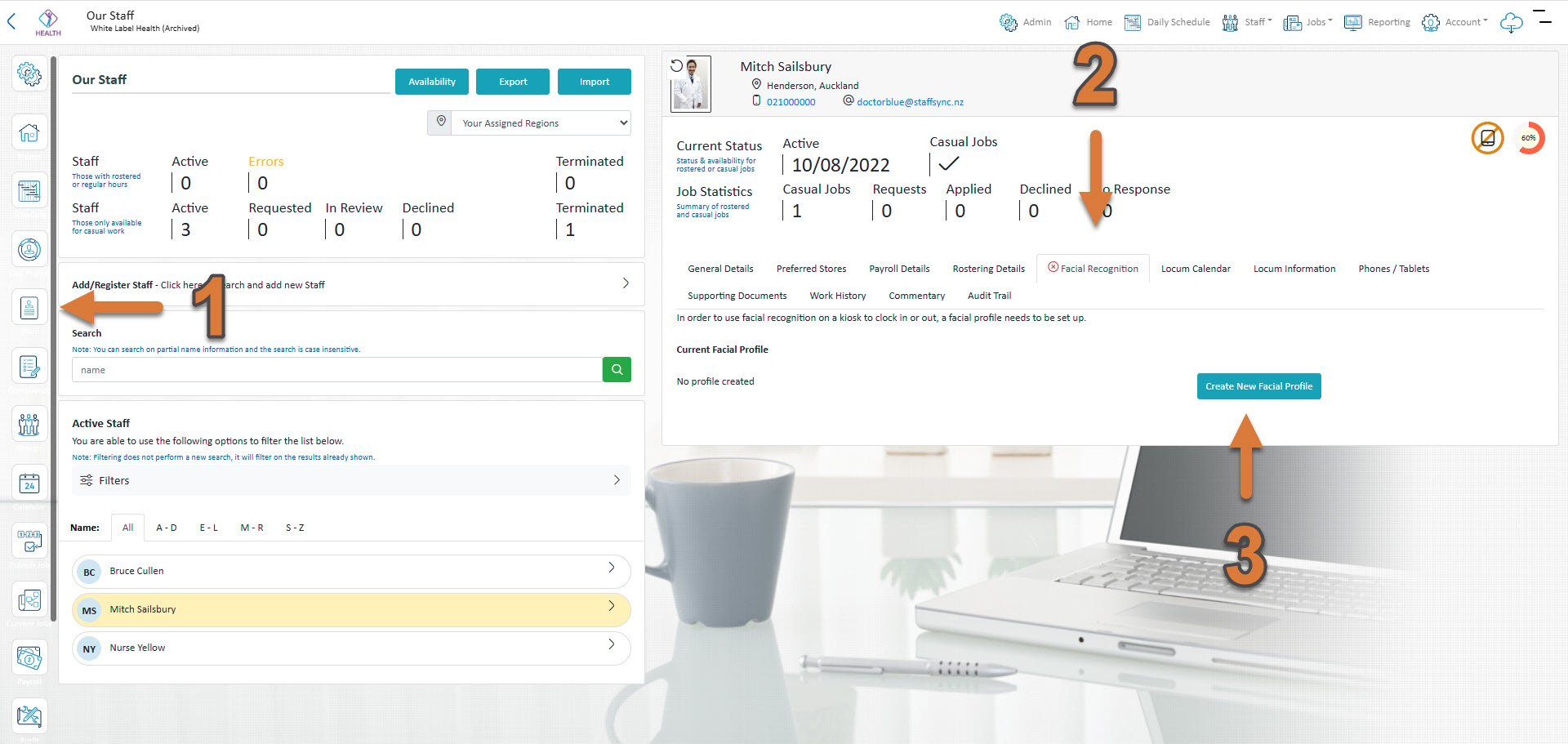
- Select Staff and open the staff member.
- Select the Facial Recognition tab. A red cross on the tab means they don’t have a profile yet.
- Select Create New Facial Profile and allow camera access.
- Ask the staff member to look straight at the camera with a neutral expression. Wait until Detection Accuracy reaches 95% and Face Detection Complete shows. If it doesn’t reach 95%, move closer or adjust the angle.
- Select Save Facial Profile. Their photo now shows under Current Facial Profile.
Staff Creating Their Own Profile
If your organisation allows it, staff can create their own profile. To enable this, contact Simplifi support or your implementation contact.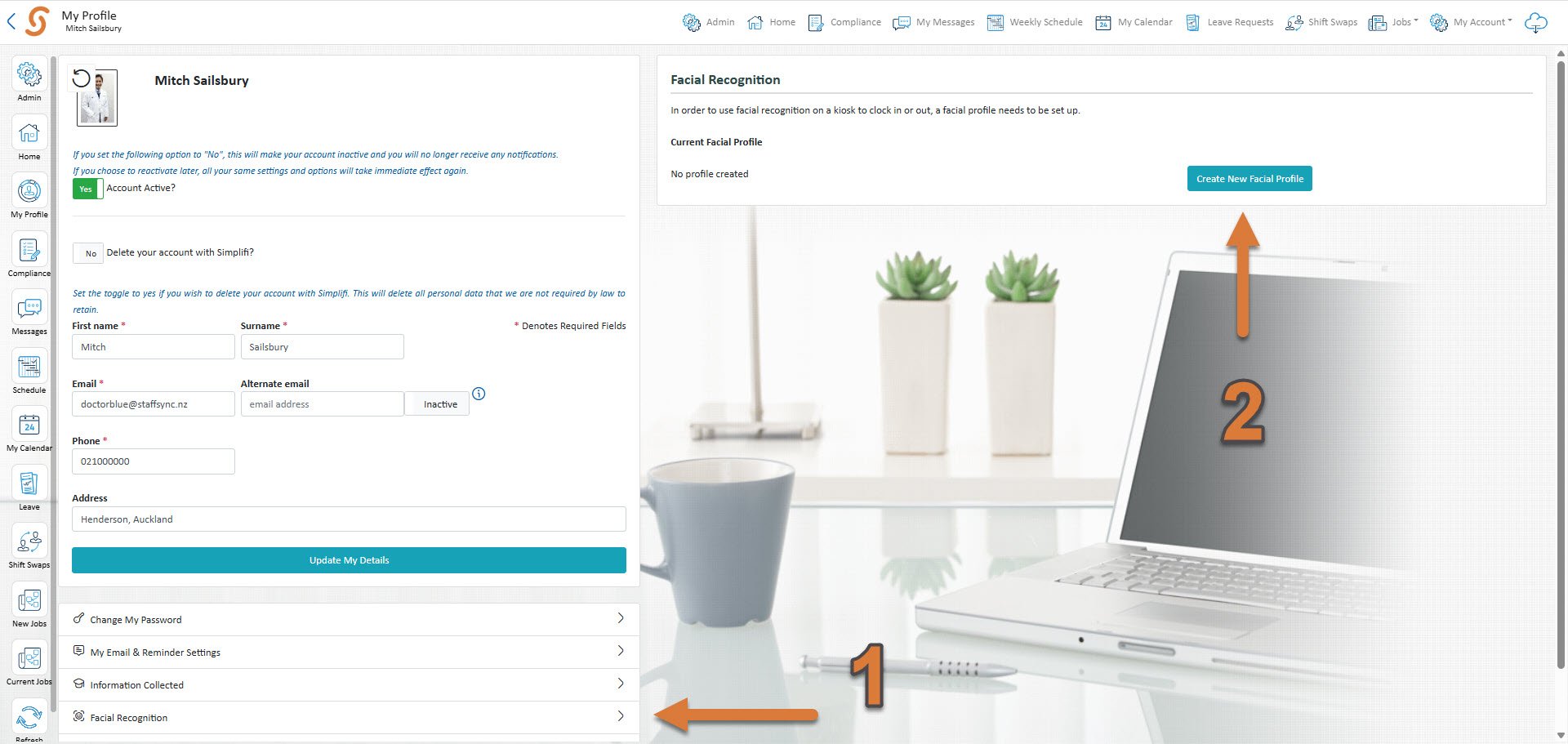
- In the Simplifi app or on the web, open the menu and select Facial Recognition.
- Select Create New Facial Profile and follow steps 4 and 5 above.
- If asked, move your head a little and change your expression. This checks that you’re a real person and not a photo.
Removing a Profile
Open the staff member’s Facial Recognition tab and select Remove Profile.Tips for a Good Profile
- Take the original profile photo at the same location staff will be logging in at. Same lightening, same background.
- Take off hats and sunglasses. Everyday glasses are fine.
- When the photo is taken, hold for a second, so the photo and the reference points line up.
- Try to get a passport like profile image (straight on, neutral expression, looking into the camera, head and shoulders) and then try to replicate that when you log in.
Clocking In and Out with Facial Recognition
Share these steps with your staff.- Stand in front of the kiosk and look straight at the camera.
- Wait for Face Match Made. This usually takes a second or two.
- Carry on as usual: clock in, start or end a break, or clock out.
If you clock in or out by mistake, ask your manager to correct your timesheet, or request a timesheet modification in the app.
Troubleshooting
Does one profile work at all our sites? Yes, at every site the person is linked to that uses Facial Recognition.
Can staff still use their phone or a beacon? Yes. Facial Recognition only changes how the kiosk works. See Clocking In and Out Using Your Phone.