
.png?fit=max&auto=format&n=fTXEPIUfjW4rC1Pi&q=85&s=85d7b852879d29ad2bde9b743307ab0e)
To promote a staff member to an admin user:
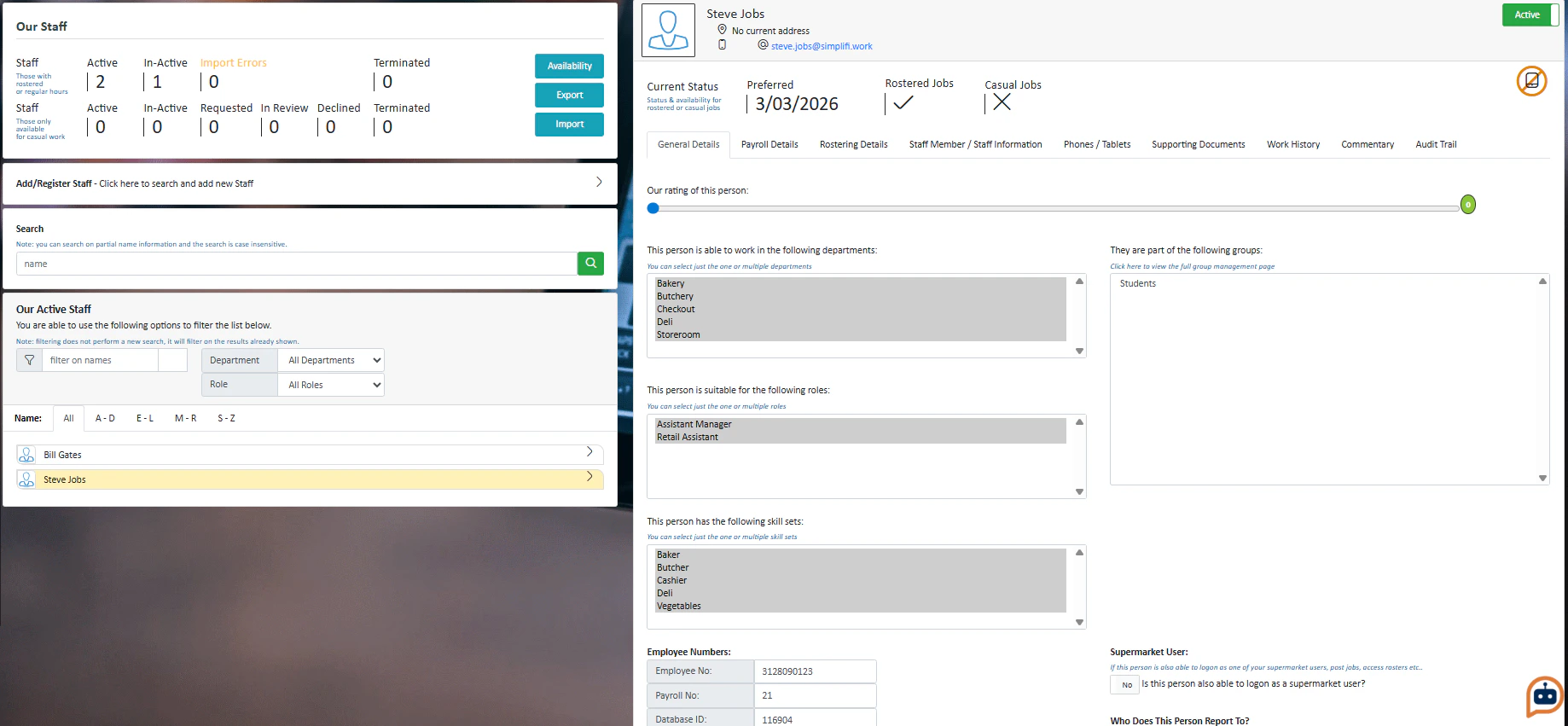
- Find the staff member on the Our Staff module. Press on their name

- Press the User toggle to Yes
Depending on the type of your organisation, this toggle will look slightly different. For example, because when taking this screenshot we are logged into a supermarket demo account, it shows as a supermarket user; if we were logged in as a retirement village, it would say “Village User”
- Press Save Details. You will get a pop-up reminding you that you have allowed this staff member to log on as an admin user for the organisation. Press Yes
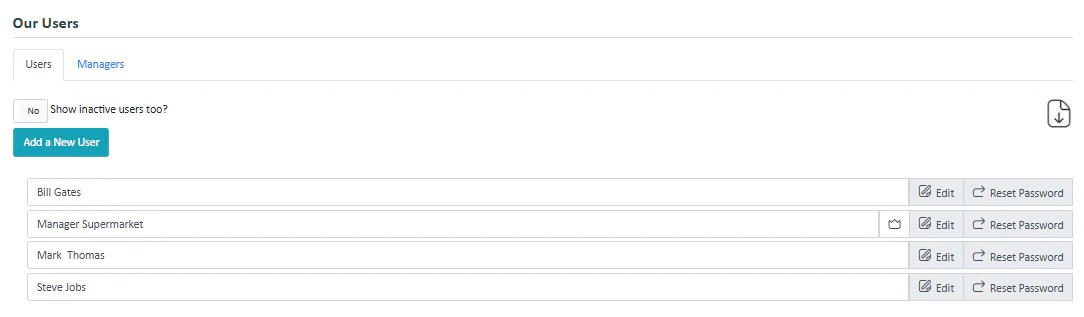
To Create a New User from Scratch:
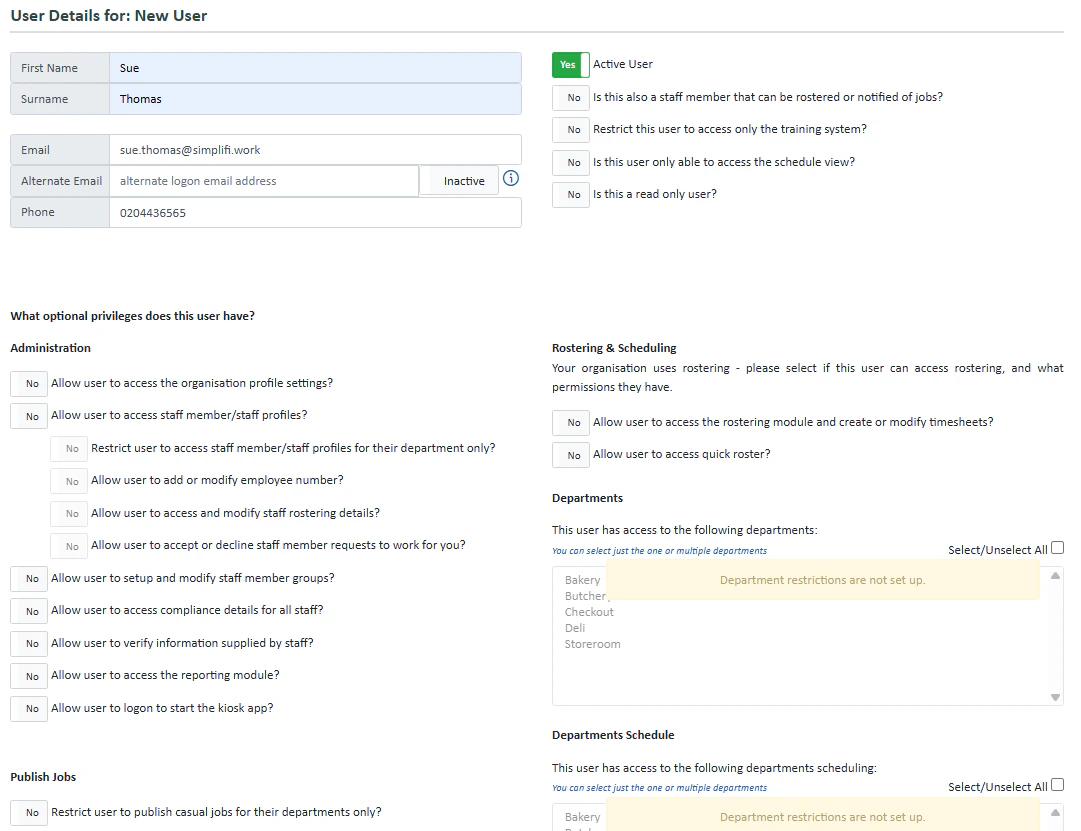
- Press Add a New User from the Our Users page
- Enter their details including their name, email and phone number.
- You can tick the relevant boxes that apply to this staff member. Most of these toggles apply to letting the user access certain modules or modify certain attributes
- If you have department and role restrictions set up (contact us if you’d like to set this up) then select what departments and roles the user can access.
- To save the user, press Save Users Details at the bottom.