
.png?fit=max&auto=format&n=fTXEPIUfjW4rC1Pi&q=85&s=85d7b852879d29ad2bde9b743307ab0e)
Part 1 — Organisation Record
Press Create New Organisation at the top. Select the portal, industry, and head office (if applicable), then enter the organisation name.Organisation Settings
Options for Publishing Jobs
| Setting | Description |
|---|---|
| Can Publish Long-Term / Permanent Jobs | Allows the organisation to publish long-term or permanent jobs. |
| Has Option Accept First Job Response | The organisation automatically accepts the first job response received. If this option is not selected the organisation will always have to manually choose the person they want to work and assign each job. |
| Has Option to Hide End Time | Hides the job end time from staff notifications. An end time will still be entered when publishing the job to show on schedules and payroll, but it allows jobs to be published that are say from 9am until all guests leave. It requires a way to capture when the person actually finished working, eg clocking in and out otherwise the timesheet will always be the legth of time set up when publishing the job, not what the person actually worked. |
| Has Option to Notify Staff in Other Roles | Sends notifications to staff in roles other than the one specified on the job. |
| Has Response Option Only If Needed | Shows the “Only if you need me” response option when staff accept or decline a job. If this option is not ticked, they will only have the option when accepted a job that yes they can work it, or no they can’t. |
| Has Response Option Alternate Times | Allows staff to accept jobs with alternative times, including a notes field. If this option is used and the person is accepted the job times are not automatically changed. The alternate times are shown to the person assigning the job but it is up to them to manually change the times is they wish. It is not a given that giving alternate times means you will be granted those times |
| Has Option of Fixed Payroll Hours | Allows jobs to be published for longer than the paid hours (e.g. publish 8:30–3:30 but pay for 5 hours). This option is only used for schools but could apply to the situation where that get paid a flat 5 hours, so the times are just to let the person know when to turn up and finish |
| Has Pay Rate Entry | Allows an hourly pay rate to be entered for each job, paid to everyone working it. This is used when pay rates are also being set within he system and sent through to the payroll company. Usually pay rates are not sent through and staff get paid based on what rate is set up within their payroll company. One of the pay rate settings within pay roll, is to also send through each person pay rate. This option then provides a per job override, for example if your bar staff are usually paid $28 per hours, but you are really short, or the hours for this job are particularly difficult you may offer the job at $33. In this case, anyone that gets assigned this job will be paid at this rate, regardless of what their usual rate is - higher or lower |
| Has Periods | Turning on this option allows periods In Simplifi (specifically for secondary schools), Periods are configurable time blocks—each with a start, finish, and payroll hours—used instead of a standard full-day rate. Relievers are paid per period, and a single job posting can include multiple periods. To enable periods, rostering must be turned off. |
| Hide Wizard Step Replacement / Custom Fields | Turning on this setting, turns off the custom fields/replace step in the new job wizard In the publish job wizard, there is an option for custom details, and turning on this option hides this option. |
| Hide Wizard Step Sucessful Casual | Turning on this setting turns off the sucessful casual step in the wizard In the publish job wizard, there is an optional setting to provide the sucessful applicant with any extra information that they may need for the job. This setting hides this option |
| Default Job Replacements Off | Turning this on stops the record details of staff absence from being enabled by default In the publishing jobs wizard, there is an option to record the details of any staff members that are absent and are the reason for the job being published. By default, this is checked, but turning this checkbox on turns it off by default |
| Allow Individual Pay Rate Override | If Has Pay Rate Entry is enabled, allows the pay rate to be overridden per individual job. When you have a set pay rate for roles, turning this on allows a user to override an individual staff member’s pay rate. |
| Allow Broadcast Function | Enables the broadcast function for job notifications. If this option is not ticked they will only be able to publish jobs to their own preferred staff. This is the norm as you would usually need a contract for someone to be able to work for you, so you cant send the job to anyone. This is currently only applicable within the education industry as teachers are paid by the ministry so can turn up to work at any school |
Options for Timesheets
| Setting | Description |
|---|---|
| Client Details to be Entered | Allows client names and details to be attached to jobs and events. Clients are not really used in Simplifi anymore, and were created for a past specialty client. This would show a list of clients that you could attach to an event, and by extension a job. |
| Client is Required to Approve Timesheets | Requires the attached client to approve timesheets for jobs created for them. If this is enabled, then the client would have to approve timesheets for all the jobs created for them |
| Show Timesheet Details on Schedule | Displays timesheet details on the schedule bars. This is just a visual setting. In the image below you can see a schedule with all 3 options turned off, and all 3 options turned on On: 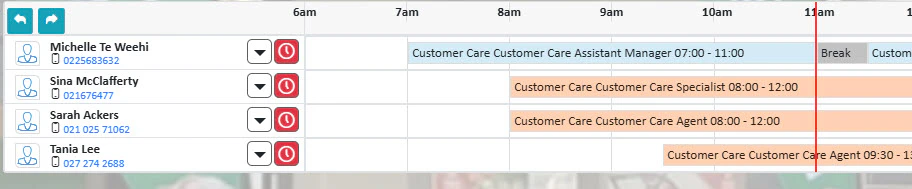 Off: 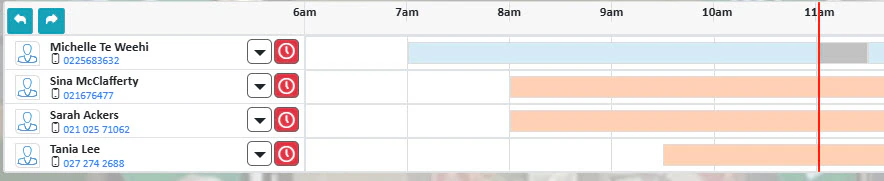 |
| Show Replacement Info on Email | Includes replacement information in job assignment emails. When a temp staff is successful in getting a job, a job success email is sent out to the people who have been selected as to be notified. Ticking this option will include the staff that were replaced in the success email |
| Default to Replacements Using Same Activities | When marking a staff member as on leave and finding a replacement, defaults to keeping the same timesheet activities. When a replacement job is created, with this ticked the original activity will be applied to the replacement staff member. If this is not ticked, then an activity will have to be manually selected. |
| Show Pay Rate on Job Tile | Shows temp staff’s hourly pay rate on their summary tile in the payroll module.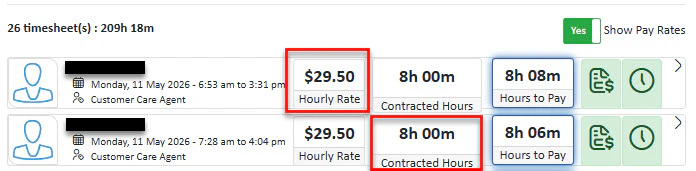 |
| Show Contracted Hours on Payroll Tile | Shows the temp staff member’s contracted hours on their summary tile in the payroll module. |
Options for Staff / Casuals
Options for Events
Head Office Settings
If this organisation is a head office, mark the Head Office checkbox.Press Save Organisation Details at the bottom of the page before moving on to Part 2.
Part 2 — Tabbed Settings
After saving the main record, complete the tabbed settings on the right-hand side of the screen.Users / Roles / Shifts
Add the users and staff who will be using the system. Enter each user’s details and press Save User Details. Select the available roles for the organisation from the right-hand panel. To learn about what users & roles are, see hereRostering
| Setting | Description |
|---|---|
| Organisation has staff | Indicates whether this organisation has staff This would typically be enabled for every organisation, apart from if the organisation is a head office that doesn’t have staff working directly for it |
| All organisations within this head office also have staff | If this organisation is a head office, it will allow all organisations within the heda office to have their own staff members |
| Using Rostering Module | Enables the rostering module. If not enabled, the remaining rostering settings can be skipped. |
| All organisations within this head office are using rostering | Applies rostering to all organisations controlled by this head office. |
| User access needs to be set up for each department / room | When enabled, only users with explicit access can view and edit the roster for a given department. If this is not set it means all users (with rostering access) can access all rooms/departments which is the default. For a larger set up such as a supermarket, this flag can be set which means only users with access can access the roster for the department. eg, only bakery manager accesses bakery department, and butchery manager doesn’t see it. |
| Users have a primary organisation | When enabled, users will have a home/primary site/organisation that they are ‘from’ Primary organisation can be used for payroll to determine alternate pay or pay element if you are not working at your primary organisation 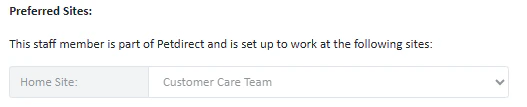 |
| Profiles used to calculate number required staff | When enabled, the organisation will use profiles to generate the number of required staff Profiles take a weekly figure, such as a sales budget and based on that determine the number of staff required |
| Casual jobs require role and room / department match | Casual jobs are only offered to staff whose stated role and department match the job. |
| Have standby timesheets | Allows non-working timesheets (e.g. on-call) to be created. |
| Staff can be set up with contracted hours and roles | Enables the leave module and allows staff to be configured with contracted hours and roles. |
| When setting up contracted hours, can they be back dated? | This allows contracts to be set to start x amount of days before the current date. You may change it to be X amount of days or set it to be only backdate-able in the same pay period |
| Give option to copy rosters across days or weeks | Enables the copy-roster function across days and weeks. |
| Give option to copy timesheets across days | Enables copying the current timesheet across days. |
| Give option to clear weekly rosters | Allows users to clear rosters across future weeks. |
| Staff can create their own timesheets | Allows staff to create their own timesheets. Must also be enabled per staff member individually. |
| Keep original shift swap timesheets | When a shift swap is processed, keeps the original shift and replaces its activity with a specified activity (e.g. Leave Without Pay) rather than removing it. |
| Require shift swap endorsements | Requires the swap partner to confirm they are willing to swap before the swap is processed. |
| External data provider | If the organisation pulls rostering requirements from an external data source, select that source here. |
Payroll
Use Inactive Timesheets to manage timesheets that should not be sent to payroll, or to select a backfill date.
Payroll Settings
Payroll Forecasting
Enable the forecasting module if required for this organisation.Leave Requests
External Timesheets
Allows timesheet details to be sent to a third party. If this organisation is a head office, you can also enable external timesheets for all organisations within the group. Currently InfoCare is the only supported provider. Enabling this will enable the InfoCare module.Press Save Organisation Details at the bottom of the page once all tabbed settings are complete. The organisation is now set up.