> ## Documentation Index
> Fetch the complete documentation index at: https://docs.simplifi.work/llms.txt
> Use this file to discover all available pages before exploring further.
# Notifications not working?
If your notifications are not working, you need to either remove and re-add your device on the Staffsync app.If your notifications are not working, you need to either remove and re-add your device on the Staffsync app.
![Screenshot 20260519 101303 Staff Sync[1]](https://mintcdn.com/simplifi/mXdV_P_d6IHsUoib/images/Screenshot_20260519_101303_StaffSync%5B1%5D.jpg?fit=max&auto=format&n=mXdV_P_d6IHsUoib&q=85&s=fc65963f01450d0c485f4bc3f9a5ca4c "Screenshot 20260519 101303 Staff Sync[1]") 1. Press the **menu button**
2. Press **Account**
3. Press **My Devices**
1. Press the **menu button**
2. Press **Account**
3. Press **My Devices**
![Screenshot 20260519 100439 Staff Sync[1]](https://mintcdn.com/simplifi/mXdV_P_d6IHsUoib/images/Screenshot_20260519_100439_StaffSync%5B1%5D.jpg?fit=max&auto=format&n=mXdV_P_d6IHsUoib&q=85&s=62df55a64240fee3a97e7229648cf1e1 "Screenshot 20260519 100439 Staff Sync[1]") You will now see the **My Devices** page. Send a test notification with the button marked by 1. You should be sent a notification. If you don't get a notification but have a device listed, then uninstall and reinstall the app. If your device is listed but isn't recieving notifications, you can delete the device by pressing 2, and then open the app again.
You will now see the **My Devices** page. Send a test notification with the button marked by 1. You should be sent a notification. If you don't get a notification but have a device listed, then uninstall and reinstall the app. If your device is listed but isn't recieving notifications, you can delete the device by pressing 2, and then open the app again.
![Screenshot 20260519 100511 Staff Sync[1]](https://mintcdn.com/simplifi/mXdV_P_d6IHsUoib/images/Screenshot_20260519_100511_StaffSync%5B1%5D.jpg?fit=max&auto=format&n=mXdV_P_d6IHsUoib&q=85&s=28f994481c2bec4131b68bf38e6755b1 "Screenshot 20260519 100511 Staff Sync[1]") 1. Press the **menu button**
2. Press **Account**
3. Press **My Devices**
You will now see the **My Devices** page. Send a test notification with the button marked by 1. You should be sent a notification. If you don't get a notification but have a device listed, then uninstall and reinstall the app. If your device is listed but isn't recieving notifications, you can delete the device by pressing 2, and then open the app again.
You will then be prompted to enter a name for the device. After this, press **Save Device Name**.You will then be prompted to enter a name for the device. After this, press **Save Device Name**.
Navigate back to the my devices screen in the earlier steps and press send test notification to see if you can recieve notifications
Navigate back to the my devices screen in the earlier steps and press send test notification to see if you can recieve notifications
If you are still not getting notifications, then your phone does not have notifications enabled for Staffsync:If you are still not getting notifications, then your phone does not have notifications enabled for Staffsync:
**Android**
Press search
1. Press the **menu button**
2. Press **Account**
3. Press **My Devices**
You will now see the **My Devices** page. Send a test notification with the button marked by 1. You should be sent a notification. If you don't get a notification but have a device listed, then uninstall and reinstall the app. If your device is listed but isn't recieving notifications, you can delete the device by pressing 2, and then open the app again.
You will then be prompted to enter a name for the device. After this, press **Save Device Name**.You will then be prompted to enter a name for the device. After this, press **Save Device Name**.
Navigate back to the my devices screen in the earlier steps and press send test notification to see if you can recieve notifications
Navigate back to the my devices screen in the earlier steps and press send test notification to see if you can recieve notifications
If you are still not getting notifications, then your phone does not have notifications enabled for Staffsync:If you are still not getting notifications, then your phone does not have notifications enabled for Staffsync:
**Android**
Press search
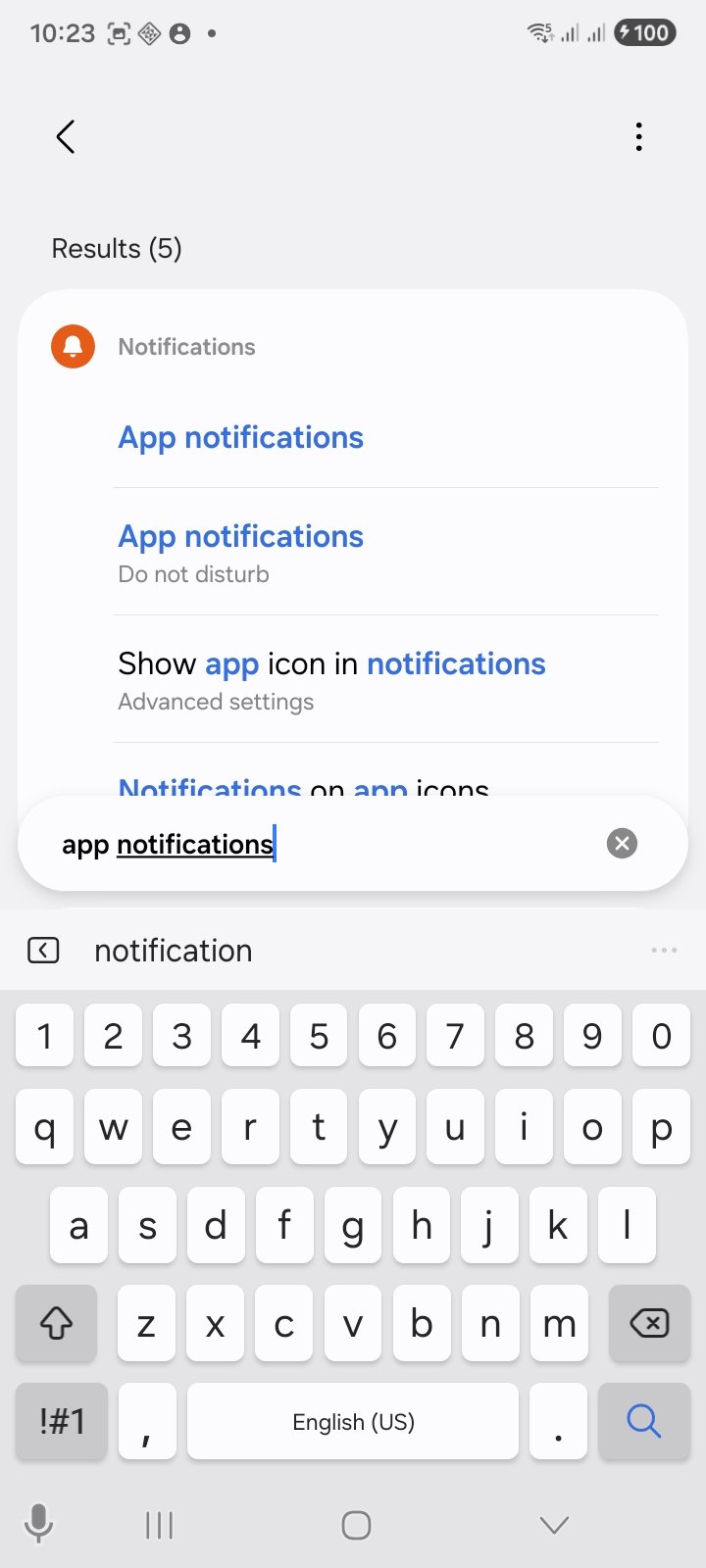
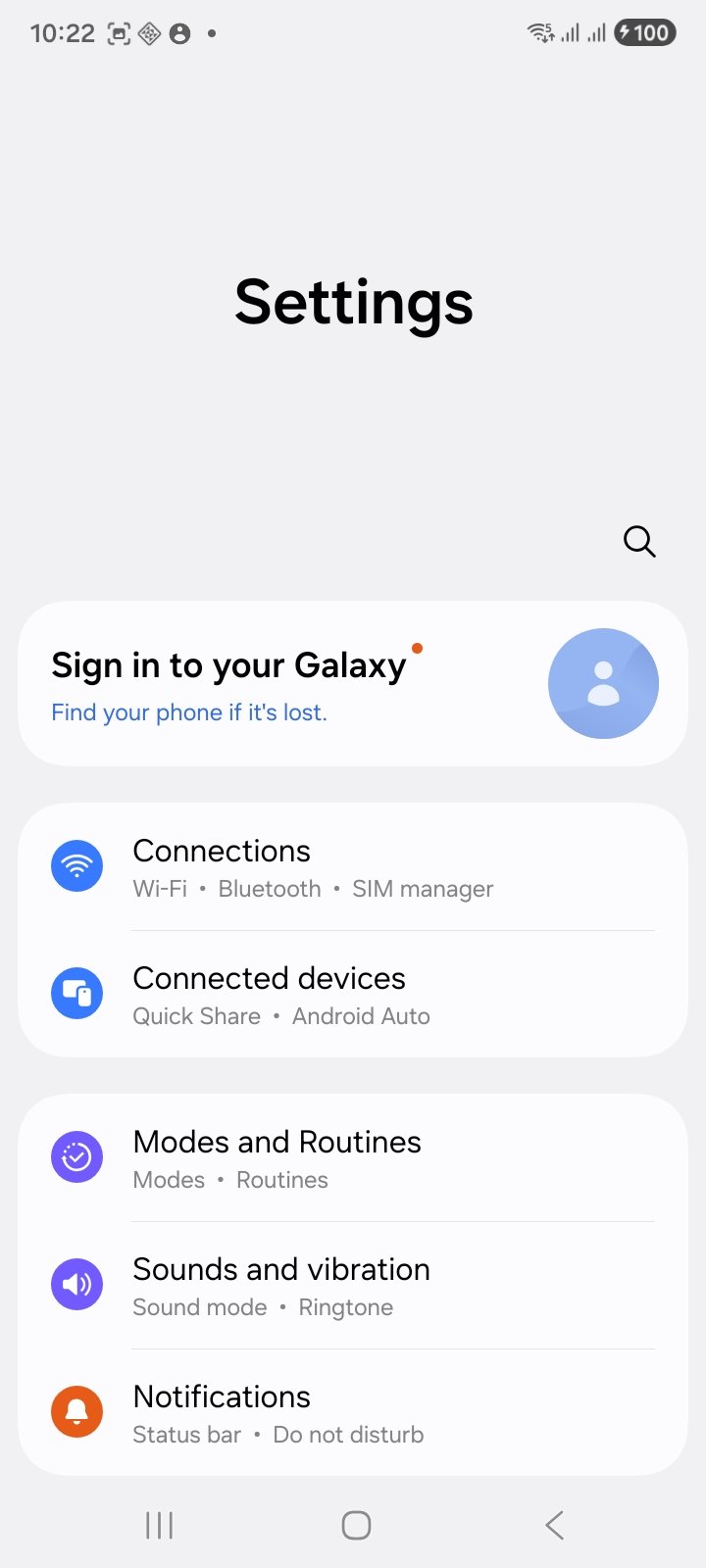 Look up "app notifications" and press the first result
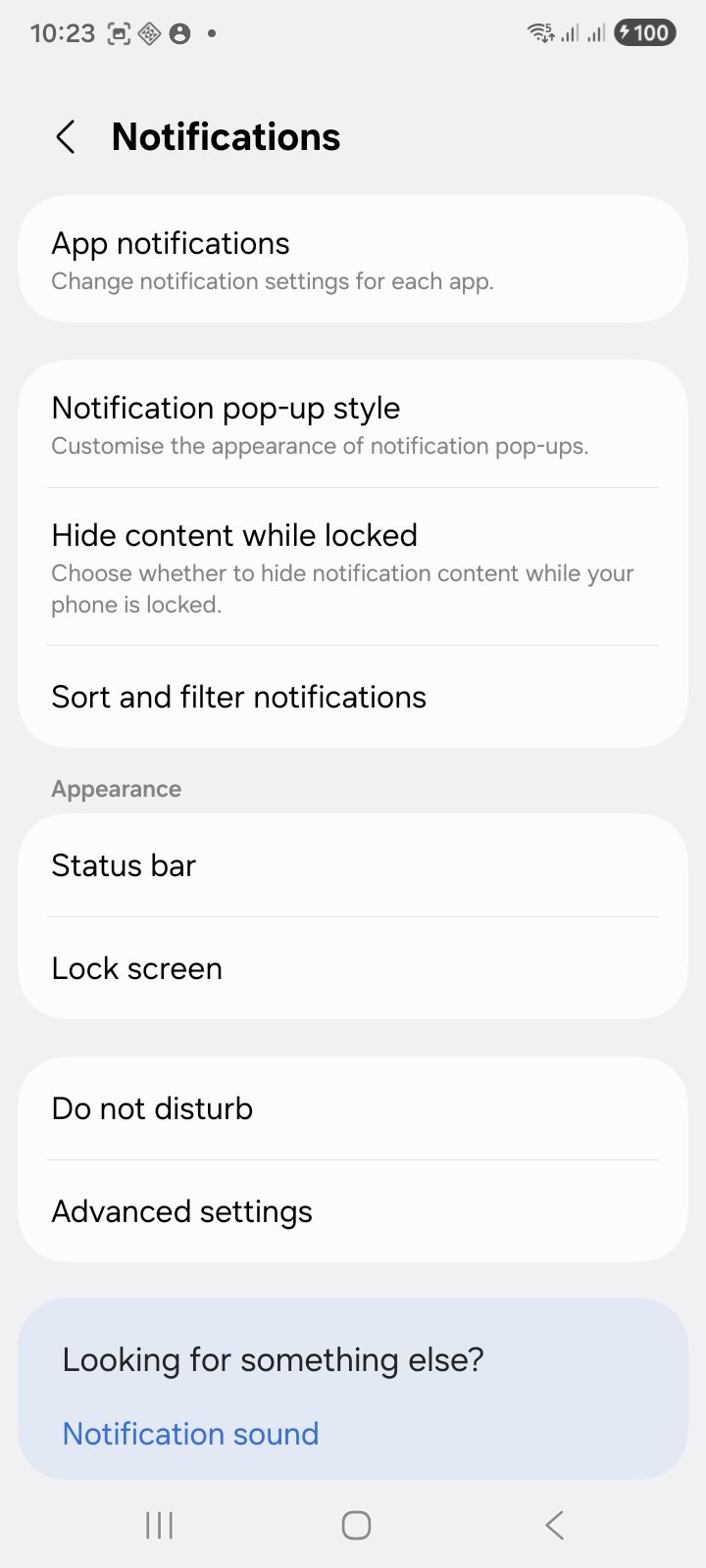
 Press **App Notificatons**
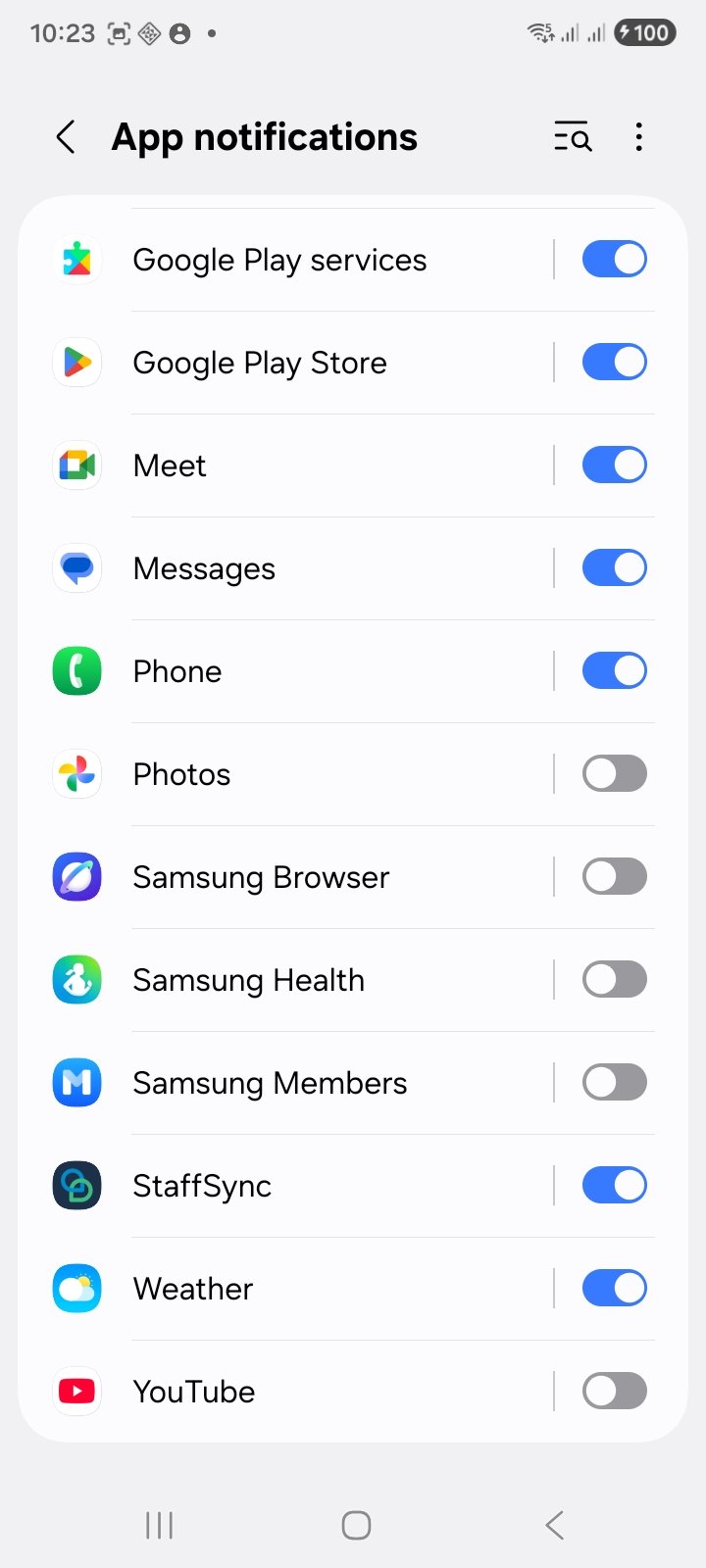
 Scroll down until you find the Simplifi/StaffSync app. Make sure that the toggle is blue.
 **AppleApple**
Open settings and press search
**AppleApple**
Open settings and press search
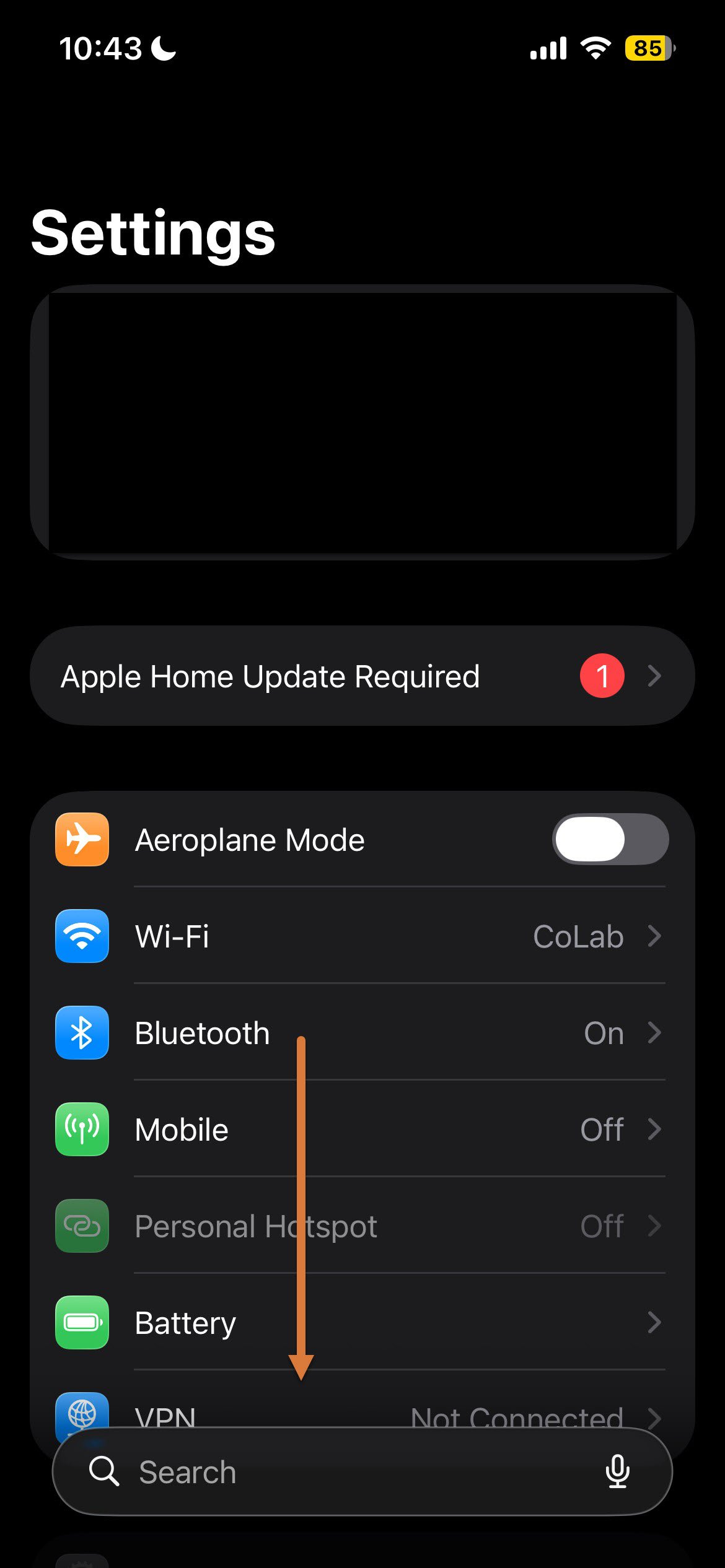 Type in "Notifications", and tap the first result
.jpg?fit=max&auto=format&n=bFIFGbaPzXVC1C8J&q=85&s=62e9ed31415eba55d6c6c69e31d53b9d "Image (1)") Open settings and press search
Type in "Notifications", and tap the first result
Scroll all the way down, until you see the version of StaffSync you have installed and tap the app
Open settings and press search
Type in "Notifications", and tap the first result
Scroll all the way down, until you see the version of StaffSync you have installed and tap the app
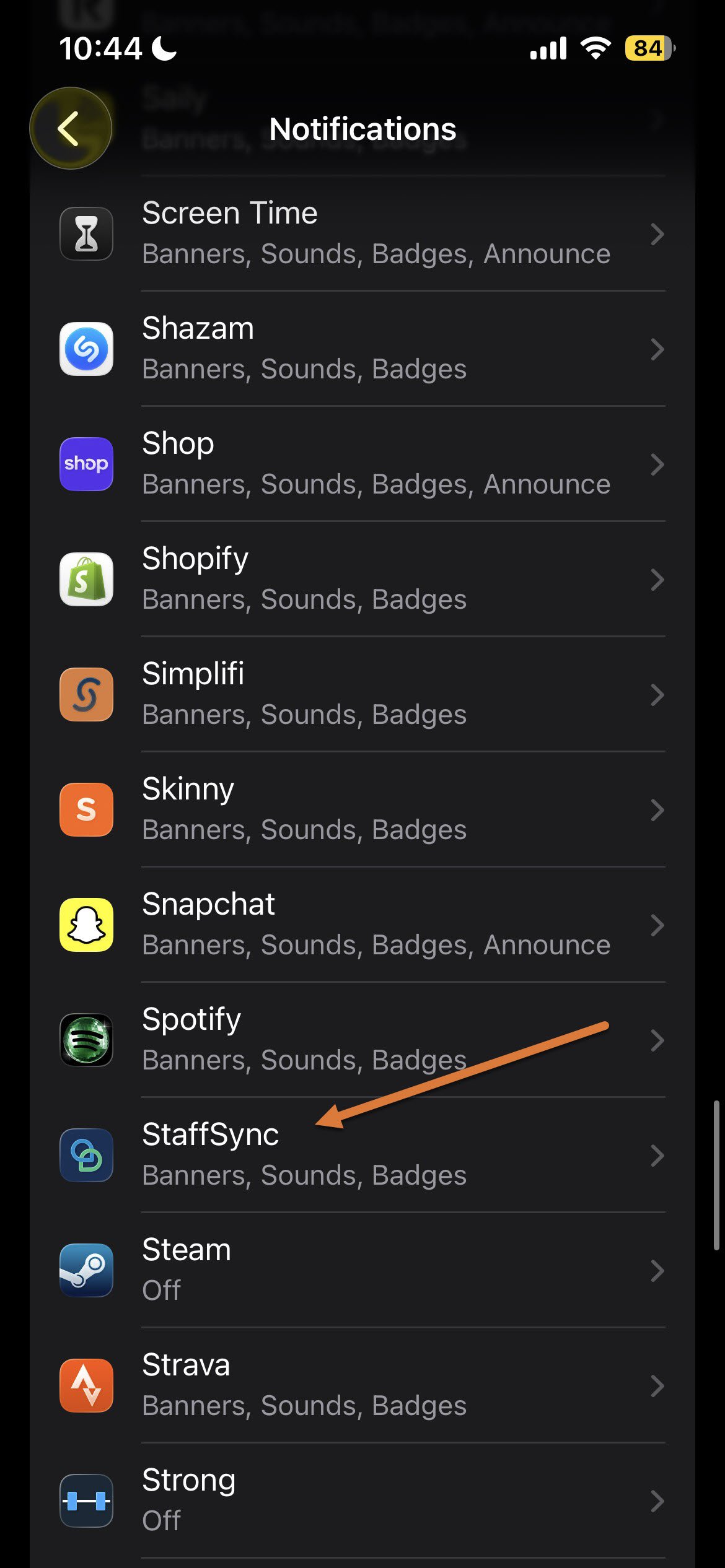 You will see settings push notifications for StaffSync. Enable **Allow Notifications** and make sure that the all the alerts are selected, sounds and badges are on.
.jpg?fit=max&auto=format&n=bFIFGbaPzXVC1C8J&q=85&s=80c96408d0f9f0c6d3132db232fa33f9 "Image (3)")
.jpg?fit=max&auto=format&n=bFIFGbaPzXVC1C8J&q=85&s=32a318fb7a8d278284d92e51901c9b71 "Image (2)") You will see settings push notifications for StaffSync. Enable **Allow Notifications** and make sure that the all the alerts are selected, sounds and badges are on.
You will see settings push notifications for StaffSync. Enable **Allow Notifications** and make sure that the all the alerts are selected, sounds and badges are on.