> ## Documentation Index
> Fetch the complete documentation index at: https://docs.simplifi.work/llms.txt
> Use this file to discover all available pages before exploring further.
# Managing Your Calendar
Simplifi lets you manage your calendar easily. By default, all days are set as available for work. However, you can mark yourself as unavailable or partially unavailable.
**Steps to manage your availability:**
**Open the Menu** and select **My Calendar**.
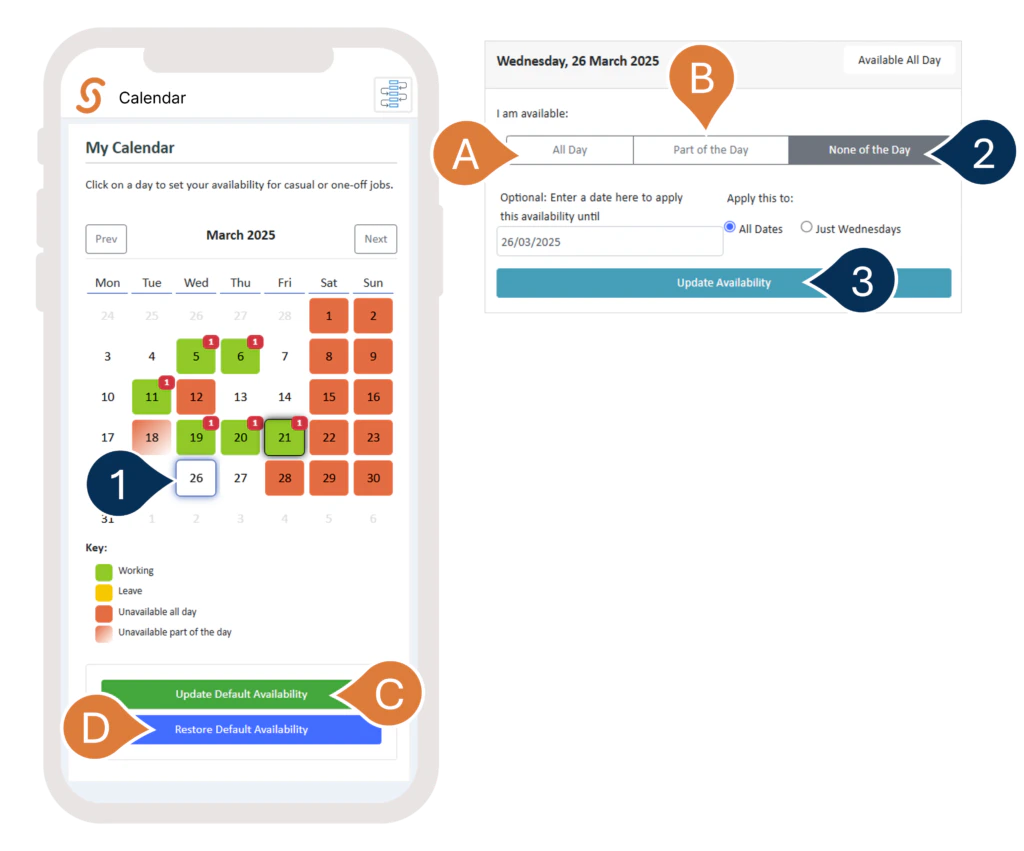
 1. **Choose the date** you want to mark.
2. Select **None of the Day** to mark yourself as unavailable.\
**A**. If you’ve already marked yourself as unavailable before, you can select **Available** to change your status back.\
**B.** You can also choose to be available for just part of the day.
3. Select **Update Availability** to save your changes.\
**C.** To set a default availability for specific days of the week (e.g., always unavailable or always available on certain days), choose the option for that.\
**D.** To clear any one-off markings and reset your calendar to its default availability, click this option.
1. **Choose the date** you want to mark.
2. Select **None of the Day** to mark yourself as unavailable.\
**A**. If you’ve already marked yourself as unavailable before, you can select **Available** to change your status back.\
**B.** You can also choose to be available for just part of the day.
3. Select **Update Availability** to save your changes.\
**C.** To set a default availability for specific days of the week (e.g., always unavailable or always available on certain days), choose the option for that.\
**D.** To clear any one-off markings and reset your calendar to its default availability, click this option.
 **Additional Notes:**
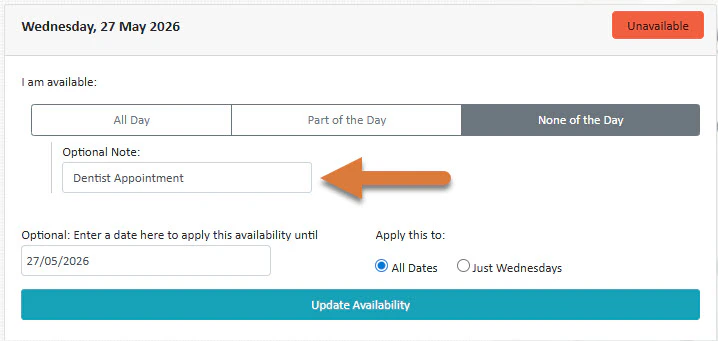 In a recent update to Simplifi/StaffSync, you can now add in an optional note to your unavailability. This will appear for any organisation or school that sees your status as unavailable.