> ## Documentation Index
> Fetch the complete documentation index at: https://docs.simplifi.work/llms.txt
> Use this file to discover all available pages before exploring further.
# Managing Leave
To submit a leave request, follow these simple steps:
Select the **Menu** and choose **Leave Request**.
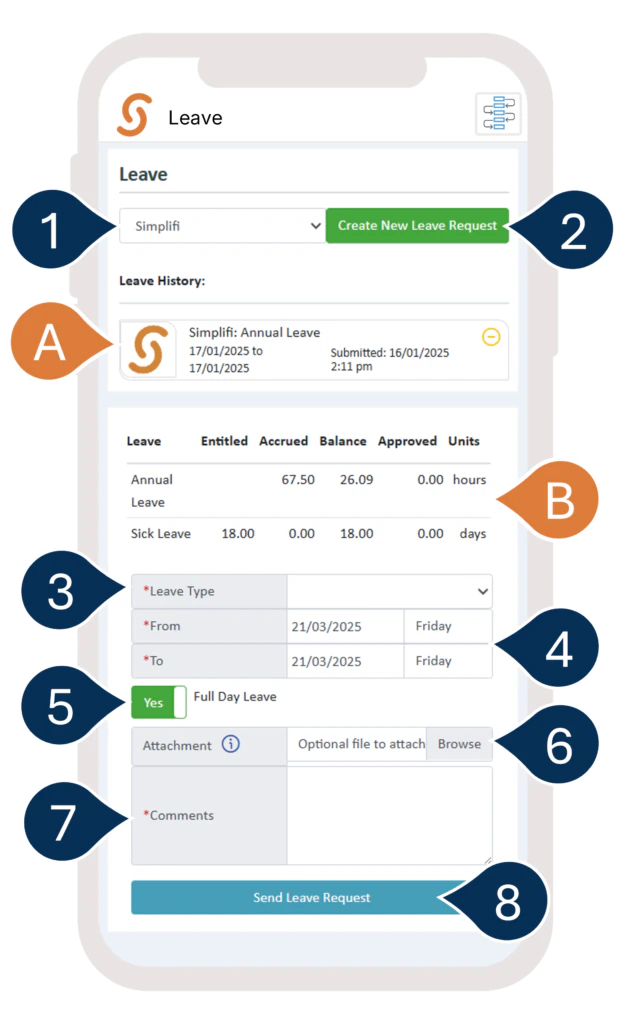
 * **A.** Here, you’ll see a list of your recent leave requests and their status. You can click on any pending requests to make changes or cancel them.
1. If you work at multiple locations, select the location you wish to send your request to.
2. Select **Create New Leave Request**.
* **B.** Here, you can also check your **Leave Balances**.
3. Enter the **Leave Type**
4. Enter the **Date Range**.
5. If you’re applying for a full day off, set the toggle to **YES**. If you’re applying for part of the day, set the toggle to **NO** and enter the time range.
6. Attach any **Supporting Documents** (optional).
7. Add any **Comments** (if needed).
8. Select **Send Leave Request** to submit your request.
* **A.** Here, you’ll see a list of your recent leave requests and their status. You can click on any pending requests to make changes or cancel them.
1. If you work at multiple locations, select the location you wish to send your request to.
2. Select **Create New Leave Request**.
* **B.** Here, you can also check your **Leave Balances**.
3. Enter the **Leave Type**
4. Enter the **Date Range**.
5. If you’re applying for a full day off, set the toggle to **YES**. If you’re applying for part of the day, set the toggle to **NO** and enter the time range.
6. Attach any **Supporting Documents** (optional).
7. Add any **Comments** (if needed).
8. Select **Send Leave Request** to submit your request.