> ## Documentation Index
> Fetch the complete documentation index at: https://docs.simplifi.work/llms.txt
> Use this file to discover all available pages before exploring further.
# How to Terminate a Staff Member/Casual
**Please note:** If you are using Simplifi with a Payroll API, the termination of a staff member will happen automatically on the first payroll data sync after you terminate them in your payroll system. This guide is only for manually maintained staff.
There are two termination options available to you:
1. Terminate Effective Immediately
2. Terminate on a Future Date
### **How to Terminate Effective Immediately**
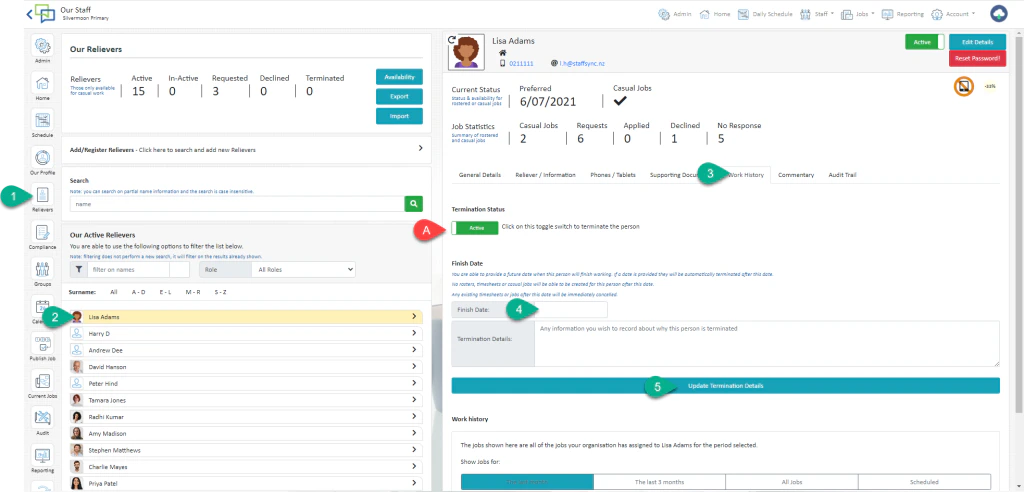
1. Select Staff Module
2. Open the Staff Profile
3. Select Work History
4. Change the status from Active to Terminated. This will remove them from all rosters and casual jobs starting the day after termination.
 ### **How to Terminate on a future date**
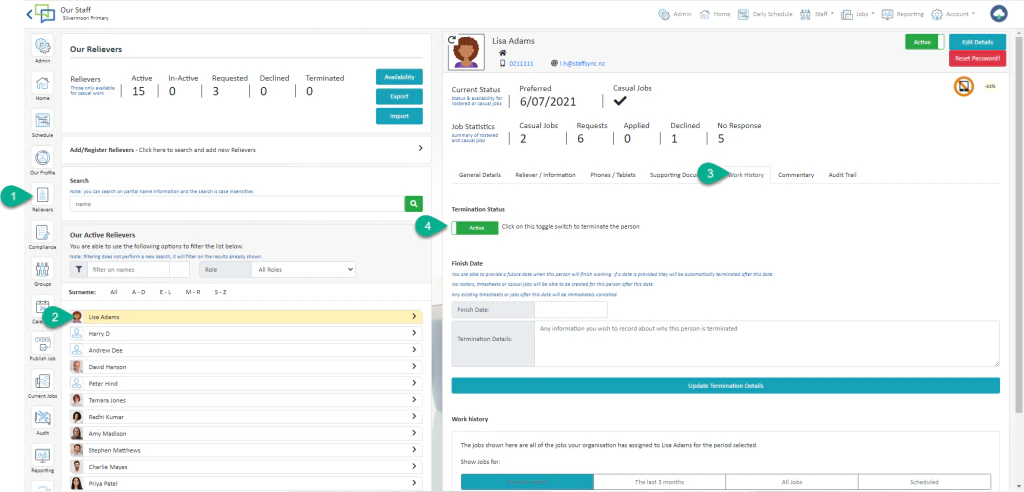
1. Select Staff Module
2. Open the Staff Profile
3. Select Work History
4. Enter their last day of work\
This will remove them from all rosters and casual jobs starting the day after termination.
5. Select **Update Termination Details**
**A – Please leave this toggle as Active! – It will automatically switch to Terminated on the date of termination.**
### **How to Terminate on a future date**
1. Select Staff Module
2. Open the Staff Profile
3. Select Work History
4. Enter their last day of work\
This will remove them from all rosters and casual jobs starting the day after termination.
5. Select **Update Termination Details**
**A – Please leave this toggle as Active! – It will automatically switch to Terminated on the date of termination.**