> ## Documentation Index
> Fetch the complete documentation index at: https://docs.simplifi.work/llms.txt
> Use this file to discover all available pages before exploring further.
# How to Set Up new Contracted Hours
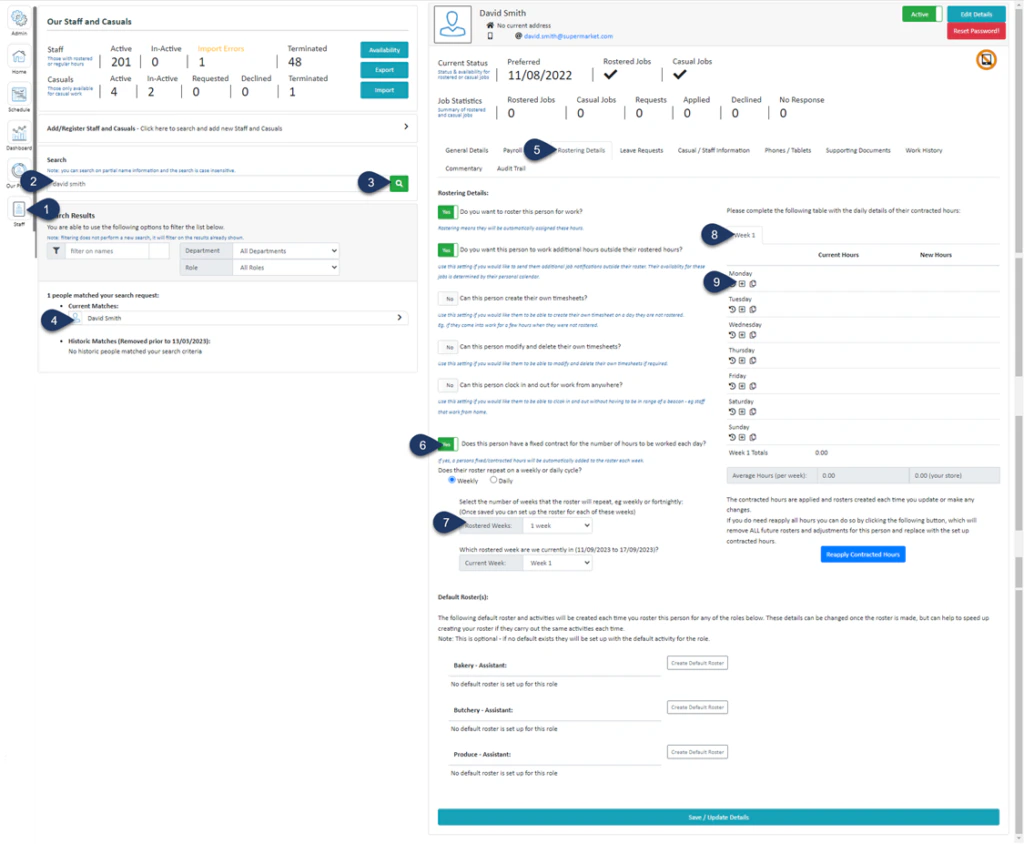 1. Click **Staff** (If you cannot see the ‘Staff’ button, then you will need to ask your store administrator to grant you access)
2. Type in the name or partial name of the employee
3. Click **Search**
4. Select the **Employee**
5. Select **Rostering Details**
6. “Does this person have a fixed contract for the number of hours to be worked each day?”\
Switch the toggle to ‘**YES**‘
7. Select the number of weeks pattern for this roster (most of the employees tend to have a 1-week pattern)
8. If you have selected more than 1 week pattern then you can choose which week you are going to build the roster for
9. Under the day of the week you wish to add a Standard Contracted Hour for, click the + icon\
(A pop-up window will appear)
1. Click **Staff** (If you cannot see the ‘Staff’ button, then you will need to ask your store administrator to grant you access)
2. Type in the name or partial name of the employee
3. Click **Search**
4. Select the **Employee**
5. Select **Rostering Details**
6. “Does this person have a fixed contract for the number of hours to be worked each day?”\
Switch the toggle to ‘**YES**‘
7. Select the number of weeks pattern for this roster (most of the employees tend to have a 1-week pattern)
8. If you have selected more than 1 week pattern then you can choose which week you are going to build the roster for
9. Under the day of the week you wish to add a Standard Contracted Hour for, click the + icon\
(A pop-up window will appear)
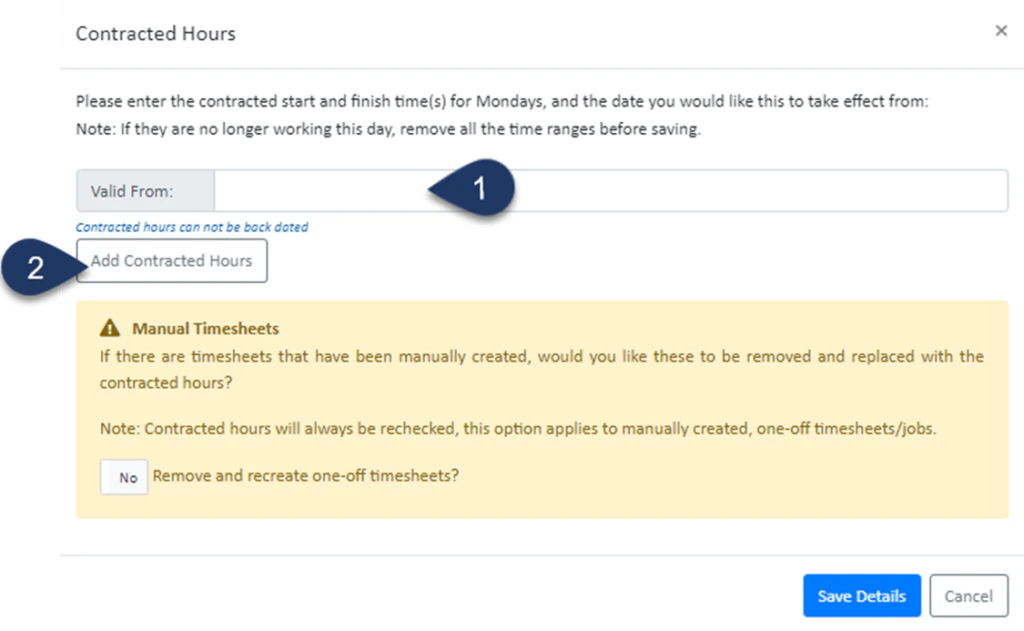 1. Select the **Date** in which this is valid from
2. Click Add **Contracted Hours**
1. Select the **Date** in which this is valid from
2. Click Add **Contracted Hours**
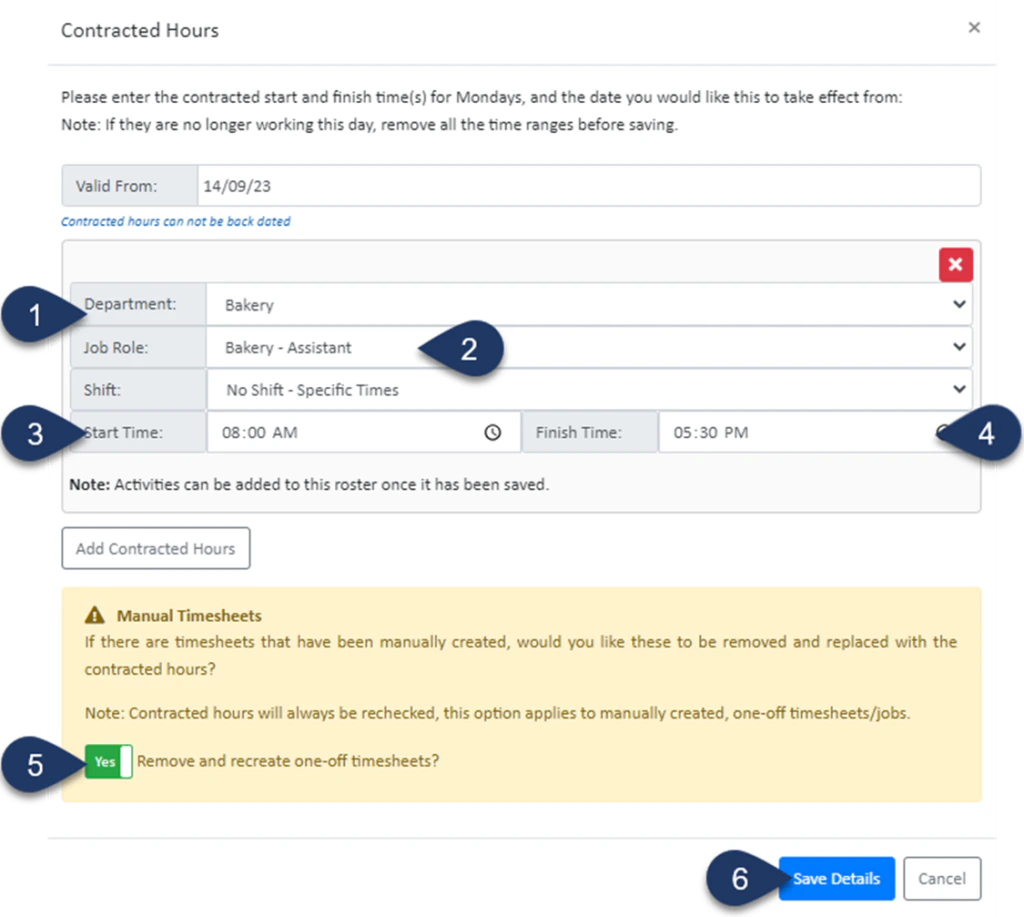 1. Select the **Department**
2. Select the **Job Role**
3. Enter the **Start time**
4. Enter the **End time**
5. Switch the toggle to ‘**YES**‘ to remove any previously created timesheets for this staff member and update any generated rosters
6. Select **Save Details**
1. Select the **Department**
2. Select the **Job Role**
3. Enter the **Start time**
4. Enter the **End time**
5. Switch the toggle to ‘**YES**‘ to remove any previously created timesheets for this staff member and update any generated rosters
6. Select **Save Details**
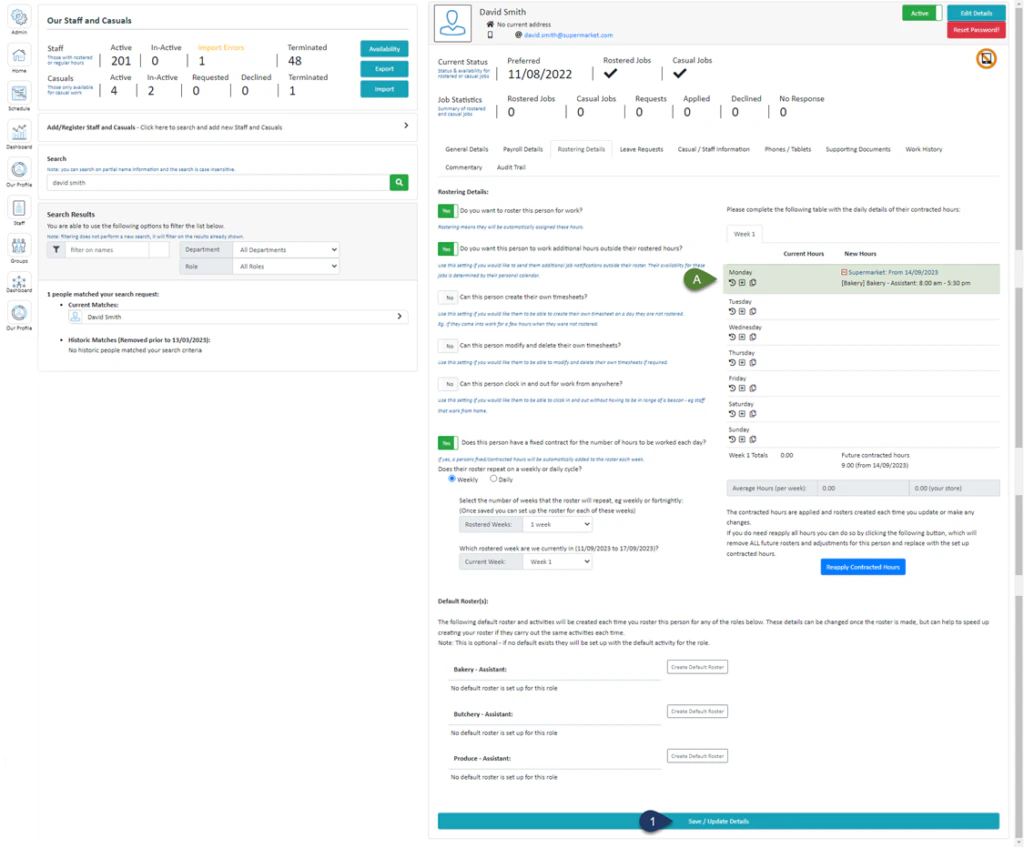 **A. You will now see the added contracted hours here.**
1. Click **Save / Update Details**
**A. You will now see the added contracted hours here.**
1. Click **Save / Update Details**