> ## Documentation Index
> Fetch the complete documentation index at: https://docs.simplifi.work/llms.txt
> Use this file to discover all available pages before exploring further.
# How to set up daily contracted hours
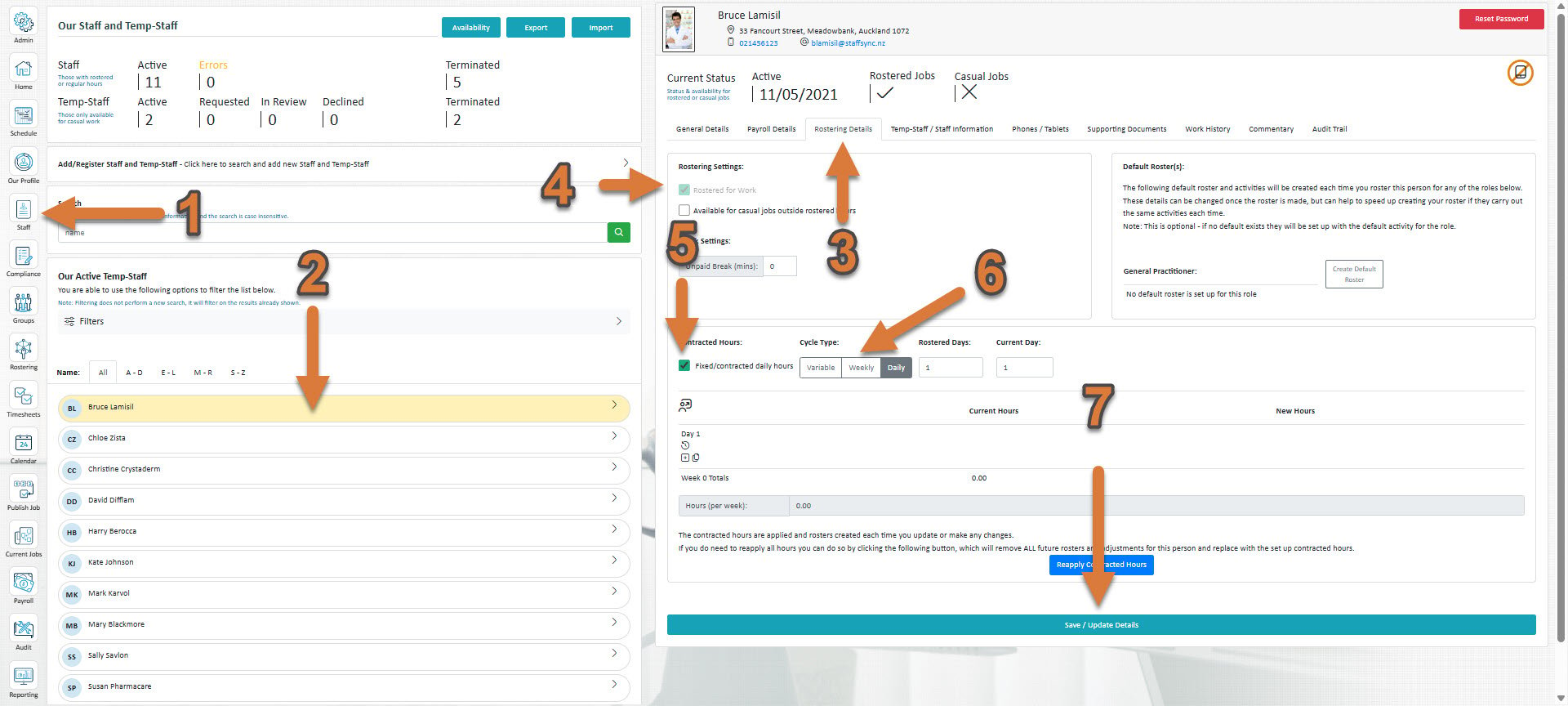 1. Click **Staff** (If you cannot see the ‘Staff’ button, then you will need to ask your store administrator to grant you access)
2. Select the staff member you'd like to set up new contracted hours for
3. Select **Rostering Details**
4. If if hasn't already been ticked, tick **Rostered for work**
5. **Tick Fixed/contracted daily hours**
6. Click **Daily**.
7. Press **Save / Update Details**
1. Click **Staff** (If you cannot see the ‘Staff’ button, then you will need to ask your store administrator to grant you access)
2. Select the staff member you'd like to set up new contracted hours for
3. Select **Rostering Details**
4. If if hasn't already been ticked, tick **Rostered for work**
5. **Tick Fixed/contracted daily hours**
6. Click **Daily**.
7. Press **Save / Update Details**
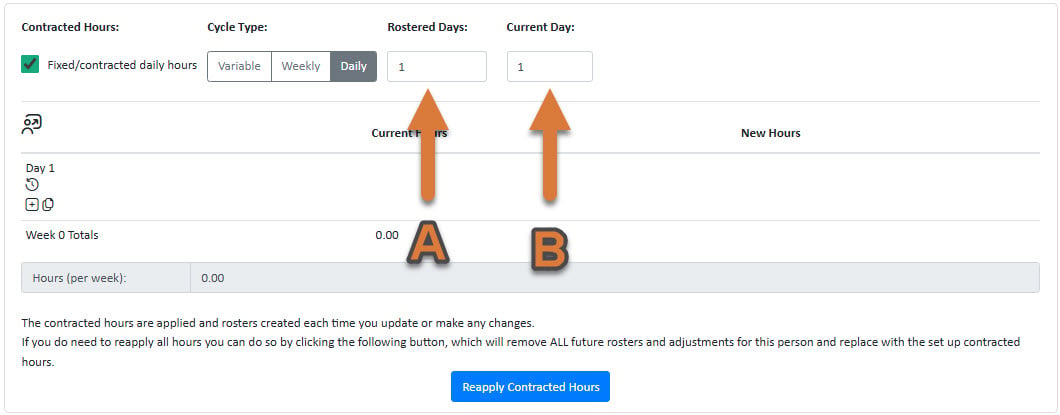 Under A, you can see a number input for the different amount of days you'd like for there to be in the daily contracted hours cycle.
Under B, you can specify what day of this daily cycle **we are currently on**.
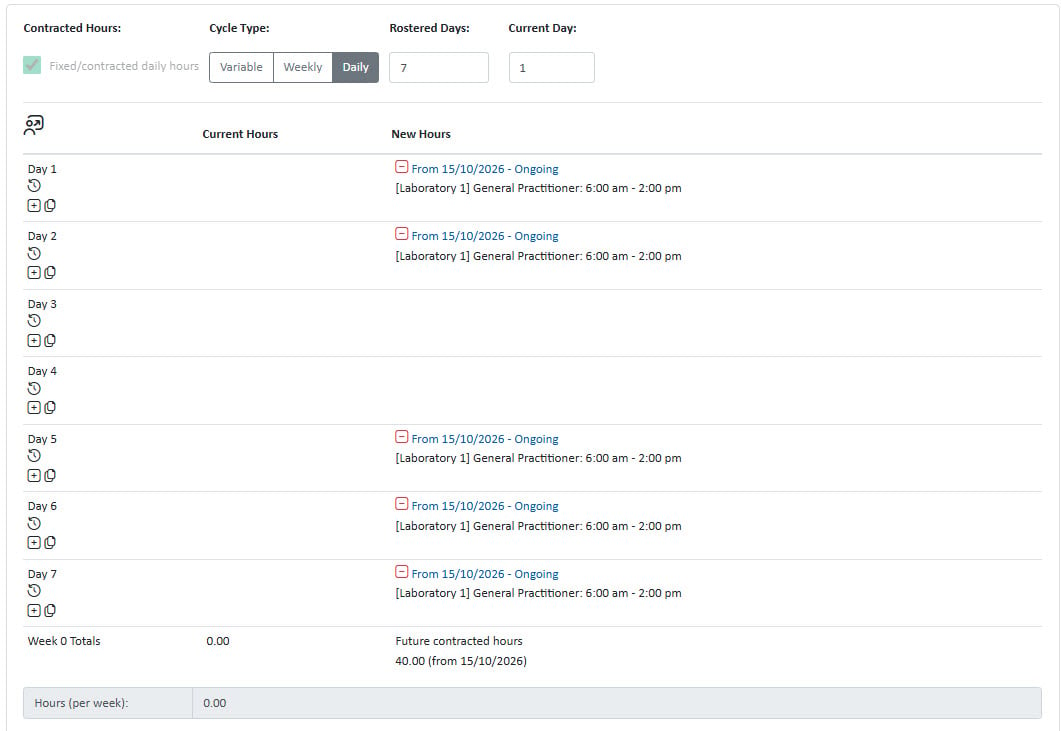
For example, if I wanted a schedule where every week a staff member was working every day apart from Wednesday and Thursday, I would put a shift on every day except for 3 and 4. By setting the current day under B to 1, I am confirming that in this cycle the current day is day 1, which in this cycle I would like to be Monday. For the weekdays to line up with my cycle it therefore must be Monday today.
Under A, you can see a number input for the different amount of days you'd like for there to be in the daily contracted hours cycle.
Under B, you can specify what day of this daily cycle **we are currently on**.
For example, if I wanted a schedule where every week a staff member was working every day apart from Wednesday and Thursday, I would put a shift on every day except for 3 and 4. By setting the current day under B to 1, I am confirming that in this cycle the current day is day 1, which in this cycle I would like to be Monday. For the weekdays to line up with my cycle it therefore must be Monday today.
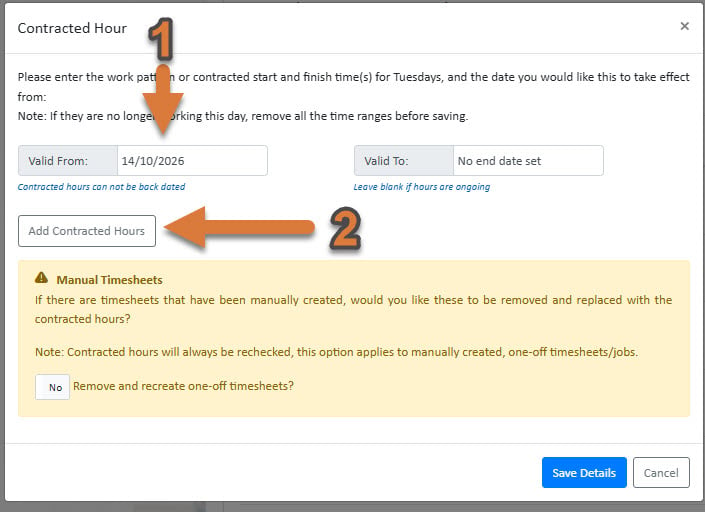 1. Select a date that you'd like the contracted hours to start from
2. Press **Add Contracted Hours** to add contracted hours
1. Select a date that you'd like the contracted hours to start from
2. Press **Add Contracted Hours** to add contracted hours
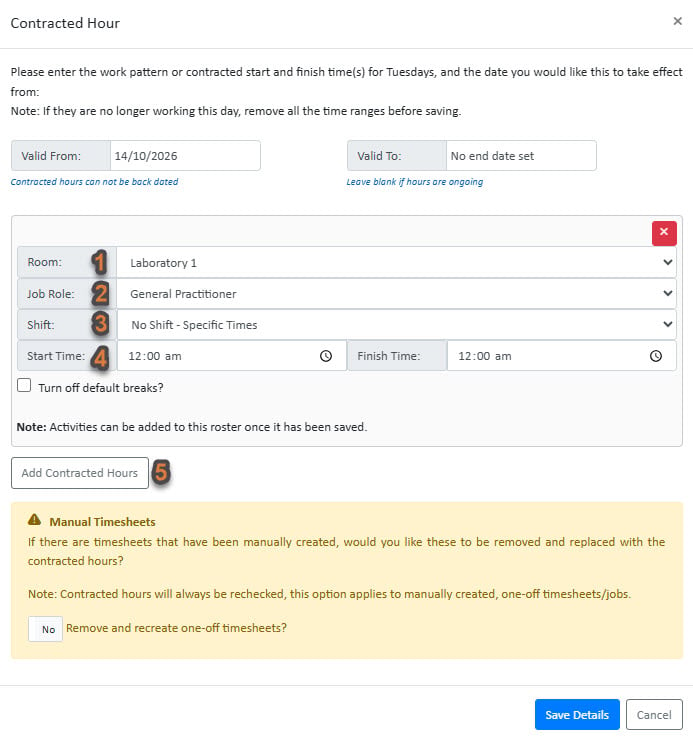 1. Select the **Department**
2. Select the **Job Role**
3. Select the **Shift**
4. Select the **Start Times**
5. If you wish to set up multiple shifts, you can add one here
**Press Save Details**
1. Select the **Department**
2. Select the **Job Role**
3. Select the **Shift**
4. Select the **Start Times**
5. If you wish to set up multiple shifts, you can add one here
**Press Save Details**
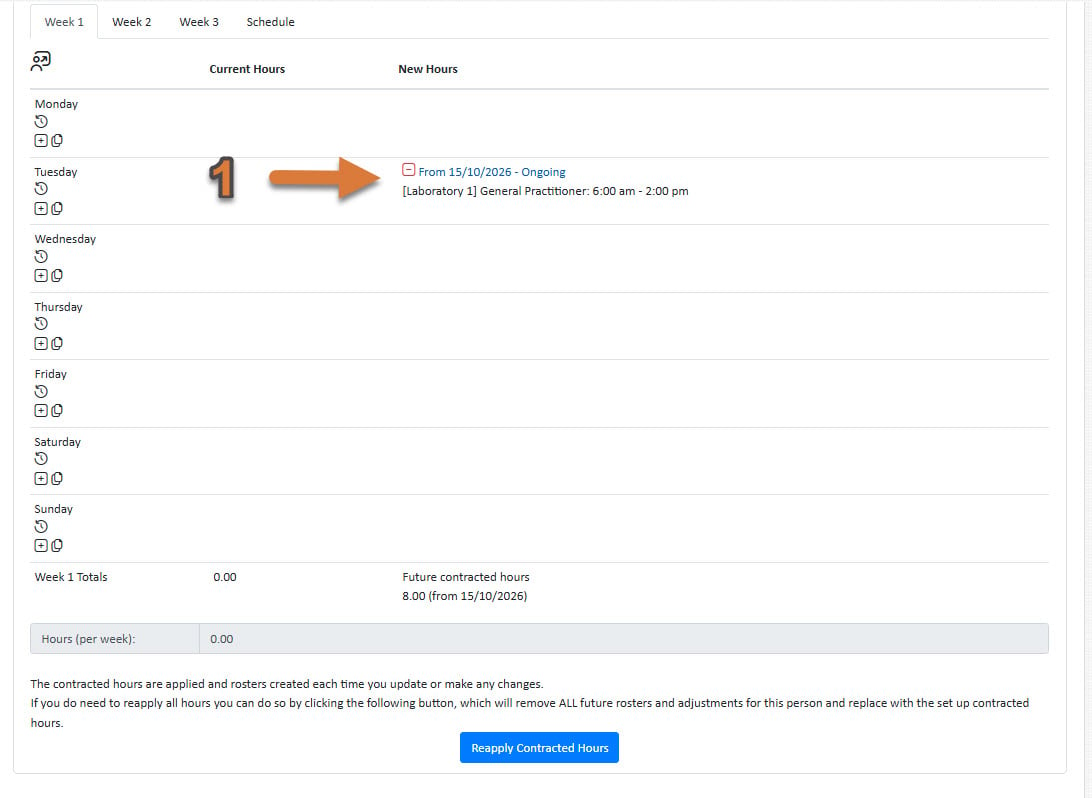 1. You will now see the contracted hours saved to your week 1 template. Whereever you place the week 1 template in the schedule, these hours will be used
This documentation is built and hosted on [Mintlify](https://mintlify.com), a developer documentation platform.
1. You will now see the contracted hours saved to your week 1 template. Whereever you place the week 1 template in the schedule, these hours will be used
This documentation is built and hosted on [Mintlify](https://mintlify.com), a developer documentation platform.