> ## Documentation Index
> Fetch the complete documentation index at: https://docs.simplifi.work/llms.txt
> Use this file to discover all available pages before exploring further.
# How to Reset an Employee's Password
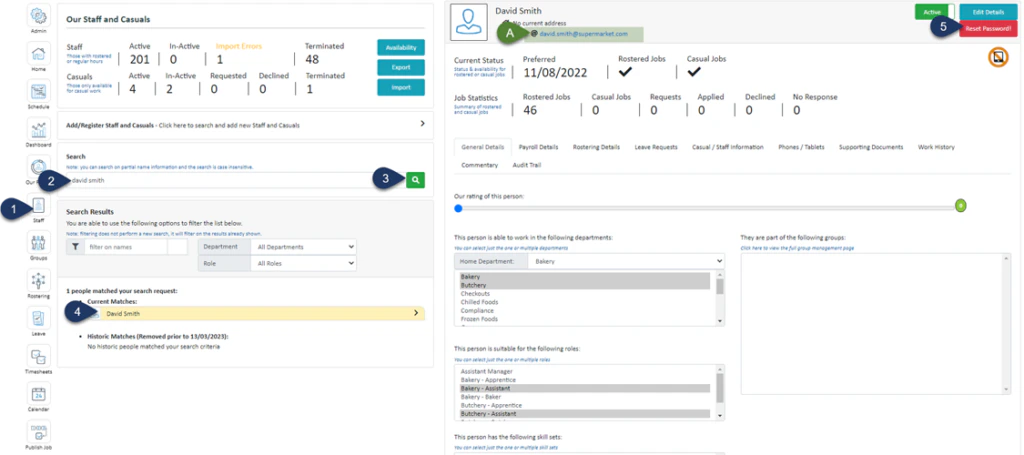 1. Click **Staff** (If you can not see this ‘Staff’ button, you will need to ask your store administrator to grant you access)
2. Type in the name or partial name of the employee
3. Click the **Search Icon**
4. Select the **Employee**
5. Select **Reset Password**
**A. Please note that you are only able to reset the password for employees who use a personal email address that is not associated with the company single sign-on**
1. Click **Staff** (If you can not see this ‘Staff’ button, you will need to ask your store administrator to grant you access)
2. Type in the name or partial name of the employee
3. Click the **Search Icon**
4. Select the **Employee**
5. Select **Reset Password**
**A. Please note that you are only able to reset the password for employees who use a personal email address that is not associated with the company single sign-on**
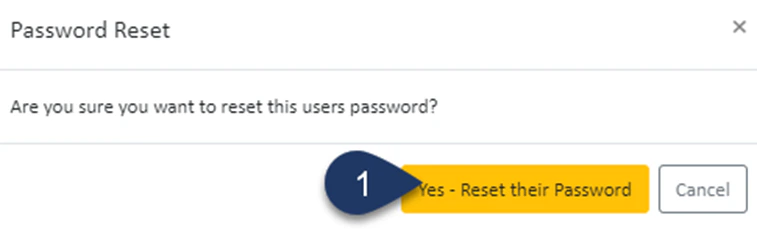 1. Select – **Yes - Reset their Password**
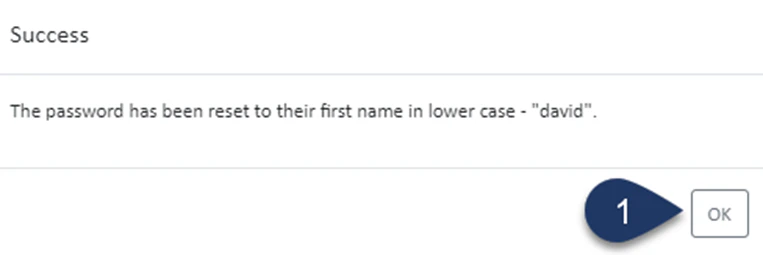 1. Select **OK**
The password will be reset to the employee’s first name in lowercase.
1. Select **OK**
The password will be reset to the employee’s first name in lowercase.