> ## Documentation Index
> Fetch the complete documentation index at: https://docs.simplifi.work/llms.txt
> Use this file to discover all available pages before exploring further.
# How to Record Leave for a Staff Member
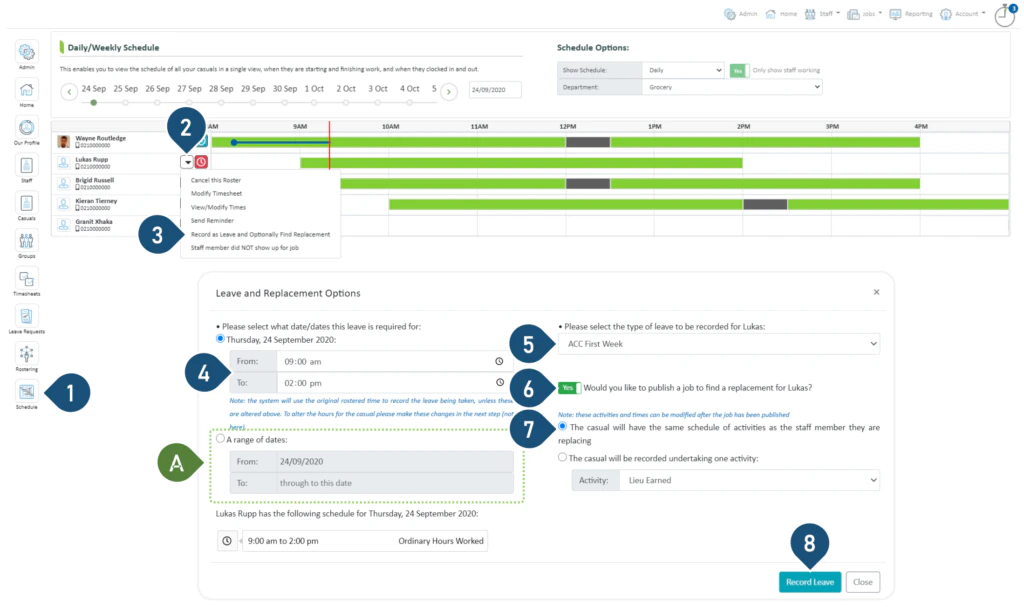 1. Select the **Schedule** button.
2. Click on the drop-down menu.
3. Select **Record as Leave and Optionally Find Replacement**.
4. Enter the time and duration of the leave. If the staff member is absent for the entire shift, you may leave this unchanged.
A. If the staff member will be taking the next few days off, enter the date range here.
5. Select the type of leave to be recorded.
6. Switch the toggle to **Yes** if you wish to find a replacement. If not, switch the toggle to **No** and continue to step 8.
7. Select the first option.
**The casual will have the same schedule of activities as the staff member they are replacing.**
8. Select **Record Leave**
1. Select the **Schedule** button.
2. Click on the drop-down menu.
3. Select **Record as Leave and Optionally Find Replacement**.
4. Enter the time and duration of the leave. If the staff member is absent for the entire shift, you may leave this unchanged.
A. If the staff member will be taking the next few days off, enter the date range here.
5. Select the type of leave to be recorded.
6. Switch the toggle to **Yes** if you wish to find a replacement. If not, switch the toggle to **No** and continue to step 8.
7. Select the first option.
**The casual will have the same schedule of activities as the staff member they are replacing.**
8. Select **Record Leave**