> ## Documentation Index
> Fetch the complete documentation index at: https://docs.simplifi.work/llms.txt
> Use this file to discover all available pages before exploring further.
# How to Promote an Employee to a User
This will allow this employee to log in as both a staff member and as a company user.
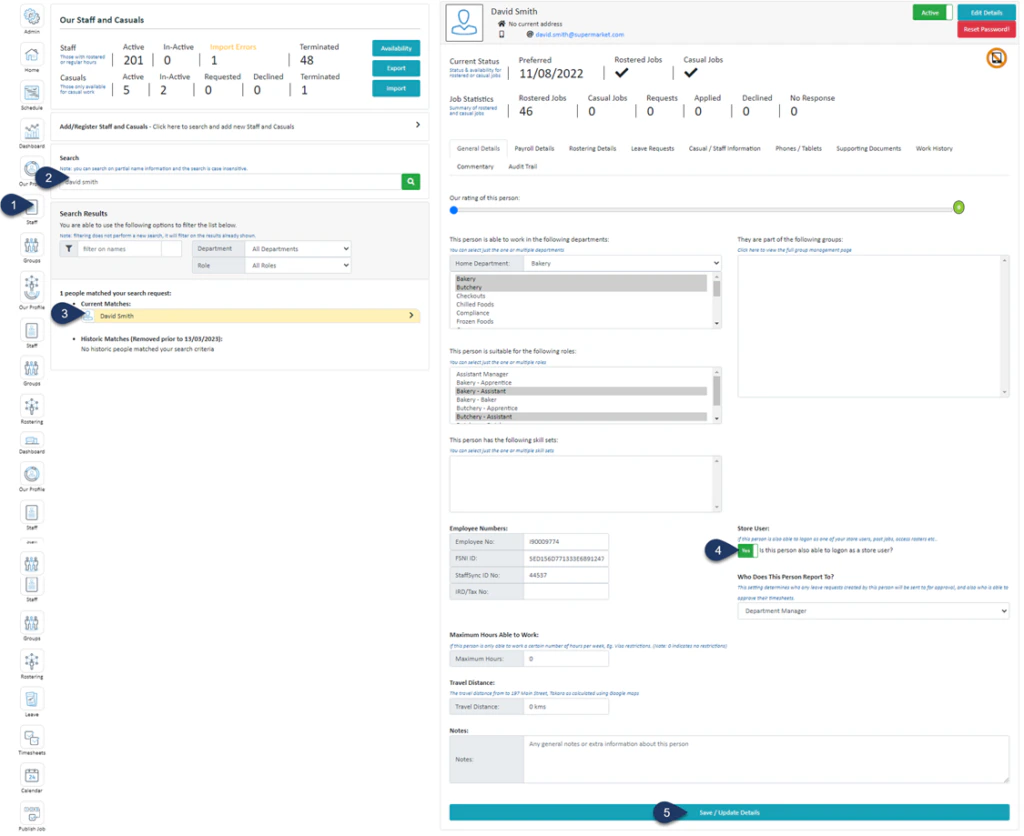 1. Select **Staff**
2. Search for the employee’s name
3. Select the employee
4. Switch the ‘**Company User**‘ toggle to **YES**
5. Click **Save / Update Details**
1. Select **Staff**
2. Search for the employee’s name
3. Select the employee
4. Switch the ‘**Company User**‘ toggle to **YES**
5. Click **Save / Update Details**
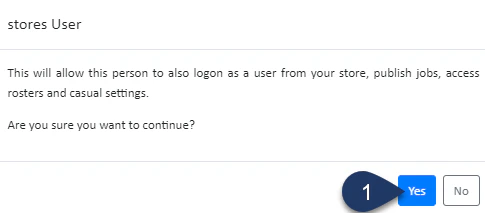 1. Click **Yes**
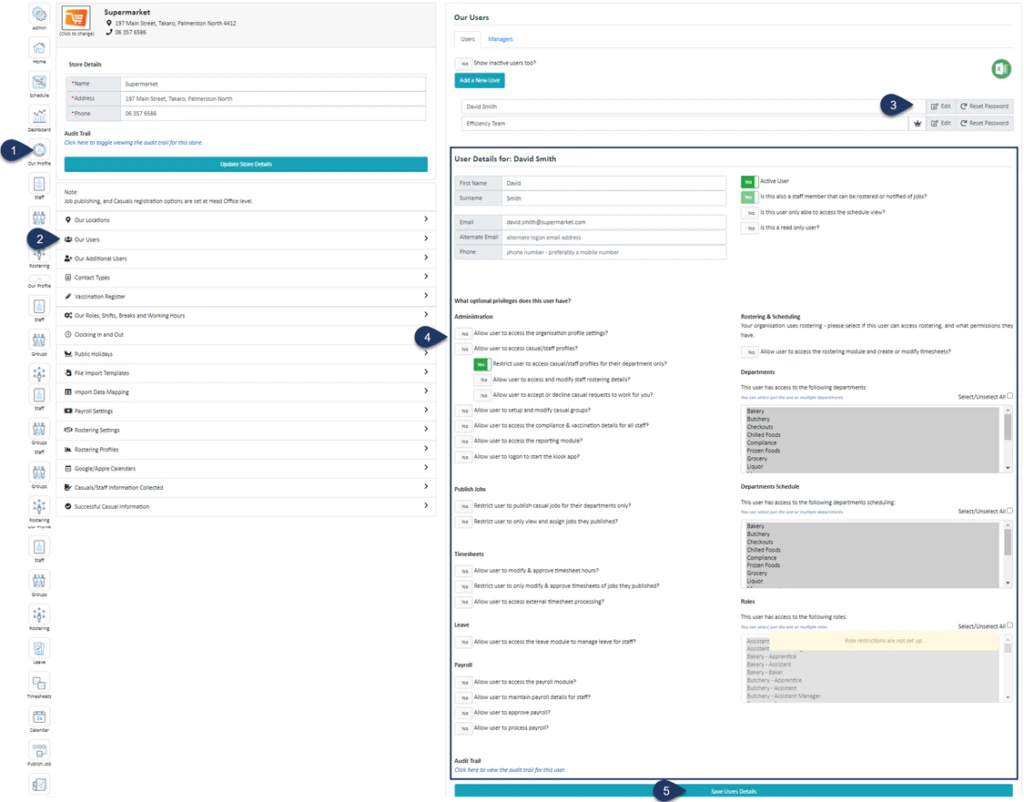 1. Select **Our Profile**
2. Select **Our Users**
3. Select **Edit** next to the user you wish to edit
4. Use the form here to grant or restrict access
5. Click **Save User Details**
1. Select **Our Profile**
2. Select **Our Users**
3. Select **Edit** next to the user you wish to edit
4. Use the form here to grant or restrict access
5. Click **Save User Details**