> ## Documentation Index
> Fetch the complete documentation index at: https://docs.simplifi.work/llms.txt
> Use this file to discover all available pages before exploring further.
# How to Edit or Cancel a Published Shift
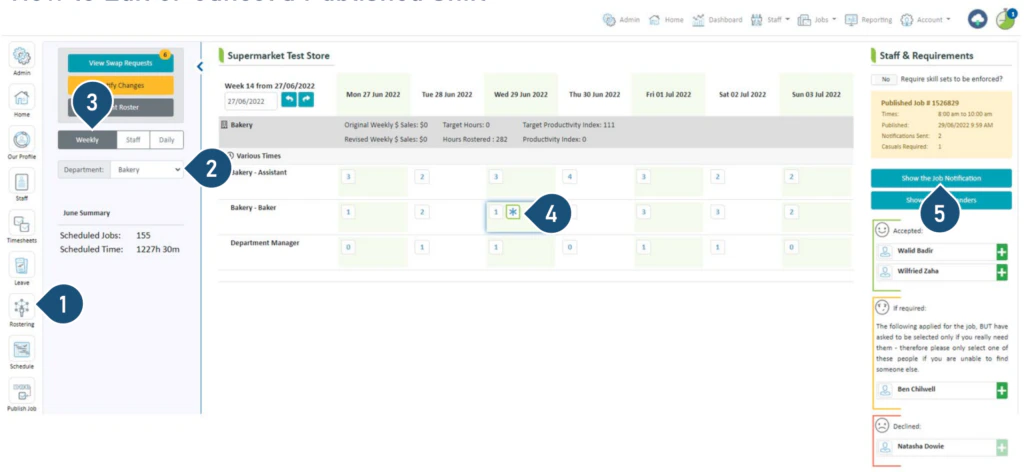 1. Select the **Rostering** button.
2. Select the Department.
3. Select the **Weekly** view.
4. You will see an asterisk where you have published a job – click on it.
5. Click **Show the Job Notification**.
1. Select the **Rostering** button.
2. Select the Department.
3. Select the **Weekly** view.
4. You will see an asterisk where you have published a job – click on it.
5. Click **Show the Job Notification**.
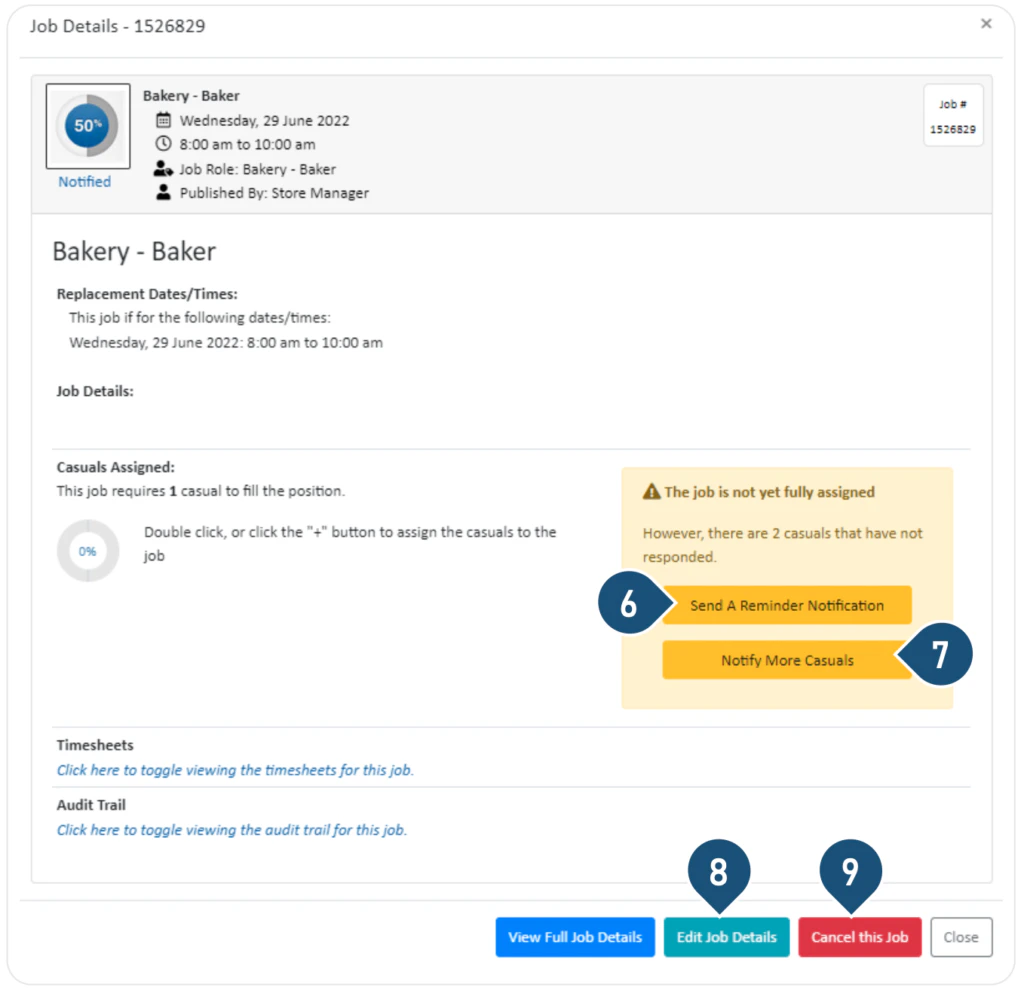 6. If you wish to send a reminder notification to your casuals, click **Send A Reminder Notification**.
7. If you wish to send the job notification to some additional casuals, click **Notify More Casuals**.
8. If you wish to edit the job, click **Edit Job Details**.
9. If you wish to delete the job, click **Cancel This Job**.
6. If you wish to send a reminder notification to your casuals, click **Send A Reminder Notification**.
7. If you wish to send the job notification to some additional casuals, click **Notify More Casuals**.
8. If you wish to edit the job, click **Edit Job Details**.
9. If you wish to delete the job, click **Cancel This Job**.