> ## Documentation Index
> Fetch the complete documentation index at: https://docs.simplifi.work/llms.txt
> Use this file to discover all available pages before exploring further.
# How to Create New Reporting Roles
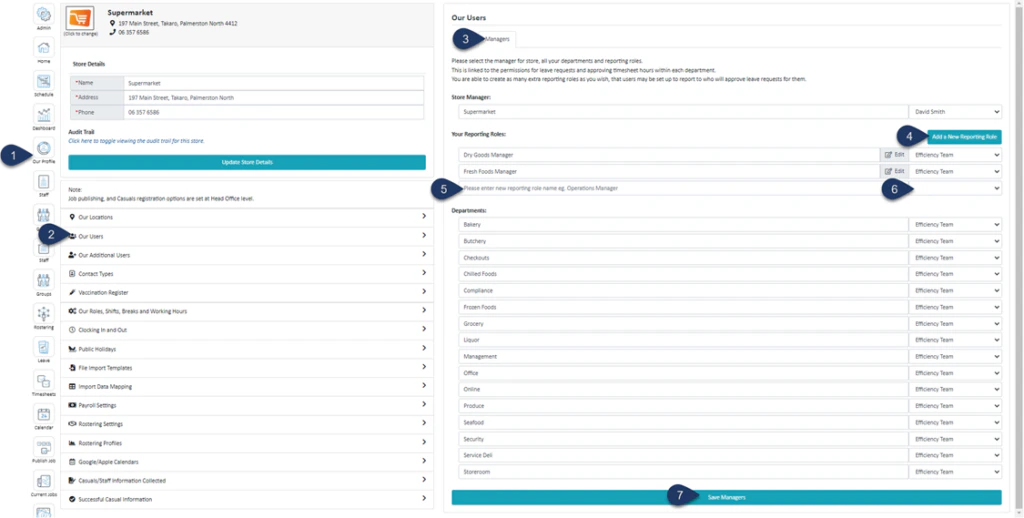 1. Select **Our Profile**
2. Select **Our Users**
3. Select **Managers**
4. Click **‘Add a New Reporting Role’**
5. Enter the **Name** of this role
6. From your list of users, choose the user that occupies this role
7. Select **Save Manager**\
\
You can now find this role listed in your employee’s profile for you to select:
1. Select **Our Profile**
2. Select **Our Users**
3. Select **Managers**
4. Click **‘Add a New Reporting Role’**
5. Enter the **Name** of this role
6. From your list of users, choose the user that occupies this role
7. Select **Save Manager**\
\
You can now find this role listed in your employee’s profile for you to select:
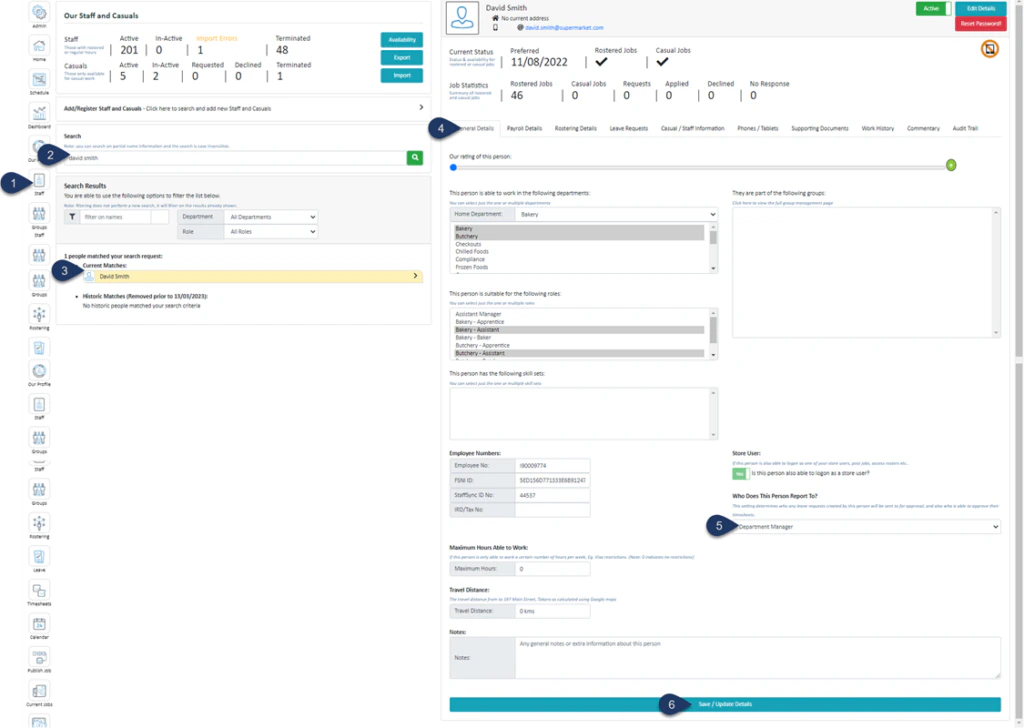 1. Select **Staff**
2. Search for the employee’s name
3. Select the **Employee**
4. Select **General Details**
5. You can now choose your custom role from the list. This means that this employee’s timesheets and leave requests will be accessible only to the person you have selected for this custom role. Any users with payroll access can also access this employee’s timesheet and leave. No one else will be able to see this employee’s timesheet or leave.
6. Select **Save/Update Details**
1. Select **Staff**
2. Search for the employee’s name
3. Select the **Employee**
4. Select **General Details**
5. You can now choose your custom role from the list. This means that this employee’s timesheets and leave requests will be accessible only to the person you have selected for this custom role. Any users with payroll access can also access this employee’s timesheet and leave. No one else will be able to see this employee’s timesheet or leave.
6. Select **Save/Update Details**