> ## Documentation Index
> Fetch the complete documentation index at: https://docs.simplifi.work/llms.txt
> Use this file to discover all available pages before exploring further.
# How to Create a New Temp Staff
This guide will take you through creating a new [Temp Staff](/temp-staff).
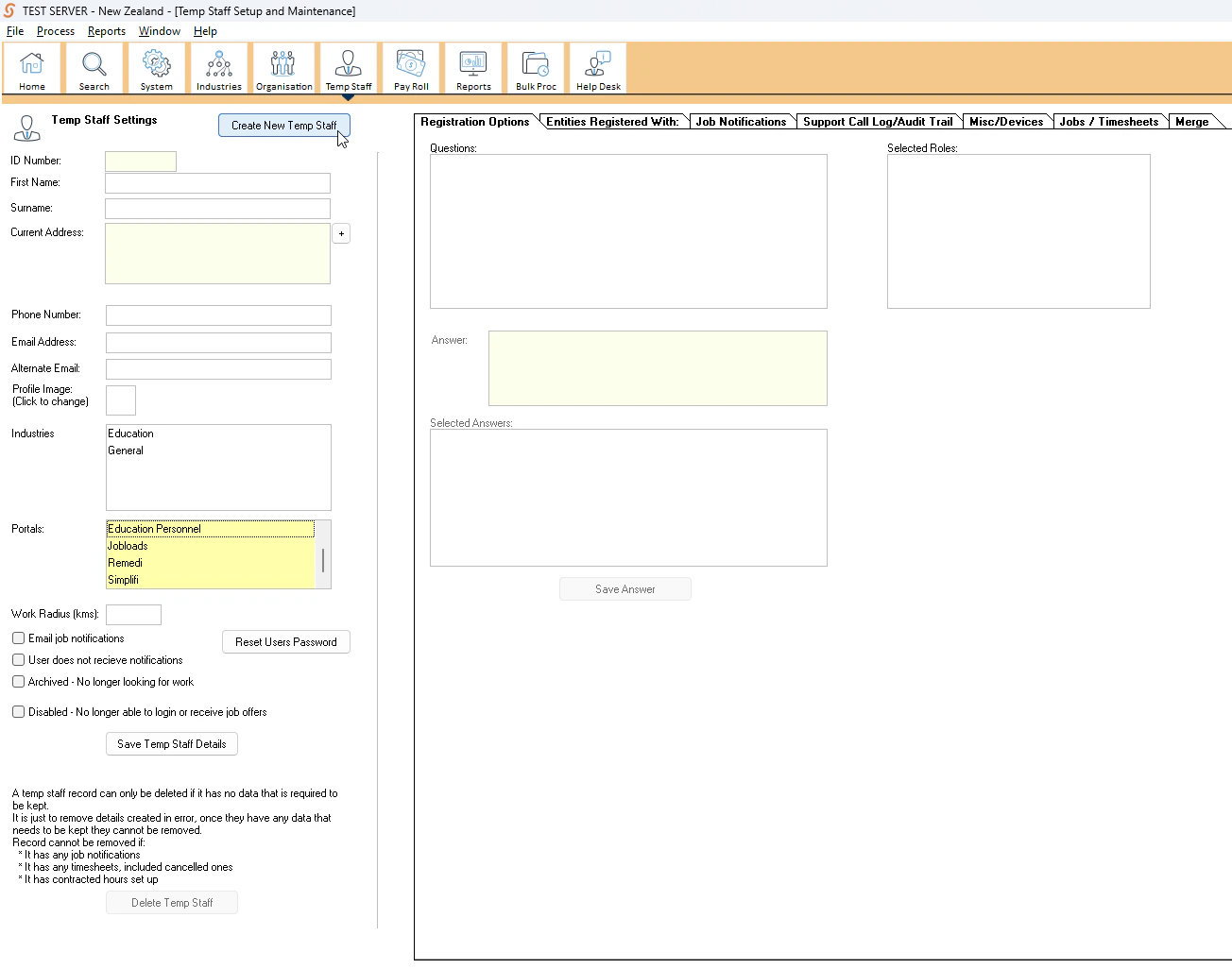
 1. Press **Create New Temp Staff** in the top left.
2. Fill in their basic details such as their first name, surname etc. The ID number is auto-generated by the system. You do not need to enter one in.
3. Select what [Industry](/industies) the temp staff is from. You may select both.
4. Select what [Portal](/portals) the temp staff uses. You may select multiple.
5. Enter their preferred work radius. This is how far the temp staff is willing to travel for work.
6. Tick off the remaining check boxes as relevant.
**Press Save Temp Staff Details**
You have now created a new Temp Staff.
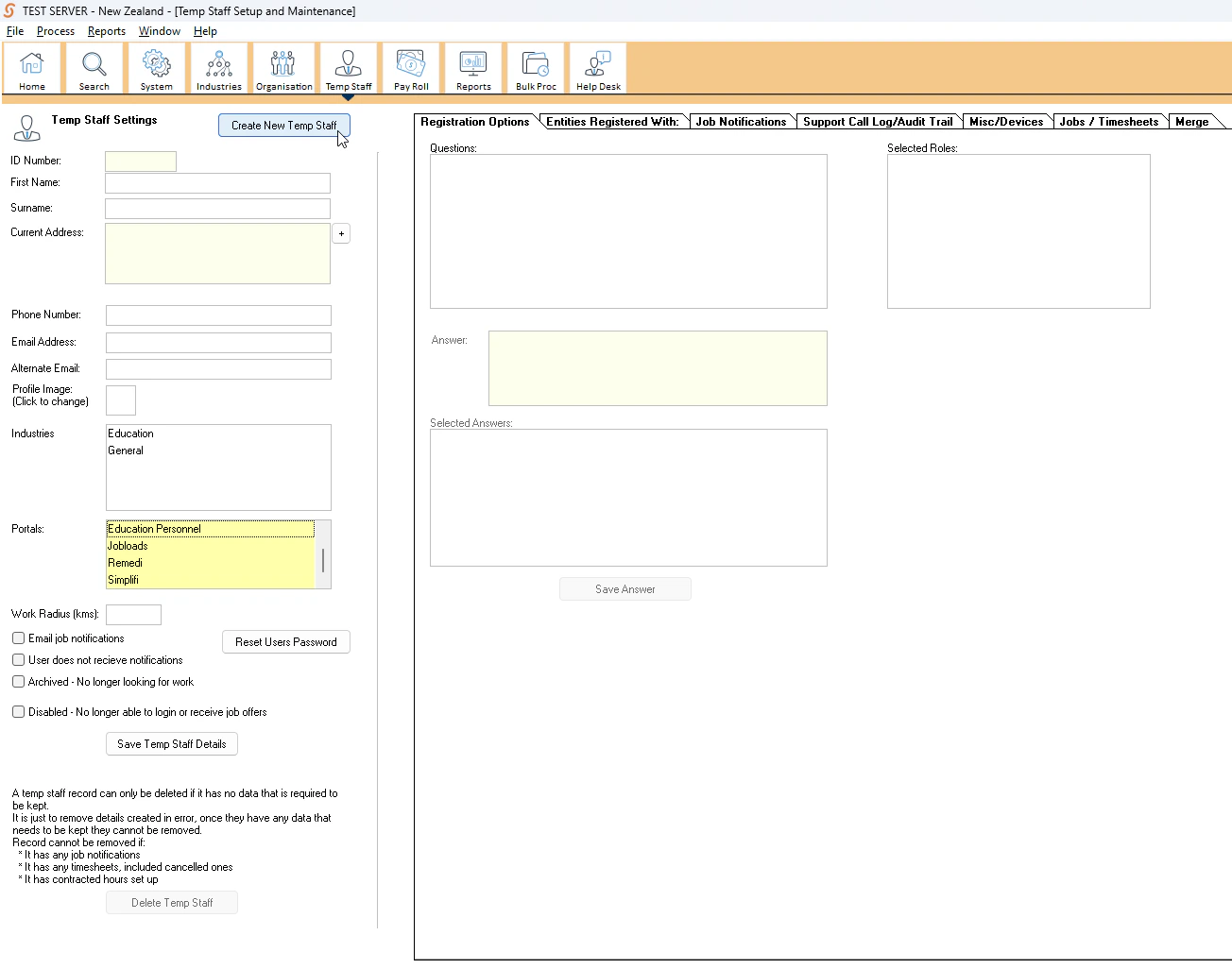
1. Press **Create New Temp Staff** in the top left.
2. Fill in their basic details such as their first name, surname etc. The ID number is auto-generated by the system. You do not need to enter one in.
3. Select what [Industry](/industies) the temp staff is from. You may select both.
4. Select what [Portal](/portals) the temp staff uses. You may select multiple.
5. Enter their preferred work radius. This is how far the temp staff is willing to travel for work.
6. Tick off the remaining check boxes as relevant.
**Press Save Temp Staff Details**
You have now created a new Temp Staff.