> ## Documentation Index
> Fetch the complete documentation index at: https://docs.simplifi.work/llms.txt
> Use this file to discover all available pages before exploring further.
# How to Create a New Shift
You can create shifts under settings to easily assign workers to specific times of the day.
### Creating a New Nightfill Shift (Example)
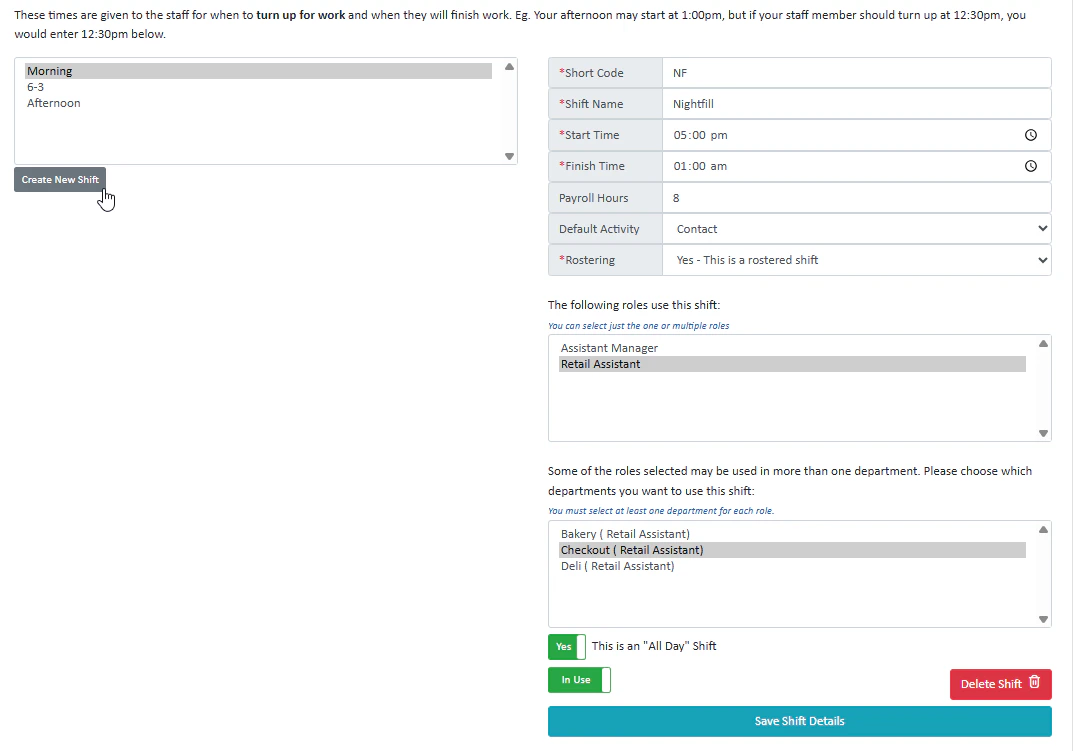 1. I will press **Create New Shift** to create a new shift.
2. Next I'm going to enter the details. The team will always know NF refers to nightfill, so I'm going to enter that as my short code.
3. I'm going to enter my start time and finish time, as well as the number of payroll hours, default activity and the rostering. It's a shift I want to be regularly rostered so I'm going to select **Yes**
4. I would like the retail assistant role to use this shift, so I will select that role and for the department; I would like it to be Checkouts, as I have not [set up ](/our-rostering-settings)the nightfill department yet.
5. This is an **All Day** shift, so I will select that toggle. An all day shift will be automatically generated by the system from the earliest starting shift time to the latest finishing shift time if you do not create one.
1. I will press **Create New Shift** to create a new shift.
2. Next I'm going to enter the details. The team will always know NF refers to nightfill, so I'm going to enter that as my short code.
3. I'm going to enter my start time and finish time, as well as the number of payroll hours, default activity and the rostering. It's a shift I want to be regularly rostered so I'm going to select **Yes**
4. I would like the retail assistant role to use this shift, so I will select that role and for the department; I would like it to be Checkouts, as I have not [set up ](/our-rostering-settings)the nightfill department yet.
5. This is an **All Day** shift, so I will select that toggle. An all day shift will be automatically generated by the system from the earliest starting shift time to the latest finishing shift time if you do not create one.
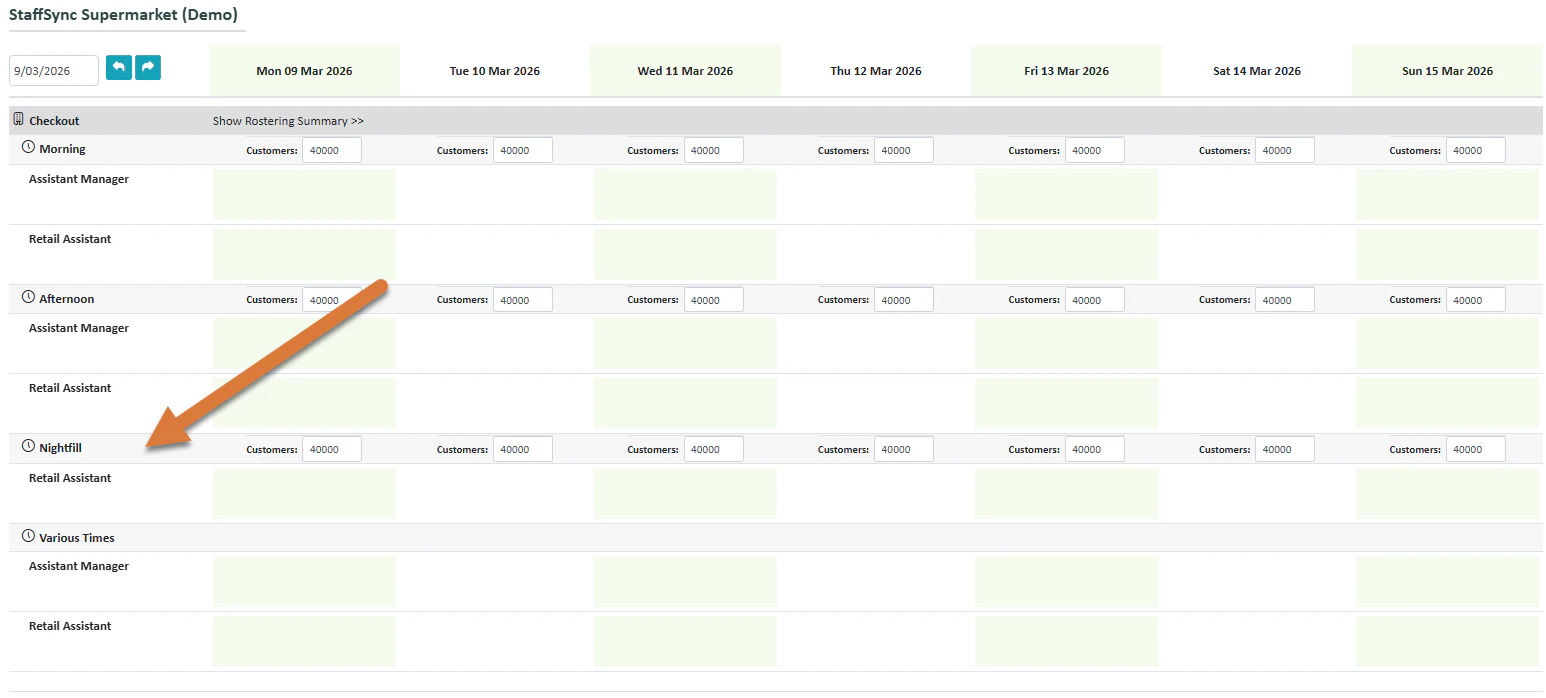 Now the shift appears in my roster.