> ## Documentation Index
> Fetch the complete documentation index at: https://docs.simplifi.work/llms.txt
> Use this file to discover all available pages before exploring further.
# How to Copy Contracted Hours to Other Days of the Week
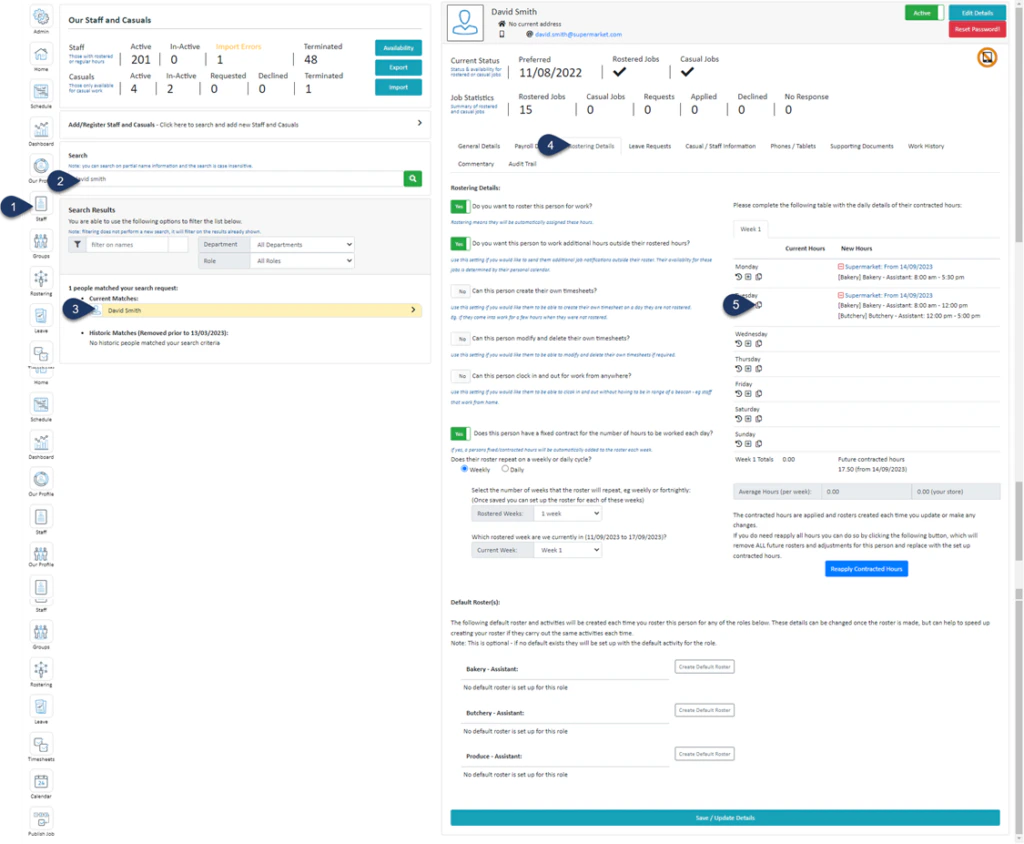 1. Select **Staff**
2. **Search** for the employee
3. Select the **Employee**
4. Select **Rostering Details**
5. Select the **Copy Icon** next to the day you wish to copy
1. Select **Staff**
2. **Search** for the employee
3. Select the **Employee**
4. Select **Rostering Details**
5. Select the **Copy Icon** next to the day you wish to copy
.webp?fit=max&auto=format&n=8dGiuzWk6SHdJxiF&q=85&s=bf34dd13aab7538c222915f319bf6fd9) 1. Select **Copy** next to the hours you wish to copy from that day
2. Choose the days you wish to copy these hours onto
3. Select **Copy Hours**
1. Select **Copy** next to the hours you wish to copy from that day
2. Choose the days you wish to copy these hours onto
3. Select **Copy Hours**
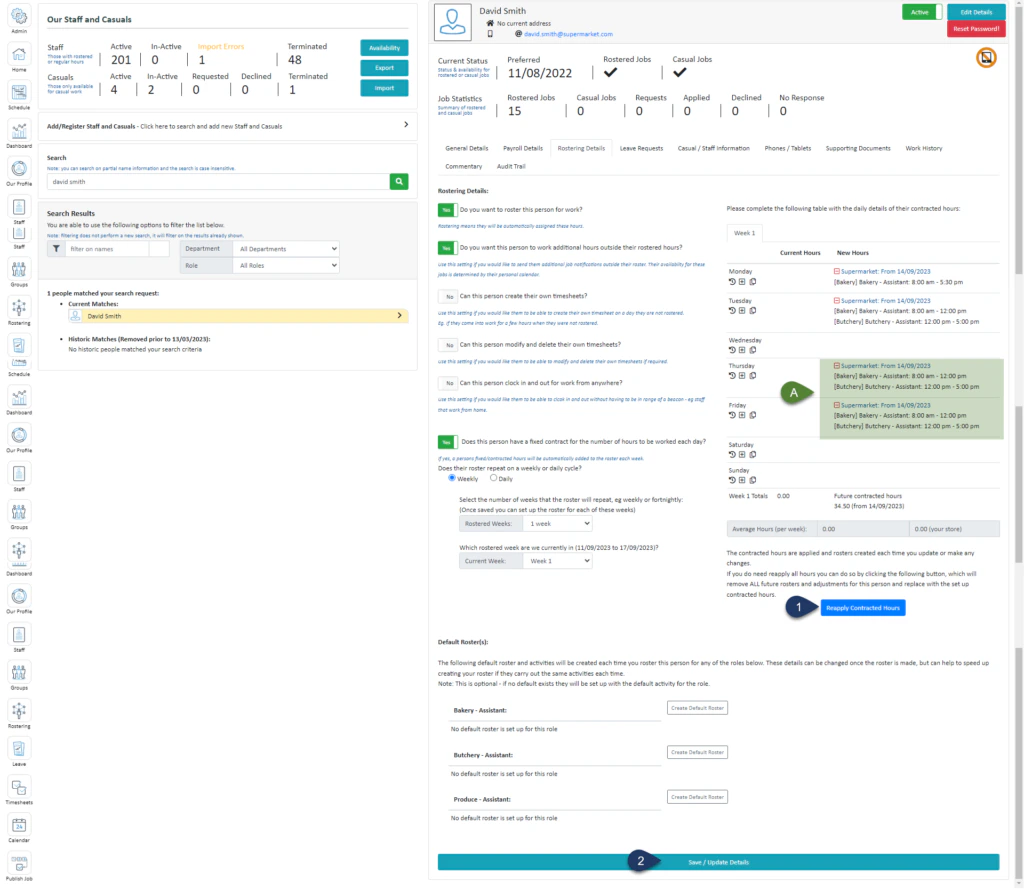 1. Select **Reapply Contracted Hours**
2. Select **Save/Update Details**
A. You will see the copied hours in the ‘New Hours’ section of the selected days
1. Select **Reapply Contracted Hours**
2. Select **Save/Update Details**
A. You will see the copied hours in the ‘New Hours’ section of the selected days