> ## Documentation Index
> Fetch the complete documentation index at: https://docs.simplifi.work/llms.txt
> Use this file to discover all available pages before exploring further.
# How to Change the Times of a Shift
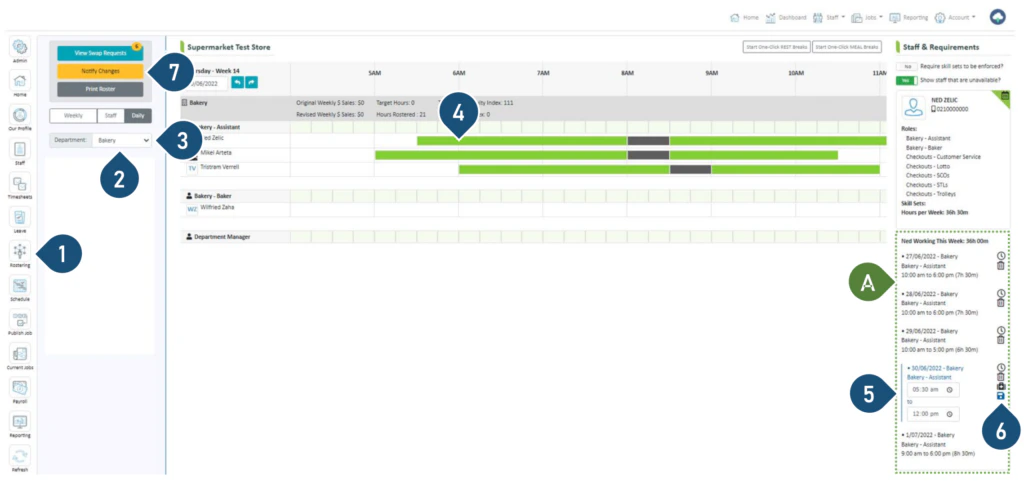 1. Select the **Rostering** button.
2. Select the Department.
3. Select the **Daily** view.
4. Click on the shift you wish to amend.
A – This section displays all the shifts for this staff member in the current week. The shift you have selected to amend will have a blue line next to it.
5. Enter the new start time and/or finish time.
6. Click on the save icon.
7. Click on **Notify Changes** – StaffSync will notify staff who have changes via push notifications on their phones.
1. Select the **Rostering** button.
2. Select the Department.
3. Select the **Daily** view.
4. Click on the shift you wish to amend.
A – This section displays all the shifts for this staff member in the current week. The shift you have selected to amend will have a blue line next to it.
5. Enter the new start time and/or finish time.
6. Click on the save icon.
7. Click on **Notify Changes** – StaffSync will notify staff who have changes via push notifications on their phones.