> ## Documentation Index
> Fetch the complete documentation index at: https://docs.simplifi.work/llms.txt
> Use this file to discover all available pages before exploring further.
# How to Change Contracted Hours
Example: This employee works Wednesdays from 8:00 am to 5:30 pm, but starting from the 1st of October 2023, will be working from 9:00 am to 6:30 pm.
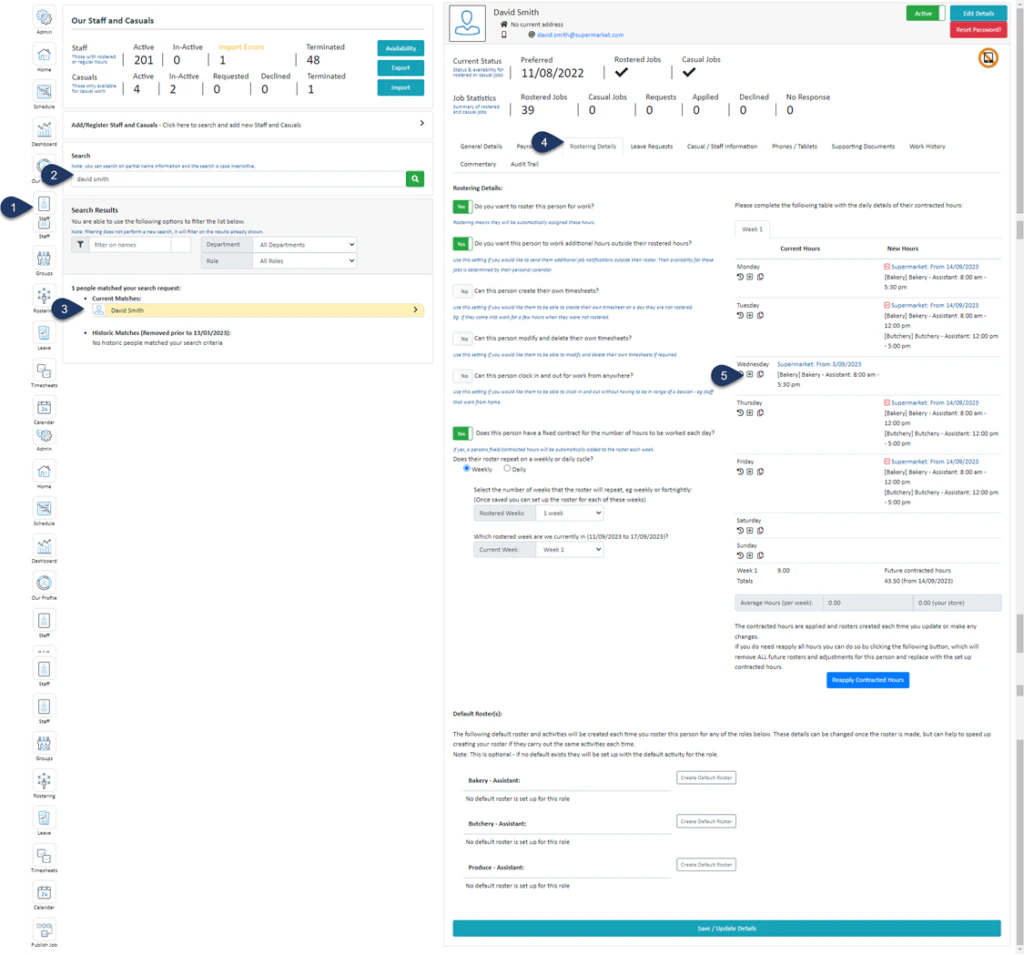 1. Select **Staff**
2. **Search** for the employee
3. Select the **Employee**
4. Select **Rostering Details**
5. Click the **+** button next to the day you wish to remove hours from
1. Select **Staff**
2. **Search** for the employee
3. Select the **Employee**
4. Select **Rostering Details**
5. Click the **+** button next to the day you wish to remove hours from
.png?fit=max&auto=format&n=RmEyLh9R-b4aEcE-&q=85&s=71adf4d636ea8d4c5c8de317b5c30d49) 1. Select the **date** you wish to remove these hours from
2. Make the changes to the contracted hours
3. Switch the toggle to **YES** to remove any previously created timesheets for this staff member and update any generated rosters
4. Select **Save Details**
1. Select the **date** you wish to remove these hours from
2. Make the changes to the contracted hours
3. Switch the toggle to **YES** to remove any previously created timesheets for this staff member and update any generated rosters
4. Select **Save Details**
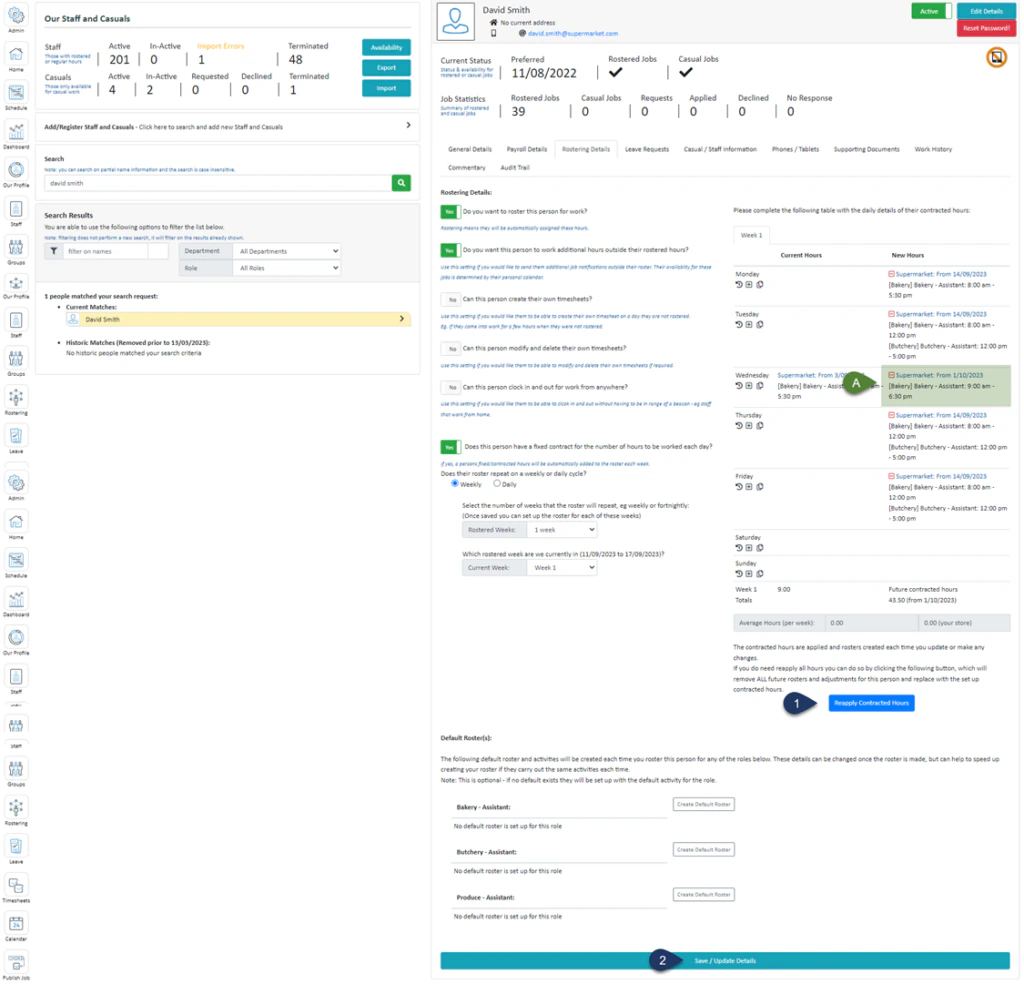 1. Select **Reapply Contracted Hours**
2. Select **Save / Update Details**
**A. Here you will see this employee’s ‘New Hours’ are 9:00 am – 6:00 pm from 01/10/2023**
1. Select **Reapply Contracted Hours**
2. Select **Save / Update Details**
**A. Here you will see this employee’s ‘New Hours’ are 9:00 am – 6:00 pm from 01/10/2023**