> ## Documentation Index
> Fetch the complete documentation index at: https://docs.simplifi.work/llms.txt
> Use this file to discover all available pages before exploring further.
# How to Assign a Staff Member/Casual to a Published Shift
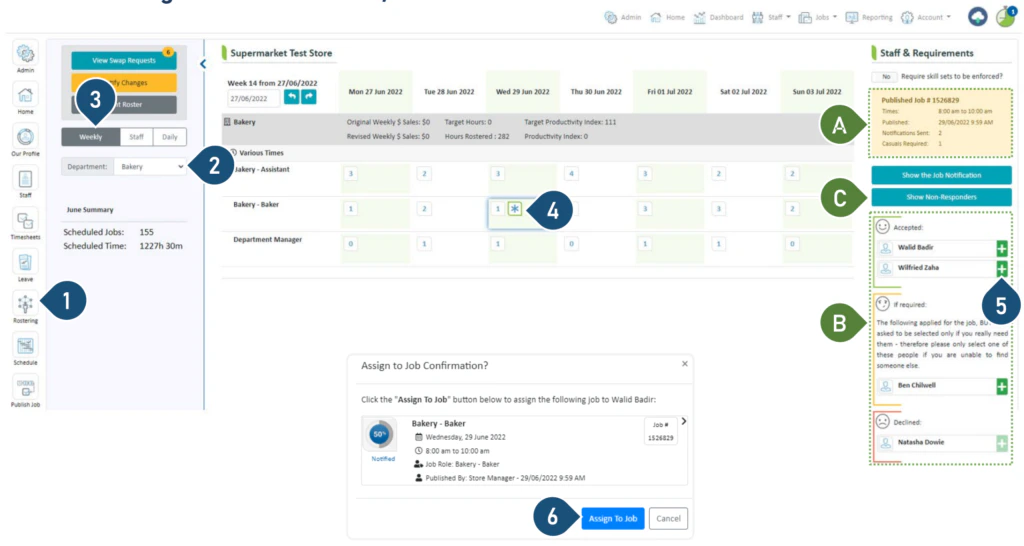 1. Select the **Rostering** button.
2. Select the Department.
3. Select the **Weekly** view.
4. You will see an asterisk where you have published a job – click on it.
1. Select the **Rostering** button.
2. Select the Department.
3. Select the **Weekly** view.
4. You will see an asterisk where you have published a job – click on it.
 Casual job published to find replacement for absent staff.
 Casual job published for additional staff.
A. A summary of the published job is displayed here.
B. The responses to your job are displayed here.
5. To assign casuals to the shift, click on the green +.
6. Click **Assign to Job**.
C. Click here to view the list of casuals who have not responded. You can assign a casual from this list, however, please ensure you have verbal confirmation from the casual before you do so.
Note: The asterisk will disappear once you have filled the job
Casual job published for additional staff.
A. A summary of the published job is displayed here.
B. The responses to your job are displayed here.
5. To assign casuals to the shift, click on the green +.
6. Click **Assign to Job**.
C. Click here to view the list of casuals who have not responded. You can assign a casual from this list, however, please ensure you have verbal confirmation from the casual before you do so.
Note: The asterisk will disappear once you have filled the job