> ## Documentation Index
> Fetch the complete documentation index at: https://docs.simplifi.work/llms.txt
> Use this file to discover all available pages before exploring further.
# How to Assign a Casual with Alternative Responses
Besides applying and declining a job, casuals can also apply with an alternative response. This means if you choose to assign them you will need to change the timesheets accordingly.\
\
Example: You have published a job for Monday – Friday but the casual has responded saying they can’t work Tuesday.\
You will need to assign the casual to the job, delete Tuesday's timesheet and then publish a separate job just for Tuesday to find another casual to fill that day.
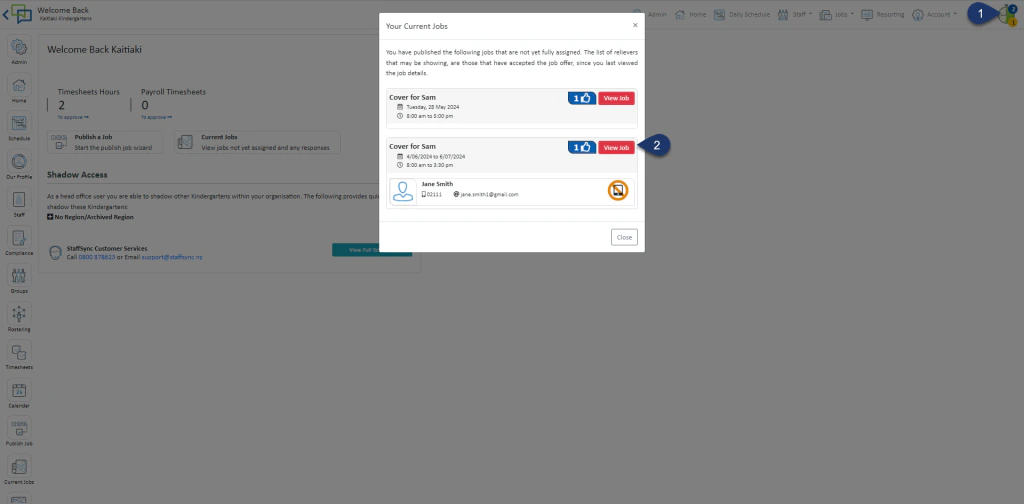 1. Click on the clock on the top right-hand side
2. Click View Job
1. Click on the clock on the top right-hand side
2. Click View Job
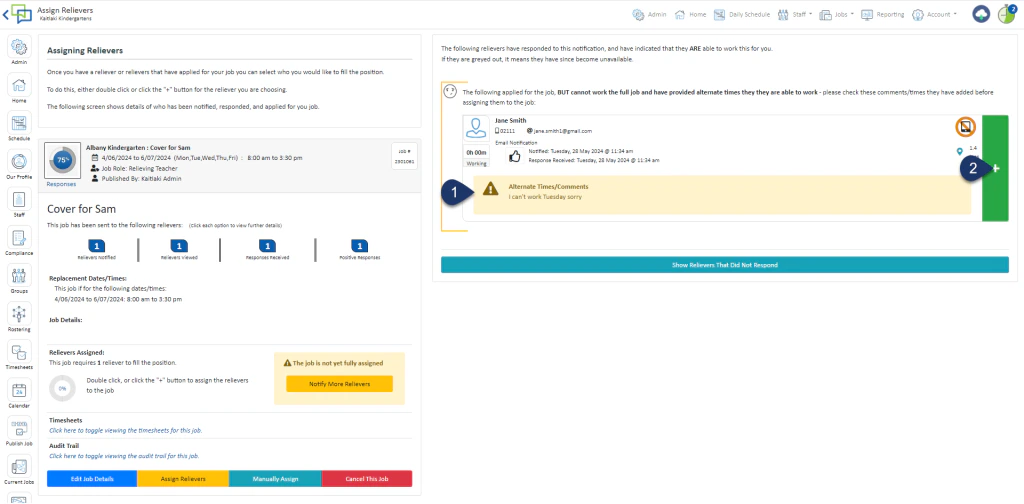 1. Read the alternative Response
2. Select the Green + to assign the reliever
1. Read the alternative Response
2. Select the Green + to assign the reliever
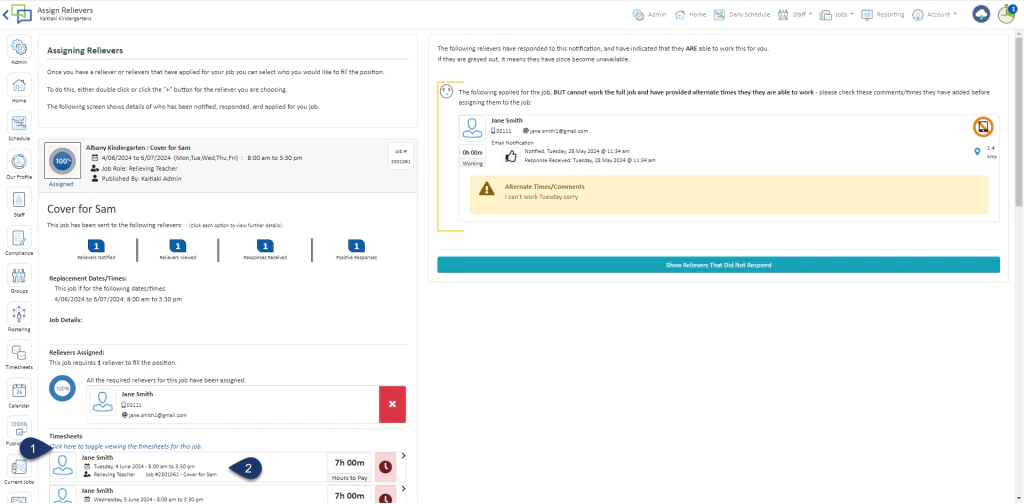 1. Expand the Timesheets to see all the timesheets for the job
2. Click on the timesheet you wish to amend or delete
1. Expand the Timesheets to see all the timesheets for the job
2. Click on the timesheet you wish to amend or delete
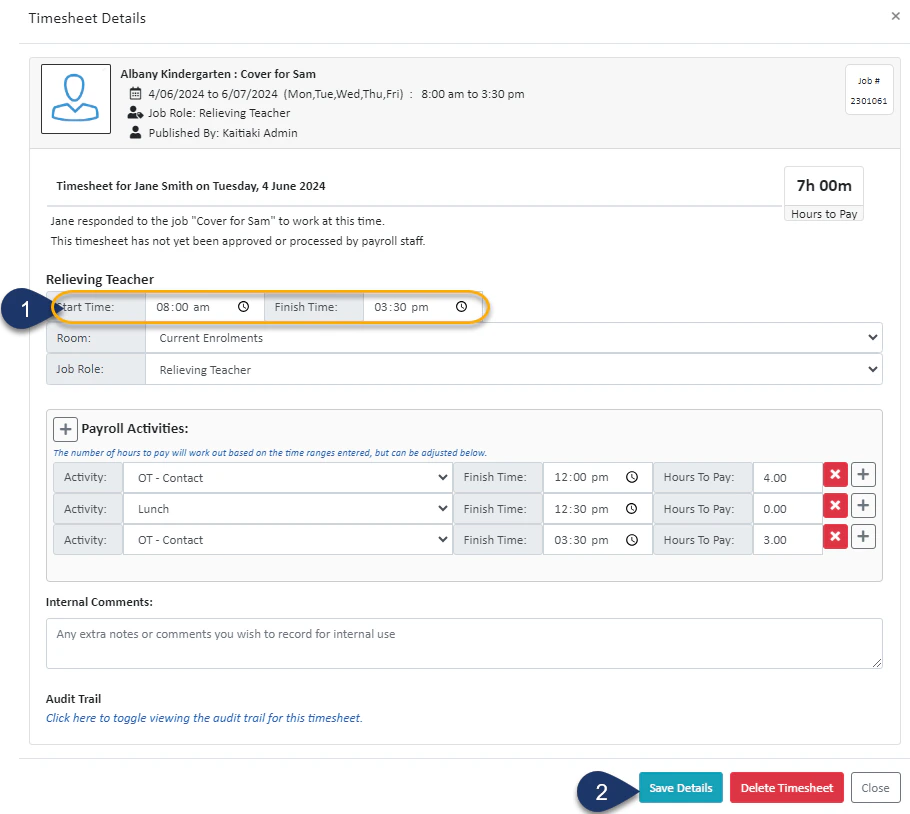 If the Casual requested to start or finish early
1. Alter the start and finish time
2. Select Save
If the Casual requested to start or finish early
1. Alter the start and finish time
2. Select Save
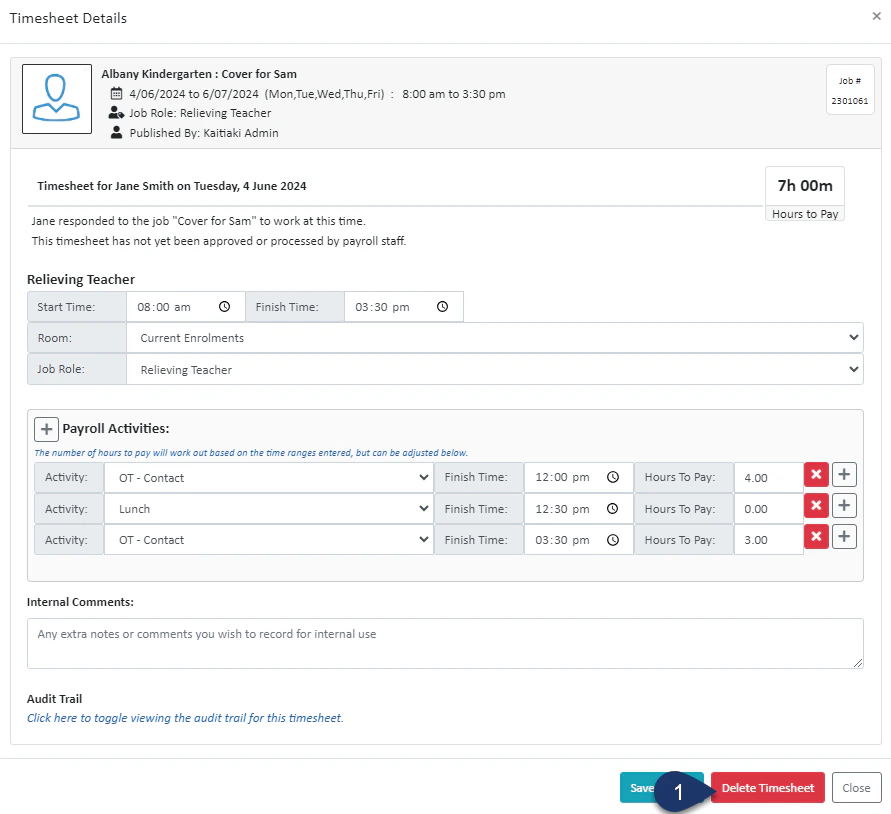 If the Casual requested to not work a certain day – like this example:
1. Select Delete Timesheet
If the Casual requested to not work a certain day – like this example:
1. Select Delete Timesheet
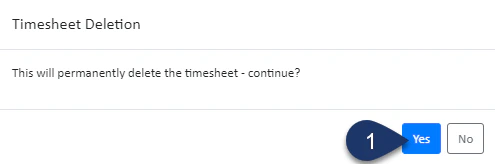 Select Yes to delete that timesheet