> ## Documentation Index
> Fetch the complete documentation index at: https://docs.simplifi.work/llms.txt
> Use this file to discover all available pages before exploring further.
# How to Approve a Timesheet
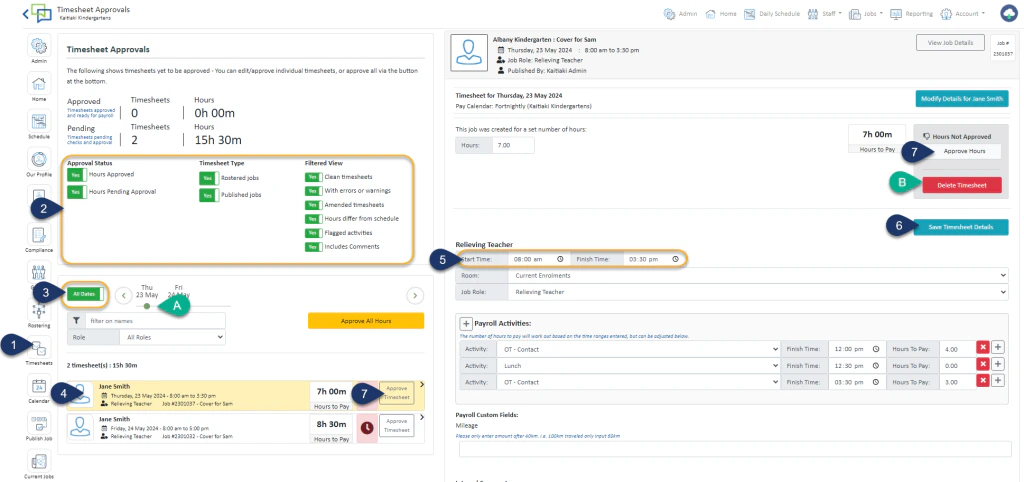 1. Select the Timesheet Module
2. Make sure all Filters are set to YES
3. Select ALL DATES\
***A – Or select the Date you wish to view***
4. Select the Timesheet
5. If you wish to change the time of the job you can change it by typing over the times\
***B – If this casual did not work this day, and you wish to delete the timesheet – select Delete Timesheet*. *Please only use this function for your casual relievers only and not for any permanent staff timesheets***
6. Select Save Timesheet Details
7. Select Approve Hours or Approve Timesheet\
\
Once you have clicked Approve Timesheet you can unapprove it by clicking on the same button. You are able to reverse and make changes until payroll have approved the timesheets.
1. Select the Timesheet Module
2. Make sure all Filters are set to YES
3. Select ALL DATES\
***A – Or select the Date you wish to view***
4. Select the Timesheet
5. If you wish to change the time of the job you can change it by typing over the times\
***B – If this casual did not work this day, and you wish to delete the timesheet – select Delete Timesheet*. *Please only use this function for your casual relievers only and not for any permanent staff timesheets***
6. Select Save Timesheet Details
7. Select Approve Hours or Approve Timesheet\
\
Once you have clicked Approve Timesheet you can unapprove it by clicking on the same button. You are able to reverse and make changes until payroll have approved the timesheets.