> ## Documentation Index
> Fetch the complete documentation index at: https://docs.simplifi.work/llms.txt
> Use this file to discover all available pages before exploring further.
# How to Add, Move, Remove or Extend a Rest Break
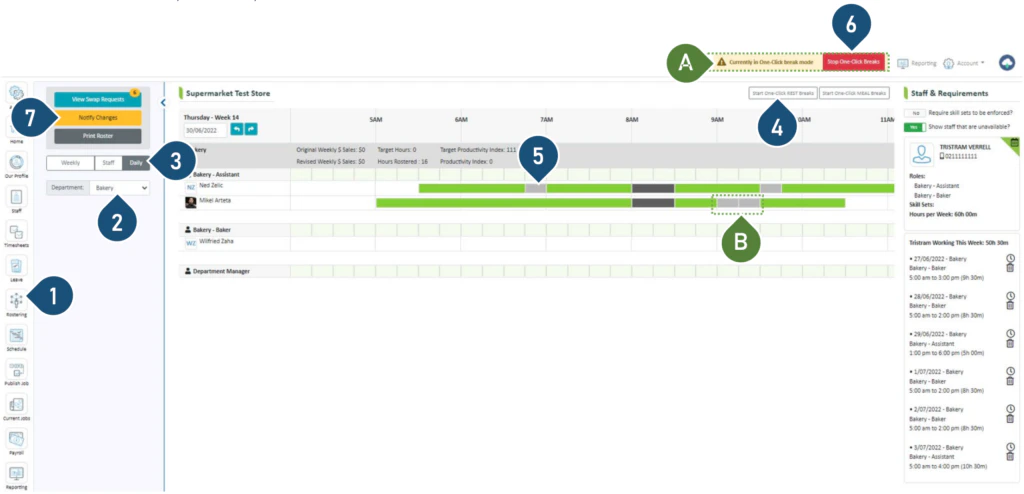 1. Select the **Rostering** button.
2. Select the Department.
3. Select the **Daily** view.
4. Select **Start One-Click Rest Breaks**.
5. To add or move a rest break, click on the shift bar where you wish to insert the break or move it to.
6. To remove a rest break, click on the break on the shift bar.
A. Once you have selected the option to start the one-click breaks, this bar will appear.
B. You can choose to add two rest breaks next to each other if the staff member wants to combine the break.
7. Once the break has been inserted or removed, click on **Stop One-Click Breaks**.
8. Click **Notify Changes** to send a notification to the staff member with roster changes.
Note: When extending the rest break, the shift finish time will also be extended
1. Select the **Rostering** button.
2. Select the Department.
3. Select the **Daily** view.
4. Select **Start One-Click Rest Breaks**.
5. To add or move a rest break, click on the shift bar where you wish to insert the break or move it to.
6. To remove a rest break, click on the break on the shift bar.
A. Once you have selected the option to start the one-click breaks, this bar will appear.
B. You can choose to add two rest breaks next to each other if the staff member wants to combine the break.
7. Once the break has been inserted or removed, click on **Stop One-Click Breaks**.
8. Click **Notify Changes** to send a notification to the staff member with roster changes.
Note: When extending the rest break, the shift finish time will also be extended