> ## Documentation Index
> Fetch the complete documentation index at: https://docs.simplifi.work/llms.txt
> Use this file to discover all available pages before exploring further.
# How to Add, Move, Remove or Extend a Meal Break
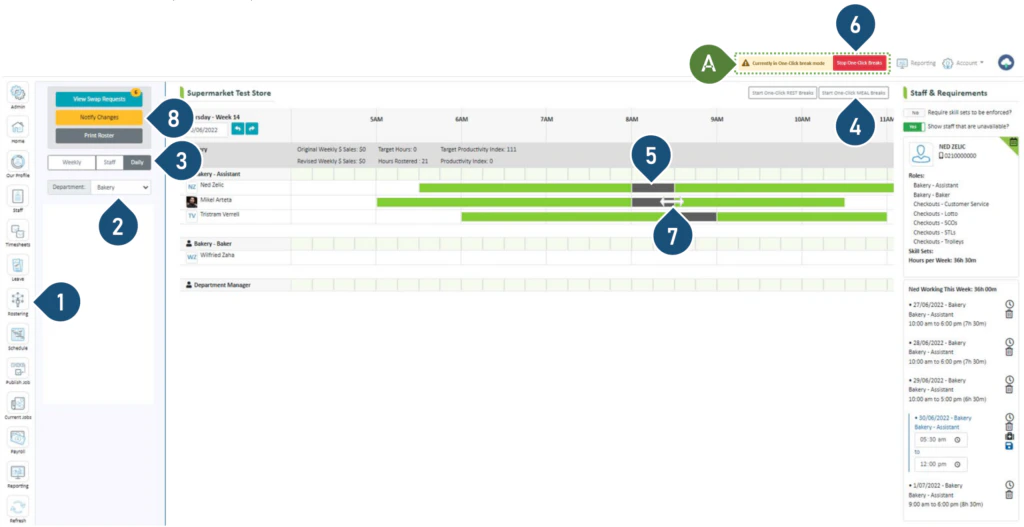 1. Select the **Rostering** button.
2. Select the Department.
3. Select the **Daily** view.
4. Select **Start One-Click Meal Breaks**.
A. Once you have selected the option to start the one-click breaks, this bar will now appear.
5. To add or move a meal break, click on the shift bar where you wish to insert the break or move it to.
6. To remove a meal break, click on the break on the shift bar.
7. Once the break has been inserted or removed, click on **Stop One-Click Breaks**.
8. To extend the meal break (e.g. from 30 mins to 1 hour), hover the mouse over the end of the break and drag it to the new finish time.
9. Click **Notify Changes** to send a notification to the staff member with roster changes.
Note: When extending the meal break, the shift finish time will also be extended
1. Select the **Rostering** button.
2. Select the Department.
3. Select the **Daily** view.
4. Select **Start One-Click Meal Breaks**.
A. Once you have selected the option to start the one-click breaks, this bar will now appear.
5. To add or move a meal break, click on the shift bar where you wish to insert the break or move it to.
6. To remove a meal break, click on the break on the shift bar.
7. Once the break has been inserted or removed, click on **Stop One-Click Breaks**.
8. To extend the meal break (e.g. from 30 mins to 1 hour), hover the mouse over the end of the break and drag it to the new finish time.
9. Click **Notify Changes** to send a notification to the staff member with roster changes.
Note: When extending the meal break, the shift finish time will also be extended