> ## Documentation Index
> Fetch the complete documentation index at: https://docs.simplifi.work/llms.txt
> Use this file to discover all available pages before exploring further.
# How to Add an Unpaid Break into Contracted Hours
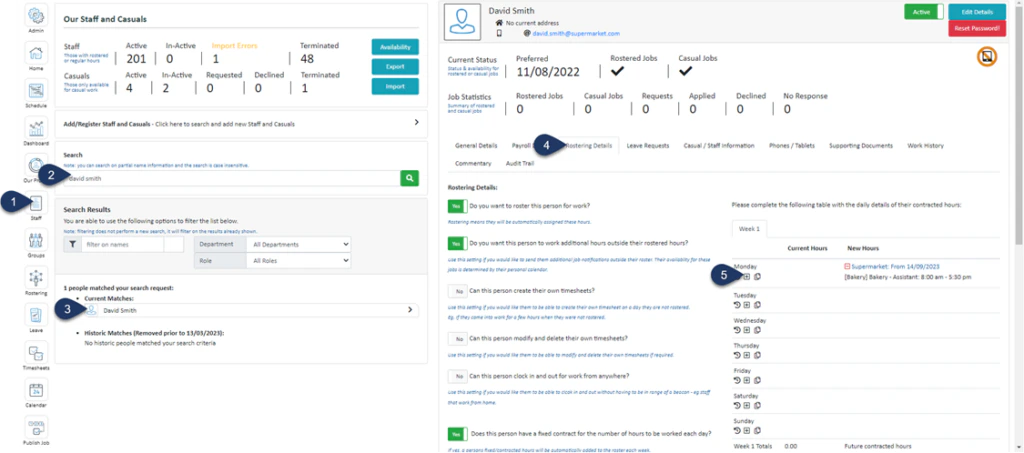 1. Select **Staff**
2. **Search** for the employee name
3. Select the **Employee**
4. Select **Rostering Details**
5. Click on the **+** Button – Make sure the contracted hours have already been added to this day first. You can only add Payroll Activities after the contracted hours have been added.
1. Select **Staff**
2. **Search** for the employee name
3. Select the **Employee**
4. Select **Rostering Details**
5. Click on the **+** Button – Make sure the contracted hours have already been added to this day first. You can only add Payroll Activities after the contracted hours have been added.
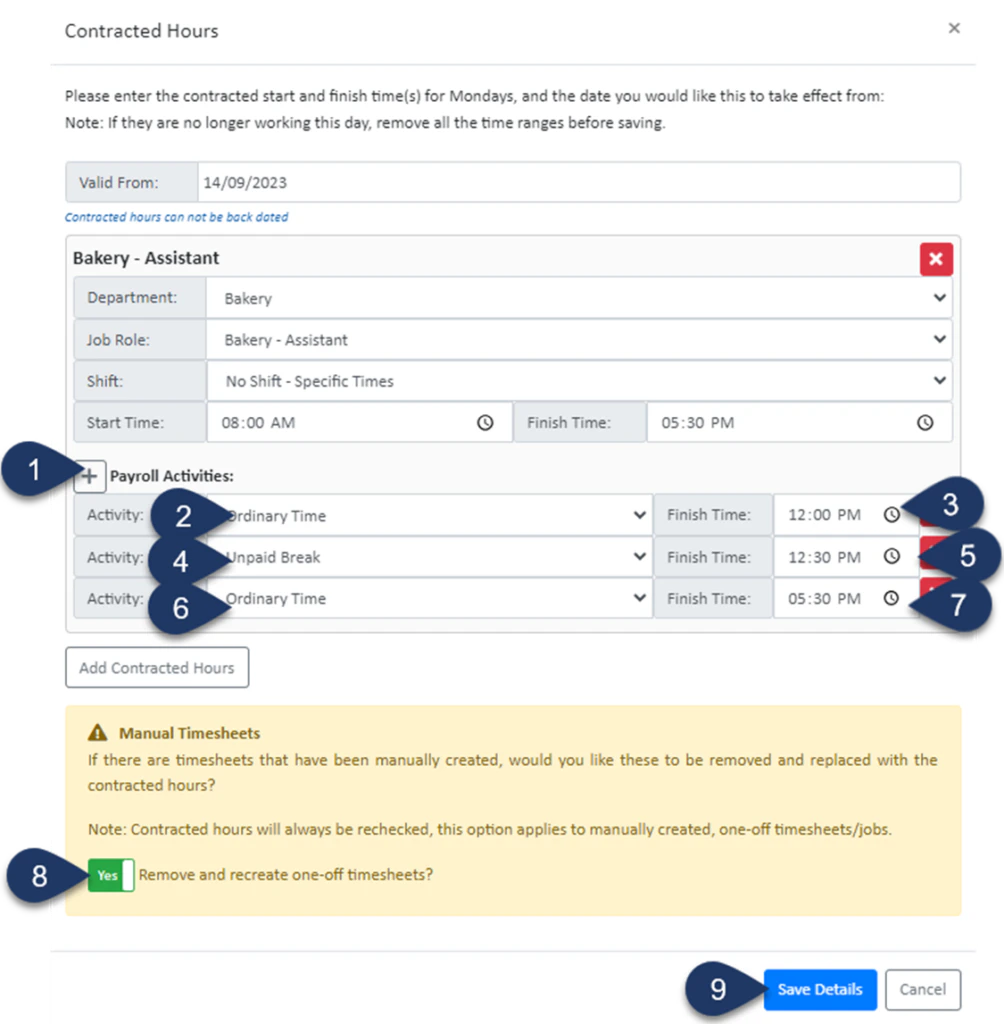 1. Click the **+** button in front of Payroll Activities **Three Times** – (In this example the button was clicked 3 times to add three activities)\
Please note this button won't appear if the contracted hours weren’t already set and saved
2. Set the **Activity** to Ordinary Time
3. Enter the **End time** of this Activity i.e. Start of Unpaid Break
4. Set the next **Activity** to Unpaid Break
5. Enter the **End time** of this Activity i.e. End of Unpaid Break
6. Set the next **Activity** to Ordinary Time
7. Enter the **End time of** this Activity i.e. Finish time of the shift
8. Switch the toggle to **‘YES**‘ to remove any previously created timesheets for this staff member and update any generated rosters
9. Select **Save Details**
1. Click the **+** button in front of Payroll Activities **Three Times** – (In this example the button was clicked 3 times to add three activities)\
Please note this button won't appear if the contracted hours weren’t already set and saved
2. Set the **Activity** to Ordinary Time
3. Enter the **End time** of this Activity i.e. Start of Unpaid Break
4. Set the next **Activity** to Unpaid Break
5. Enter the **End time** of this Activity i.e. End of Unpaid Break
6. Set the next **Activity** to Ordinary Time
7. Enter the **End time of** this Activity i.e. Finish time of the shift
8. Switch the toggle to **‘YES**‘ to remove any previously created timesheets for this staff member and update any generated rosters
9. Select **Save Details**
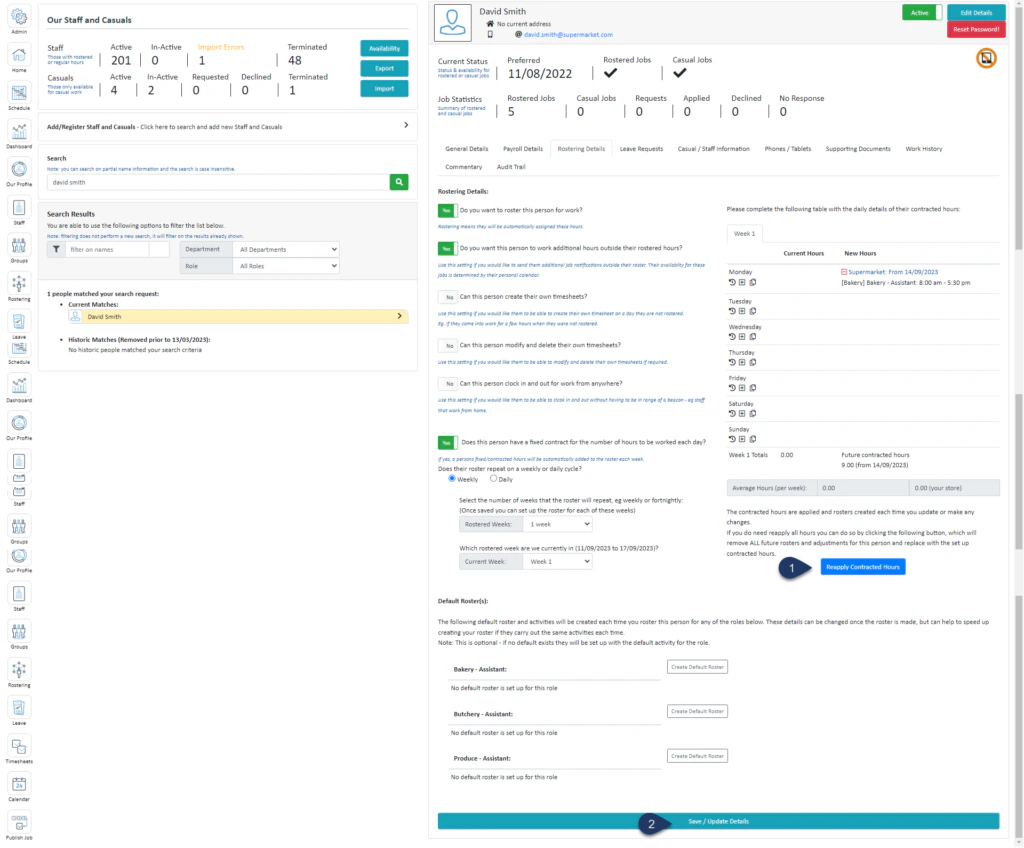 1. Click **Reapply Contracted Hours**
2. Select **Save/Update Details**
1. Click **Reapply Contracted Hours**
2. Select **Save/Update Details**