> ## Documentation Index
> Fetch the complete documentation index at: https://docs.simplifi.work/llms.txt
> Use this file to discover all available pages before exploring further.
# How to Add a Staff Member to the Roster
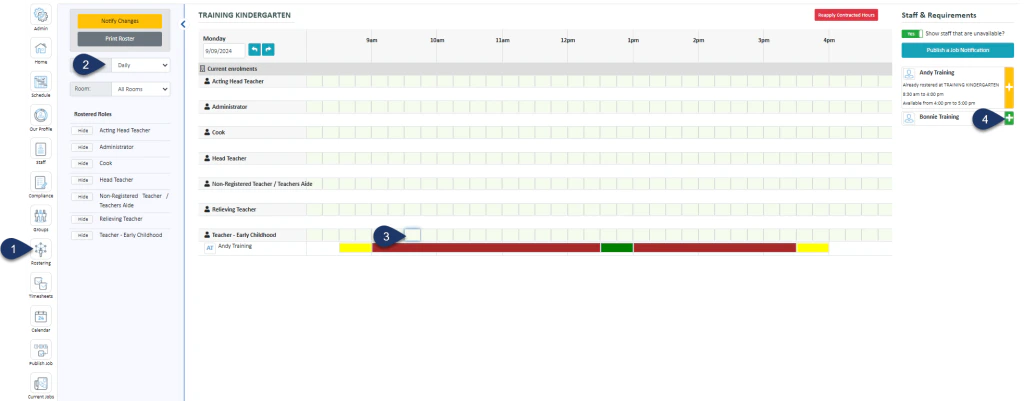 1. Select Rostering
2. Select the Daily View
3. Choose the Start timeslot next to the role you wish to add
4. Select the green plus next to the person you wish to add
1. Select Rostering
2. Select the Daily View
3. Choose the Start timeslot next to the role you wish to add
4. Select the green plus next to the person you wish to add
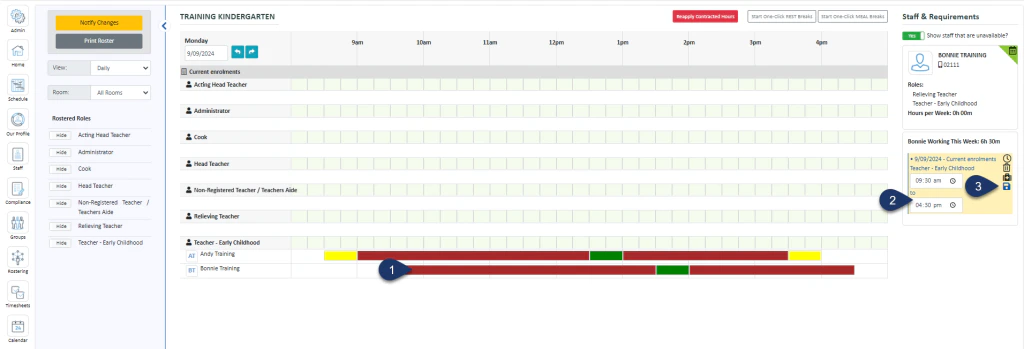 The shift is added from the start time you selected but to the end of the day
1. Select the shift
2. Enter the end time here
3. Select Save
The shift is added with the default activity set for the role, with a lunch break if entitled. You may wish to add or change these timesheet activities. To do so:
The shift is added from the start time you selected but to the end of the day
1. Select the shift
2. Enter the end time here
3. Select Save
The shift is added with the default activity set for the role, with a lunch break if entitled. You may wish to add or change these timesheet activities. To do so:
.png?fit=max&auto=format&n=4GvtktmXsfwAQJ1g&q=85&s=a7d032e5ef03142ffa7638f44a70dc81) 1. Select the shift bar
2. Select the clock icon to bring up the timesheet
1. Select the shift bar
2. Select the clock icon to bring up the timesheet
.png?fit=max&auto=format&n=4GvtktmXsfwAQJ1g&q=85&s=a6625870d0b231a49a162cd55b5a6d9c) 1. Click this + button to add an activity to the top of the list
2. Select one of these + buttons to add an activity directly below
3. Choose from the list of activities
4. Enter the finish time of this activity
5. If you wish to notify the staff member of the change, switch this toggle to a yes
6. Select Save Details.
1. Click this + button to add an activity to the top of the list
2. Select one of these + buttons to add an activity directly below
3. Choose from the list of activities
4. Enter the finish time of this activity
5. If you wish to notify the staff member of the change, switch this toggle to a yes
6. Select Save Details.