> ## Documentation Index
> Fetch the complete documentation index at: https://docs.simplifi.work/llms.txt
> Use this file to discover all available pages before exploring further.
# How to Add a New Admin User
You can either add an entirely new admin user to your organisation, or you can promote an existing staff member to a user.
### To promote a staff member to an admin user:
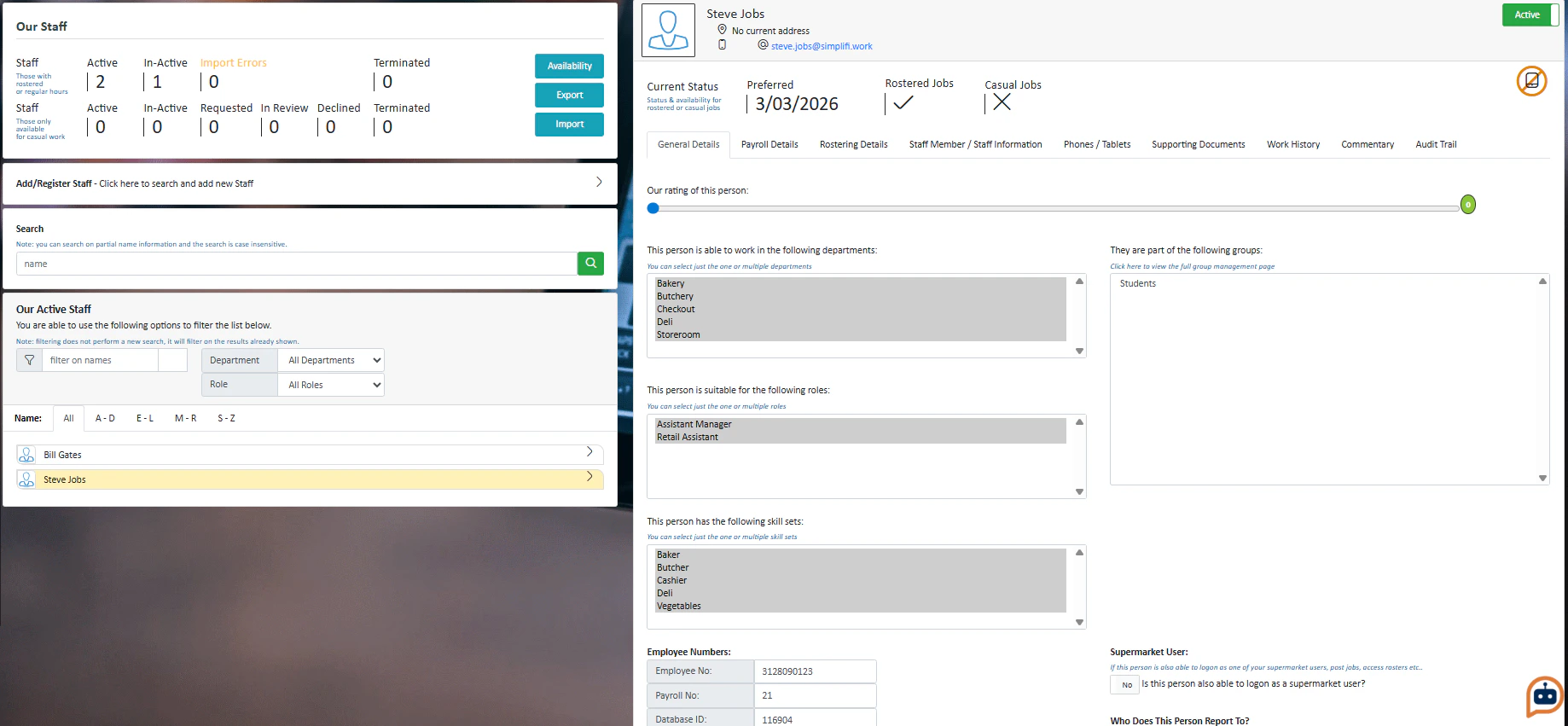 1. Find the staff member on the **Our Staff** module. Press on their name
 2. Press the User toggle to **Yes**
Depending on the type of your organisation, this toggle will look slightly different. For example, because when taking this screenshot we are logged into a supermarket demo account, it shows as a supermarket user; if we were logged in as a retirement village, it would say "Village User"
3. Press **Save Details.** You will get a pop-up reminding you that you have allowed this staff member to log on as an admin user for the organisation. Press **Yes**
2. Press the User toggle to **Yes**
Depending on the type of your organisation, this toggle will look slightly different. For example, because when taking this screenshot we are logged into a supermarket demo account, it shows as a supermarket user; if we were logged in as a retirement village, it would say "Village User"
3. Press **Save Details.** You will get a pop-up reminding you that you have allowed this staff member to log on as an admin user for the organisation. Press **Yes**
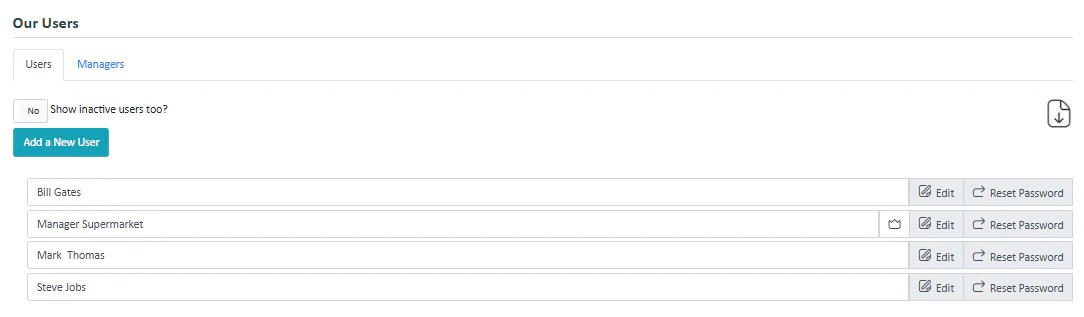 The staff member is now a user.
### To Create a New User from Scratch:
The staff member is now a user.
### To Create a New User from Scratch:
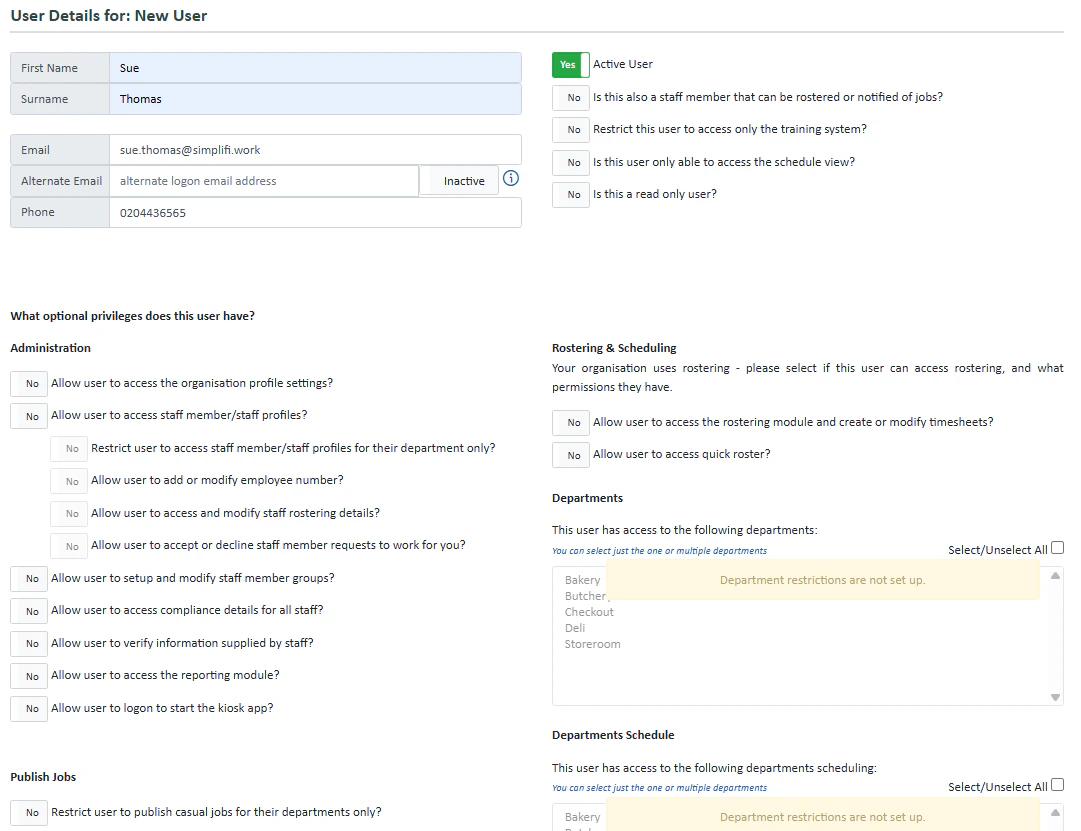 1. Press **Add a New User** from the **Our Users** page
2. Enter their details including their name, email and phone number.
3. You can tick the relevant boxes that apply to this staff member. Most of these toggles apply to letting the user access certain modules or modify certain attributes
4. If you have department and role restrictions set up (contact us if you'd like to set this up) then select what departments and roles the user can access.
5. To save the user, press **Save Users Details** at the bottom.
1. Press **Add a New User** from the **Our Users** page
2. Enter their details including their name, email and phone number.
3. You can tick the relevant boxes that apply to this staff member. Most of these toggles apply to letting the user access certain modules or modify certain attributes
4. If you have department and role restrictions set up (contact us if you'd like to set this up) then select what departments and roles the user can access.
5. To save the user, press **Save Users Details** at the bottom.