> ## Documentation Index
> Fetch the complete documentation index at: https://docs.simplifi.work/llms.txt
> Use this file to discover all available pages before exploring further.
# Clocking In and Out Using Your Phone
There are multiple ways to clock in and out of your shifts. One option is using your phone, which will require you to grant additional permissions to the Simplifi Work App. If you prefer not to use your phone for clocking in and out, you can use the KIOSK to clock in and out for your shift. However, you can still use your phone for other functionalities within the Simplifi Work app.
In order to clock in and out using your phone, you will need to be near a Simplifi Beacon. Your manager will tell you where these beacons are located.
 You’ll see the clocking in/out options only if:
* Your phone’s Bluetooth is turned on.
* You’ve given the Simplifi Work app permission to access your location.\
(Note: The App doesn’t track your location, but the app needs location access to check if you’re near a beacon.)
* You’re within 2 metres of a beacon.
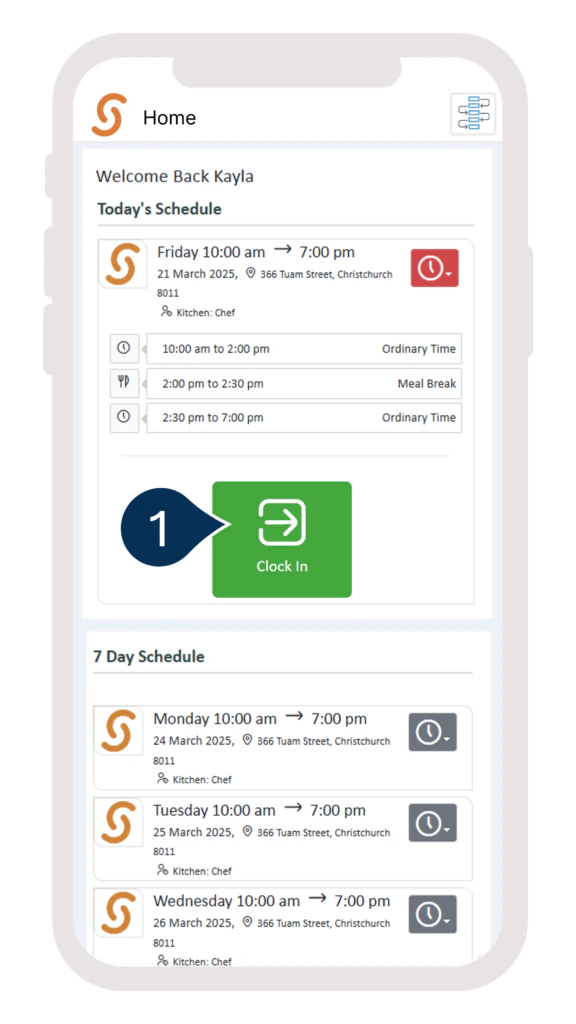
If you’re rostered to work today, your shift details will show on the home screen.
1. When you’re ready to start, click **Clock In**.
You’ll see the clocking in/out options only if:
* Your phone’s Bluetooth is turned on.
* You’ve given the Simplifi Work app permission to access your location.\
(Note: The App doesn’t track your location, but the app needs location access to check if you’re near a beacon.)
* You’re within 2 metres of a beacon.
If you’re rostered to work today, your shift details will show on the home screen.
1. When you’re ready to start, click **Clock In**.
 Once you’ve clocked in, the option to clock out will appear.
2. After clocking in, you’ll also see options to start a break or clock out.
Once you’ve clocked in, the option to clock out will appear.
2. After clocking in, you’ll also see options to start a break or clock out.
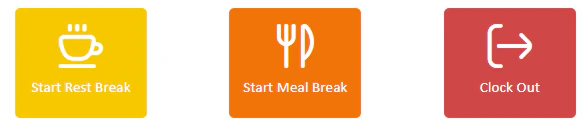 **NOTE: The options to start a paid or unpaid break will only appear if your organisation requires you to clock out for these breaks.**
Click **Clock Out** when you finish your shift.
**NOTE: The options to start a paid or unpaid break will only appear if your organisation requires you to clock out for these breaks.**
Click **Clock Out** when you finish your shift.